
Can I create and delete Compliance Suite users myself?
Yes. To add a new Compliance Suite user, simply grant him or her a Dynamics license and then assign him or her a Compliance Suite Dynamics role. Once you have granted the user the license, it can take up to an hour (sometimes longer, but usually shorter) before the user appears on the user list in Dynamics.
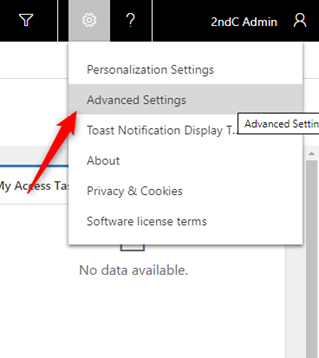
Then log in to the Compliance Suite and click on Advanced Settings.
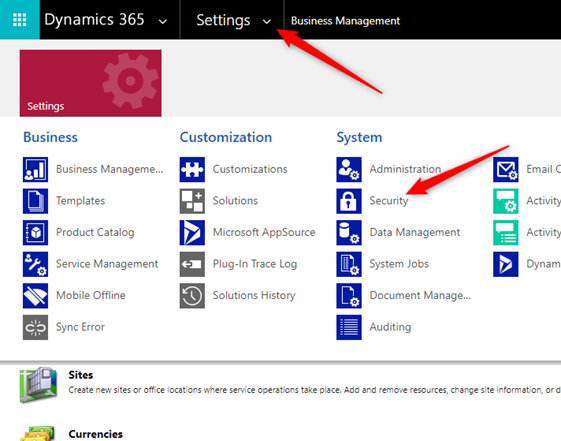
Then press "Settings" and select "Security" under "System".
Then press "Users" and select the user you want to grant access to Compliance Suite. On the user, press "Manage Roles" in the menu bar at the top.

Here you select the role that is relevant for the new user:
| Role | Description |
|---|---|
CCS Self Service |
Can create and view own persons, approve and implement. |
CCS HR |
Can see all persons, create new ones and order accesses. |
CCS HR Modify |
Same features as Compliance Suite HR as well as the ability to correct selected organizational entities. |
CCS GDPR |
Can view the GDPR dashboard and correct GDPR entities. |
CCS ServiceDesk |
Can edit all people, edit all accesses and read everything. |
CCS Administrator |
Can edit everything, but can not delete persons directly. |
CCS Auditor |
Can view all. |
You can read more about the different user roles right here.
To remove a user’s access to Compliance Suite, simply remove that role. You do not need to remove both the role and the Dynamics license. If just one of these is removed, the user will lose access to Compliance Suite.
It is important to note that the user requires a license or special rights in Office 365 to appear in the list of users in Dynamics. If the user’s license is removed or he loses his rights, however, the user is not removed from the list. Users remain on the list to maintain an audit trail of what users have done in Dynamics.