
FrontDesk UI
Based on the configurations in FrontDesk in Compliance Suite and the roles you own, the functions you can use in FrontDesk can vary.
When logging in to FrontDesk, you first see the FrontDesk Dashboard.
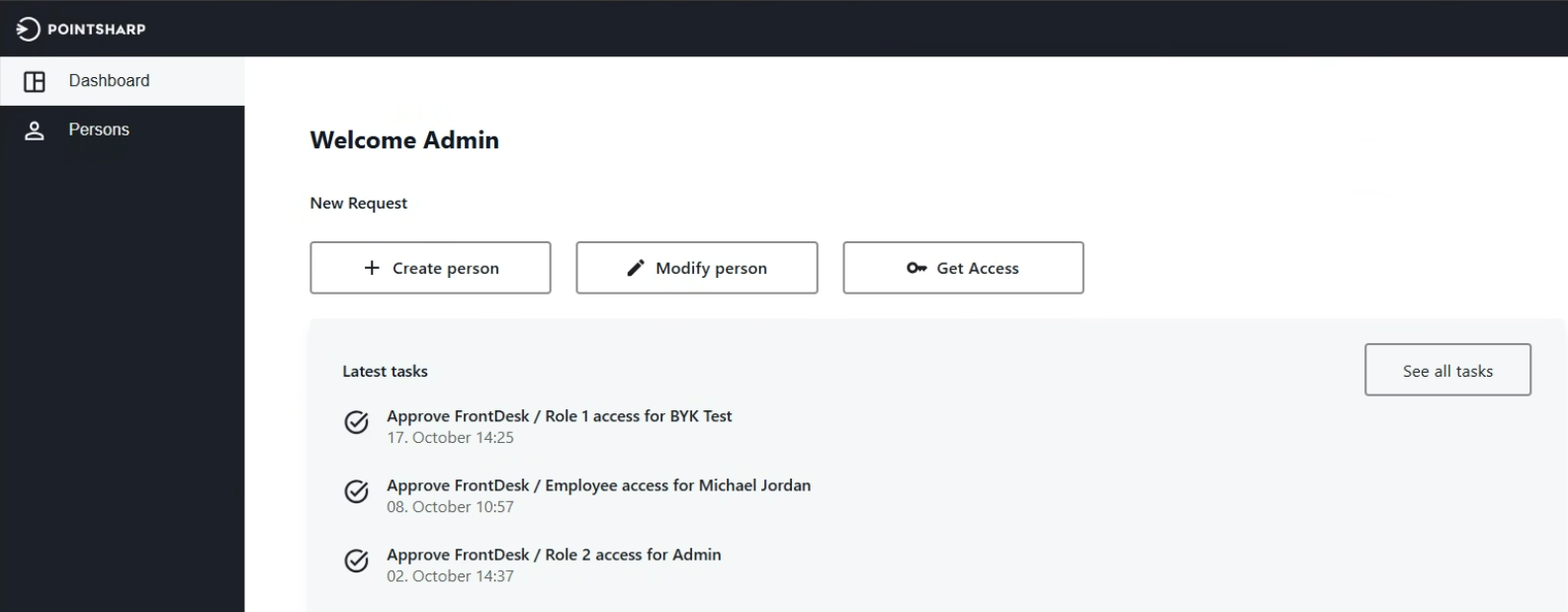
From here, you can:
| Tab | Function | Description | ||||
|---|---|---|---|---|---|---|
Dashboard |
This is the start page of the FrontDesk app. Here, you can see a list of your latest tasks and, if you have the correct permissions, you can perform the following functions: |
|||||
Create person |
This opens the view Create person, showing all process definitions you are allowed to use. 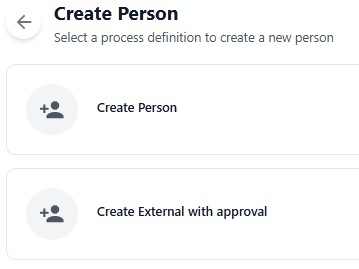
In every process definition, you can find the information of the different pages that are created for the respective Process Definition Step. This gives you an overview of what information you have to provide to create a person. |
|||||
Modify person |
This opens the view Update Person, showing all processes that you are allowed to perform. 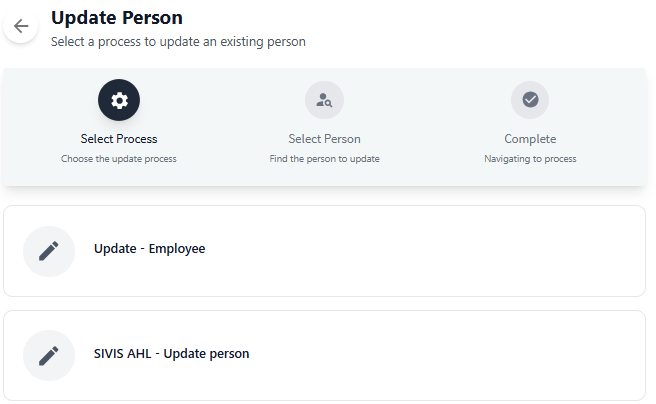
At the top you see an overview of the steps you have to complete to modify a person.
|
|||||
Get Access |
This opens the view Get Access. Here, you can request to have a role assigned to yourself. To have the roles listed that you could assign, you have to navigate through:
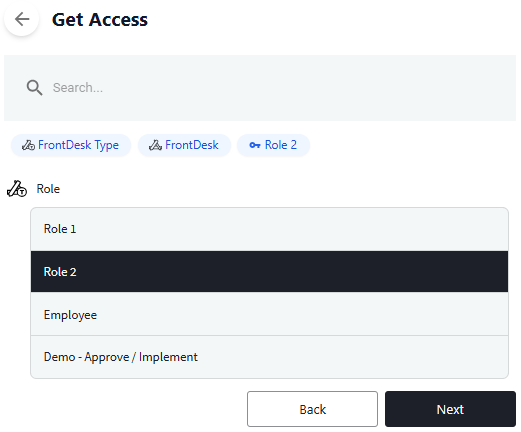
Submitting this request will create a task that needs to be approved.
|
|||||
Latest tasks / See al tasks |
By default, the task pane always shows the latest tasks for you. Depending on the type of task, you can:
|
|||||
Persons |
Here, you can see a list of all persons you are managing. In this list, you can find the information about the date when a person was activated or deactivated. 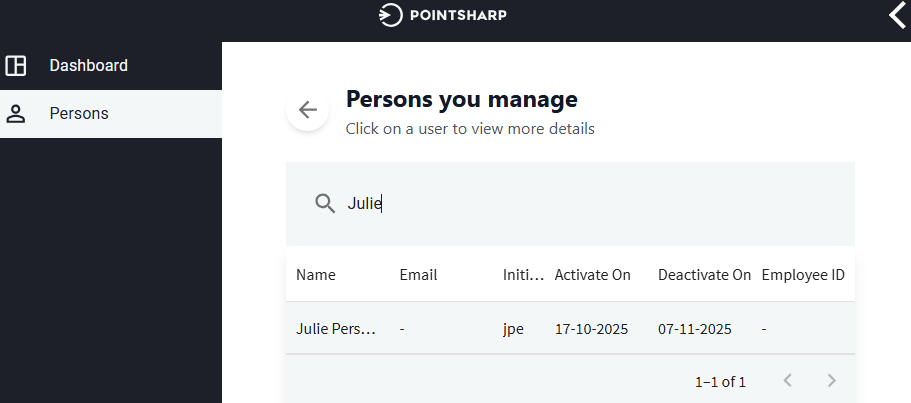
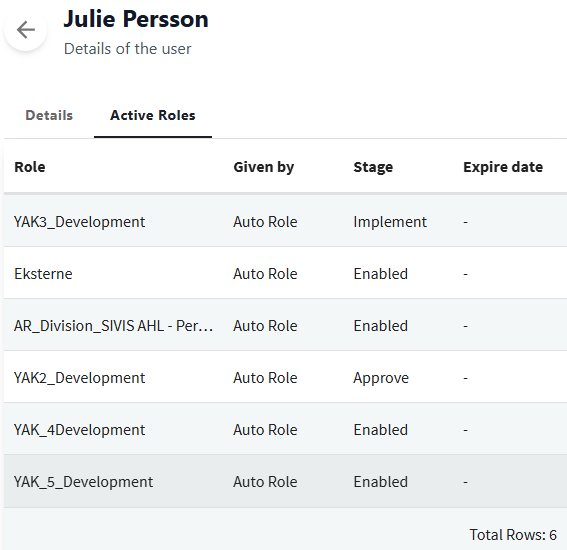
By clicking on an entry, you can find the following information:
|