
SSL certificate installation
If the Cryptshare Server uses a self-signed certificate or a certificate signed by a certificate authority which is not trusted by the Robot’s Java Runtime, you will not be able to establish a secure connection to the server. The Cryptshare Robot will thereby not be able to function properly.
If you receive SSL connection errors when trying to run the Robot application, you can add the Cryptshare Server certificate as a trusted certificate to your Java KeyStore with the free KeyStore Explorer Tool as described below.
KeyStore Explorer
The free KeyStore Explorer can be downloaded at the following URL: https://KeyStore-explorer.org/downloads.html
The tool can be used for all management operations for a Java SSL certificate. This applies to certificates on Windows systems as well as on Linux systems.
Start KeyStore Explorer with administrative permissions:
-
Click Start.
-
Find the shortcut KeyStore Explorer x.x.x
-
Right-click on this entry.
-
Select Start as administrator in the menu.
-
Potential Error: If you receive the java.awt.AWTError, open the directory C:\Users\<Your username> and the file .accessibility.properties. Add a # character in front of the following lines:
assistive_technologies=com.sun.java.accessibility.AccessBridge
screen_magnifier_present=true
Save the file.
Get the Cryptshare Server Certificate file
If you do not have the Cryptshare Server certificate file available, you can export it from the Cryptshare Server’s key store using the KeyStore Explorer.
| If you already have the "*.cer" certificate file ready, you can skip this section and continue to the next section "Install the Cryptshare Server Certificate in the Client’s Java Runtime". |
With a GUI available on the Cryptshare Server machine, you can run the KeyStore Explorer application directly on the server machine. Otherwise, simply copy the KeyStore file from the Cryptshare Server to your working computer, and open the file with the KeyStore Explorer:
-
The Cryptshare Server KeyStore file is located at path-to-server-installation-directory/lib/security/KeyStore.
-
On the KeyStore Explorer Start Screen, select Open an existing KeyStore.
-
Select the Cryptshare Server KeyStore file from the file selector popup window.
-
The KeyStore Explorer then prompts you for a password to access the KeyStore file. The default password for the KeyStore of a new Cryptshare Server Installation is 'CA0AZhuFM4NogQh'. However, your server administrator may have changed the password. See Web Server Configuration - SSLConfiguration in the Server guide.
-
Once the KeyStore file is open in the KeyStore Explorer, you can see the Cryptshare Server certificate in the list.
-
Right-click the entry and choose Export > Export Certificate Chain from the popup menu.
-
This will open the export settings dialog. You can leave the standard settings unchanged, and just choose a file name and location under which to save your exported certificate file.
-
Click Export.
The exported server certificate file can now be imported to the client’s Java Runtime Certificate Store, as described in the next section.
Install the Cryptshare Server Certificate in the client’s Java Runtime
You can now use the KeyStore Explorer to install your Cryptshare Server Certificate to the Java Runtime’s KeyStore.
| Start the KeyStore Explorer with administrative permissions, so that you have write access to the Java KeyStore, or you will not be able to save any changes. |
-
On the Start Screen of the KeyStore Explorer, click Open the CA Certificates KeyStore. This will automatically open your Java Runtime’s Certificate KeyStore file, which is located at path-to-jre/lib/security/cacerts.
-
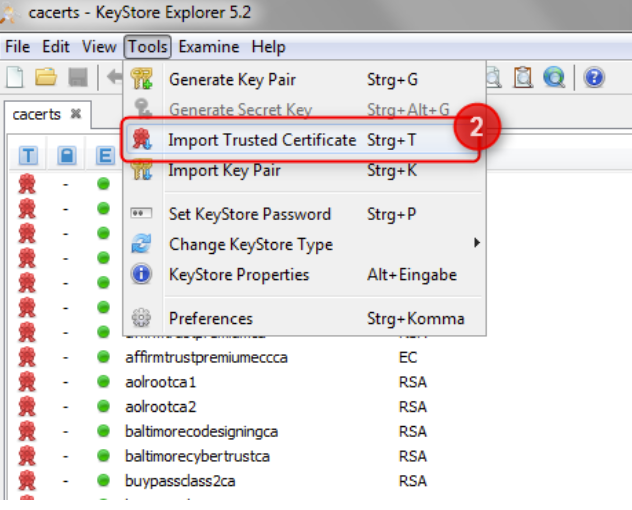
To install your Cryptshare Server certificate file, select Tools > Import Trusted Certificate.
-
Select your Cryptshare Server’s certificate file from the file selector popup window.
-
The Keystore Explorer then prompts you to enter an Alias for the certificate file. This will be the name under which the certificate will be stored in the certificate store. Enter a name and click OK.
-
The Cryptshare server certificate will now be available in the Java Runtime’s Certificate Store.
-
Don’t forget to save the certificate store.
When the Robot is started, it will now be able to create a secure SSL connection to the Cryptshare Server, since the Java Runtime now knows and trusts the Cryptshare Server Certificate.