Installation
| Ensure that client and server both meet the requirements. See Cryptshare products compatibility and Product lifecycle policy. |
Software download
Download the software from the Customer portal. Customers and business partners can create a log-in there if necessary. Due to export restrictions for encryption software, a download without log-in is not possible.
Single user installation
| You need to have administrator access to your local machine in order to install Cryptshare for Outlook (Classic). |
The single user installation procedure of Cryptshare for Outlook (Classic) add-in, is straight-forward:
-
Double-click the file Cryptshare for Outlook (Classic) v3.0.msi to start the installer.
-
Start the installation process by clicking Next.

-
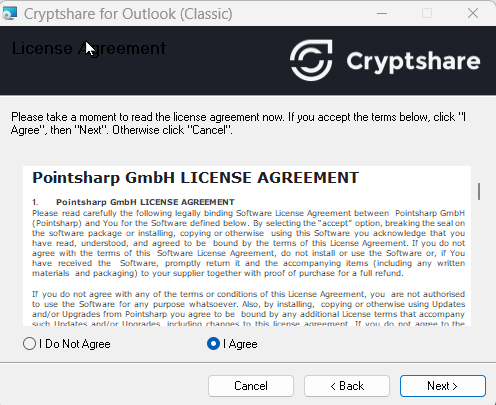
Read the license agreement. Select I agree and click Next to proceed with the installation.
If a user account security warning pops up, allow the installation to be performed. -
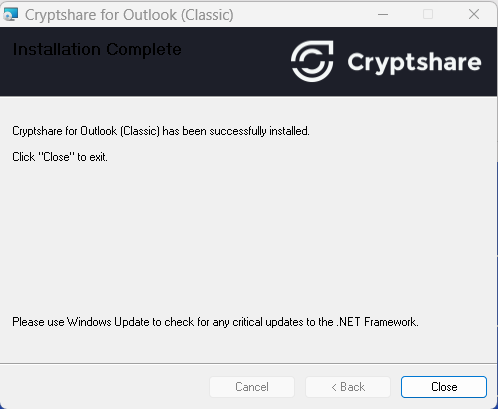
Wait for the confirmation window to appear. The installation has been successfully installed, and you may Close the window.

Roll-out via Group Policies
The following option is available for the roll-out of Cryptshare for Outlook (Classic) to a larger number of workstations.
If you distribute Cryptshare for Outlook (Classic) in this way, it is recommended to distribute a prepared user configuration file CS4OutlookDefaultUserConfig.xml to the program directory C:\Program Files (x86)\Pointsharp\Cryptshare for Outlook on the target computer(s), or to place it there before starting a client for the first time.
To create this configuration file, it makes sense to use the Cryptshare for Outlook (Classic) Config Creator to eliminate the risk of errors.
| Go to the Customer portal to download the Cryptshare for Office 365 & Outlook Config Creator. |