Language and communication settings
The display language of the Cryptshare for Outlook (Classic) add-in automatically adjusts itself to the display language of MS Outlook. However, this requires that a current language pack for that language is installed.
Download
Make sure you have the correct version of your Cryptshare for Outlook language packs, see Language pack download. Otherwise, an error message will occur when trying to send the transfer.
It is possible to define from the list of available languages a fallback language that is used by the Cryptshare for Outlook (Classic) add-in if there is no language pack available that matches the display language of MS Outlook.
Install language pack
For installing language packages please proceed as follows:
-
Open the Cryptshare Administration Interface: http://<Cryptshare URL>:9090, or https://<Cryptshare URL>:8080.
-
Login to the Administration Interface.
-
Select the tab Customization and then Languages.
-
Click Browse and upload the language package you want to add.
-
A message dialogue appears asking whether you want to overwrite existing, older, versions of that package.
-
Click Yes to install the package
-
Click No otherwise
-
-
Restart the server.
The restart is only required if you want to see the new localization details in your current browser session. Users approaching within a new browser session will see the new localization resources instantly.
-
After the package has been installed, it will be listed below.
Fallback language
The display language of Cryptshare for Outlook (Classic) automatically adjusts itself to the display language of MS Outlook. However, this requires that a current language pack for that language is present.
You have the option to define a preferred fallback language out of the list of available languages. This language will be used by the Cryptshare for Outlook (Classic) add-in if there is no language pack present that matches the display language of MS Outlook. By default, Cryptshare for Outlook (Classic) will use English as fallback language.
Default language for recipient notification
Depending on selected transfer options the recipient either gets a standard notification of Cryptshare for Outlook (Classic), or the original message from the sender, complemented by some notes and information.
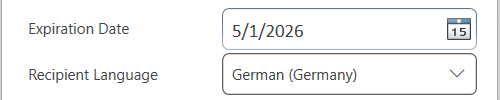
Cryptshare for Outlook (Classic) asks the sender in the Transfer Dialog in which language these notification texts should be inserted or transmitted.
The option "Default language for recipient notification" specifies which language is proposed for this purpose the first time for this.
The user can change this language occasionally. The last selected language is saved in the Configuration File CS4OutlookUserConfig.xml and suggested the next time you use Cryptshare.