
QUICK — a permanent secure connection
Use QUICK to establish a permanent secure connection with the recipient.
QUICK will then automatically manage security for all future transfers between you and the recipient, without having to use passwords. QUICK uses cookies instead of a real password.
Start a QUICK connection with the recipient
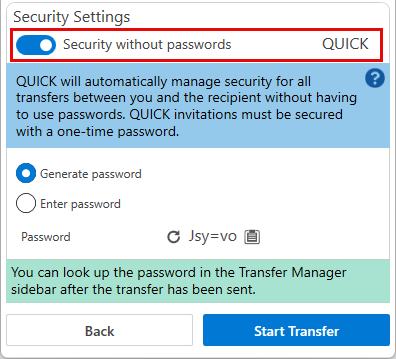
The system automatically detects whether an activation is established with the recipient, or not. If each recipient of a transfer has already accepted the QUICK invitation from a previous transfer, the switch for using QUICK is automatically activated and the password control element is hidden. Such a transfer is also known as a pure QUICK transfer.
To get started, Cryptshare sends an invitation that needs to be secured with a one-time password. Once the QUICK connection with the recipient is established, entering passwords is no longer necessary.
-
If QUICK is already activated on your client but not at the recipient, send the transfer using a password. You can look up the password in the Transfer Manager after the transfer has been sent.
Please share the password with the recipient! 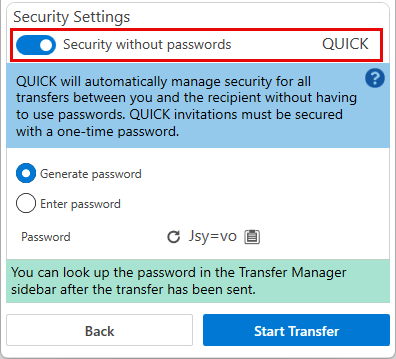
-
Click Start transfer.
-
The recipient will retrieve the transfer, with the option to activate QUICK.
-
Once activated by the recipient, a connection is established, and QUICK will become the default transfer option.
-
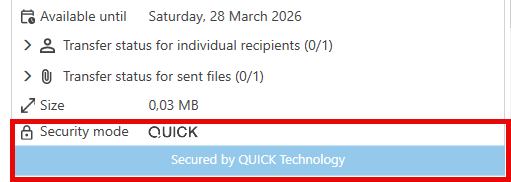
The transfer status will indicate that the message was sent using QUICK.
QUICK on the recipient side
If the sender has invited you to use QUICK for a permanent secure connection, you will receive a link to activate QUICK together with the encrypted message.
In order to accept a QUICK invitation, your email address must be verified on the Cryptshare Server where the provided transfer is located. In case you have previously performed a transfer using the same Cryptshare Server, your verification will be reused for the retrieval of the QUICK transfer.
After this process is finished, your QUICK connection is established and you may start to securely send and retrieve transfers without the need of exchanging passwords.
-
Start the download using the provided password by the sender.
-
If your email has not yet been verified on the Cryptshare Server, you will need to enter the verification code in this step. The verification code is automatically sent to your email.
-
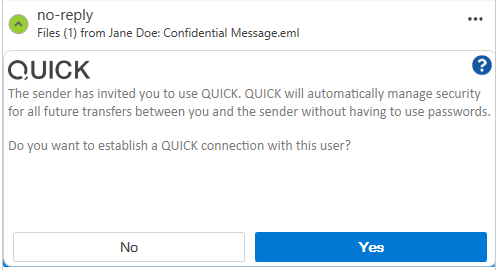
You will receive a QUICK invitation together with the download item:
-
Click Yes.
-
Once activated, a connection is established, and QUICK will become the default transfer option.
-
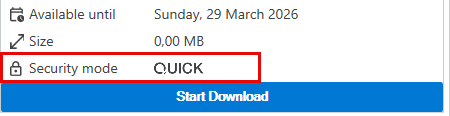
The security mode status will indicate that the message was sent using QUICK.
Activate QUICK
If no valid QUICK credentials are available on the client you are using to send your transfer, you must perform a QUICK activation. When sending a secure message or files, activate the Security without passwords option, and click Start activation.
Start activation
-
Activate by yourself
-
Obtain a QUICK activation code from another client.
-
-
Administrative activation
-
Obtain a QUICK activation code from an administrator.
-
-
Reset
-
Discard all QUICK connections and create new access credentials.
-
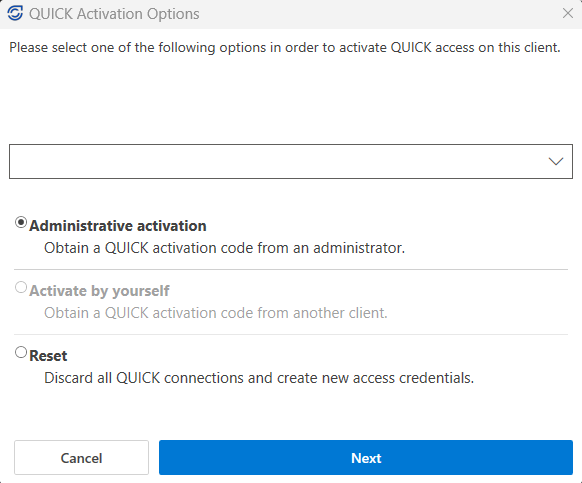
Administrative activation
Administrative activation can be used if no other client is available and therefore the 'Self-activate' activation option cannot be performed. However, this option requires the help of an administrator.
The administrator registers your email address in the Admin Portal, and generates a code for you to enter.
-
Contact an administrator of this Cryptshare Server.
-
Ask the administrator to provide you with a QUICK activation code.
-
Enter the code in the Enter Code field.
Activation codes generated by administrators are valid for 24 hours and cannot be used to perform an activation after this time. An activation code can only be used once for security reasons. Once an activation is successful, or the activation code has been entered incorrectly more than 10 times, it will be invalidated.
| To Admin - please note that the activation code generation page does not keep them persistently available. If the page is abandoned and then revisited, these codes will not be displayed again. Therefore, it is recommended to provide these codes to users immediately or copy them to provide them at a later time. |
Reset
Resetting QUICK access is an alternative if the other activation options are not available or are not desired. This option is currently only available during the deployment of a transfer. Recipients of a QUICK transfer do not have this option to reset QUICK access. The reset can be performed by the user independently, without the need for another client or contact with an administrator.
| This removes the existing personal key as well as all already established or pending QUICK connections with other users, and a new personal key is generated. |
The reset has the following effects:
-
The user can perform QUICK transfers again. The verification token that was used for this purpose will be reactivated for QUICK.
-
QUICK connections with other users must be re-established, as with a new QUICK user, either by providing a QUICK transfer or by accepting a QUICK connection when such a transfer is retrieved.
-
Existing QUICK transfers that are still available for retrieval and were provided by the user at an earlier time can only be accessed by entering the transfer password, provided that it is an inviting transfer.
Transfer QUICK key to another application
With the activation option Activate by yourself, the user can activate the QUICK access data independently. To do this, the user must have access to another client that has already been enabled for QUICK. During the activation process, the user is presented with a list of clients that have been activated for QUICK. Using one of these clients, the user can generate an activation code, which he then needs to enter on the client he wants to activate.
This procedure must be performed in the following cases:
-
When a user wants to use QUICK on a new client.
-
When a user has lost his QUICK credentials and wants to regain them.
To activate QUICK:
-
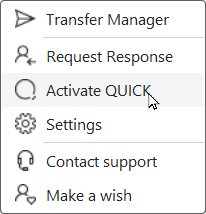
Go to the Cryptshare menu in the Outlook (Classic) ribbon, click Activate QUICK.
-
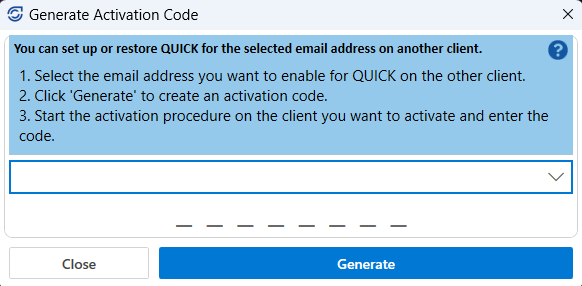
In the drop-down menu, select the email to establish QUICK connection on.
-
Click Generate to generate an activation code.
-
Go back to the other client and enter the code into the Enter Code field.
The activation codes generated by other clients are valid for 15 minutes and cannot be used to perform an activation after this time. An activation code can only be used once for security reasons. Once an activation is successful, or the activation code has been entered incorrectly 10 times, it will be invalidated.
Reasons for losing the QUICK access data
In contrast to the Cryptshare Server, the verification token in Outlook (Classic) is stored in a verification file client.store, which is located in the user’s program settings directory. The contents of this file are stored encrypted and are bound to the user.
QUICK credentials will be lost if this file is deleted or corrupted.