
Connection settings
Connection settings are settings that the add-in needs to communicate with the server. This includes the URL of the Cryptshare Server as well as proxy settings that are required for the Outlook add-in to communicate with the Cryptshare Server via a proxy (if available). These settings must be distributed locally to the workstations on which Cryptshare for Outlook (Classic) is running.
Cryptshare for Outlook (Classic) offers you three different approaches to manage connection settings:
-
Management of settings by the user via the user interface (Settings dialog, tab Add-In Settings).
-
Management of settings via an XML file (configuration file CS4OutlookDefaultUserConfig.xml).
-
Distribution of settings during rollout via msiexec.
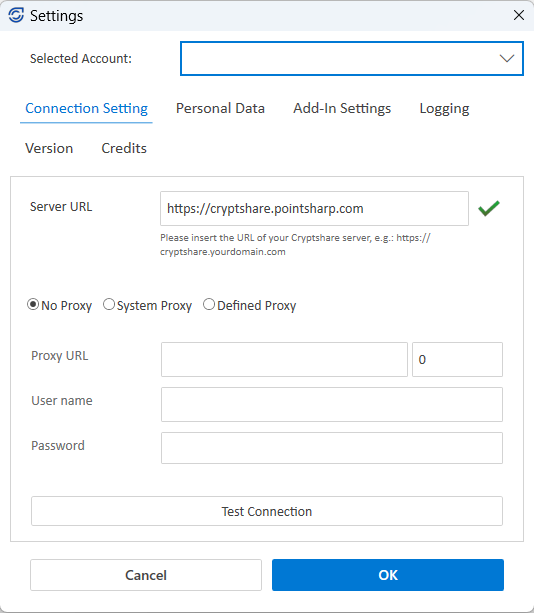
Enter the required Connection Settings for setting up the connection between the add-in and the Cryptshare Server. These are:
-
The URL of the Cryptshare server. For example, https://cryptshare.yourdomain.com. If you do not know the address of the Cryptshare server, please contact your system administrator.
-
Proxy mode
-
No proxy: An attempt is made to contact the URL of the Cryptshare server directly, i.e. without a connection via a proxy server.
-
System proxy: The Windows operating system’s setting regarding the use of a proxy server is applied. This also corresponds to the setting of MS Internet Explorer.
-
Defined proxy: You can set your own proxy settings for Cryptshare for Outlook (Classic). For this purpose, information such as proxy server URL, proxy server port, username for the proxy login and the associated password can be stored.
-
-
Proxy settings
-
URL of the proxy server (The URL of the proxy server is only used if the Proxy Mode selection is set to Defined).
-
Port number under which the proxy server can be reached.
-
Username for logging in to the proxy server. Leave the field blank if a username is not required.
-
Password for logging in to the proxy server. Leave the field blank if a password is not required.
-
-
Click Test connection to check whether the Cryptshare server is accessible with the selected settings. A successful connection is indicated by a green tick next to the server URL.
Connection issue
-
Check all entries for errors.
-
Enter the server URL in your browser. If you see the start page of your Cryptshare server, the server URL is correct, but there is an error in the proxy settings.
-
If the start page of your Cryptshare server does not open, the URL of the Cryptshare server is already incorrect or the server is currently unavailable.
-
Contact your system administrator.