Personal Data
General
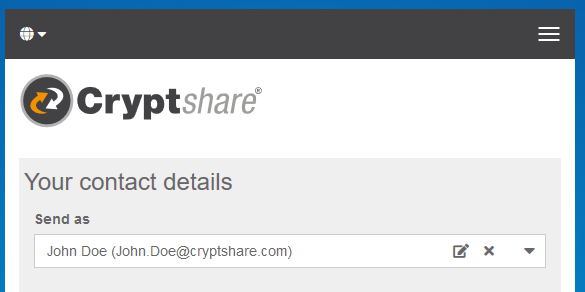
With QUICK, user email addresses are bound to a specific verification token which remains the same for this particular email address even across multiple browsers or devices. In order to use different sender email addresses in the same browser without losing the current QUICK status for a user, Cryptshare allows working with multiple verifications for different email addresses in the same browser. The user interface offers controls to manage these users:
-
Adding new users
-
Changing personal information for a user
-
Deleting a user
Creating a new User
No existing User
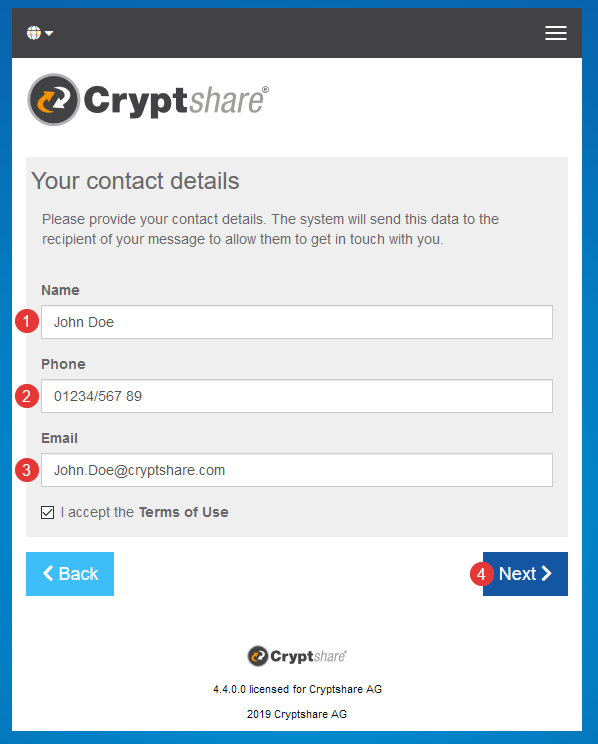
If no user has been created yet, a new user is automatically created by filling in the verification form and finishing the verification process:
-
Type in your full name
-
Type in the phone number by which the recipients can contact you
-
Type your email address
-
Click next to continue the process.
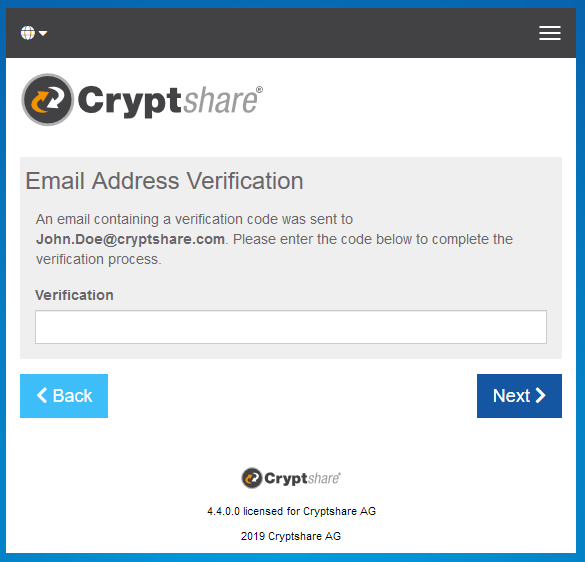
You will receive an email containing a verification code which can be entered in the next screen.
Changing User Details
If details of a specific user need to be changed, click on the edit-symbol <i class="fas fa-edit"></i> next to the username. This will open the edit mode for this particular user allowing to change:
-
The username
-
The phone number
|
Please note, that editing does not allow to change the email address of the current user. In order to use a different sender email address, a new user needs to be added. |
Deleting a User
In order to delete an existing user click on the deletion symbol <i class="fas fa-times"></i> next to the respective username.
After confirmation all cookies keeping personal information about this user will be deleted. This includes:
-
Verification status including the QUICK verification token
-
Username
-
Phone number
-
Email address