
Transfer Status
General
This page is to show a live status of a Transfer and interact with it. Accessing this feature requires the user to be verified and part of the requested transfer.
Sender Transfer Status
-
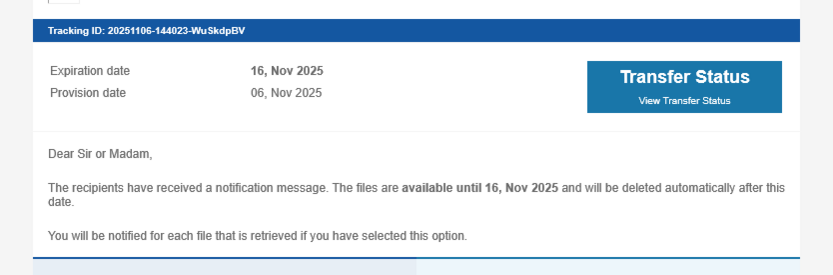
Access: The sender can access the live status transfer by using the Transfer Status button inside the transfer notification mail, and complete the verification process.
-
Components:
-
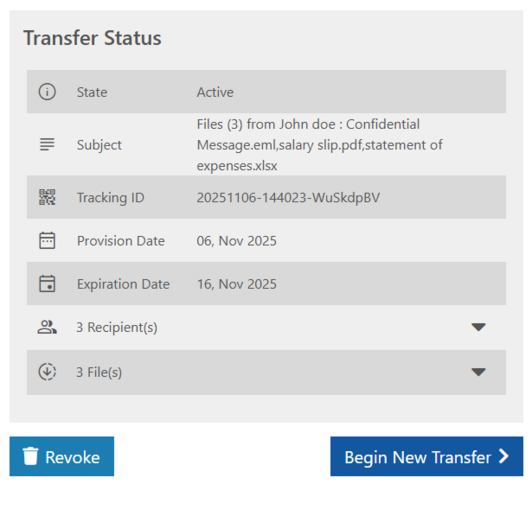
State: can be one of the transfer states: Active, Expired, Revoked by sender, Deleted by administrative user, Deleted for security reasons, Files are being processed, All files have been removed)
-
Subject: the original notification subject, this can not be provided for deleted/revoked transfers, as its completely deleted, due to data privacy regulations
-
Tracking ID: the transfer Tracking ID
-
Provision Date: Date the Transfer was created/made available.
-
Expiration Date: Date after which the Transfer state will set to "Expired".
-
Two accordions sections:
-
Recipients: per-recipient read/download status, and expandable to show each particular file status for this recipient both associated with their corresponding icons (see icons section).
-
Files: each file with per-recipient status associated with files download state icon (see icons section).
-
-
Footer actions:
-
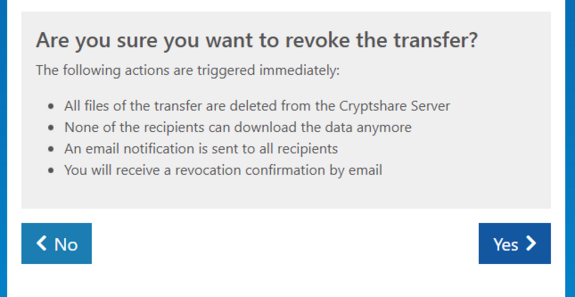
Revoke Button: if the transfer is in an active state, the sender will see the revoke button bottom left, this button is not available for revoked or deleted transfers, a confirmation screen will and the sender to confirm the revocation before finally being revoked.
-
-
-
Begin New Transfer button: open a new tab to start a new Transfer with prefilled recipients list, each recipient email will be listed under it’s corresponding type (TO, CC, or BCC) as it was in the opened transfer.
-
Example of the Sender Transfer Status page:
-
Recipient Transfer Status
-
Access: currently accessible by the URL https://YOUR_DOMAIN/TransferStatus?email=%7BRECIPIENT_EMAIL%7D&trackingId=%7BTRANSFER_TRACKING_ID%7D, on the following versions this will be accessible via the recipient notification email
-
components:
-
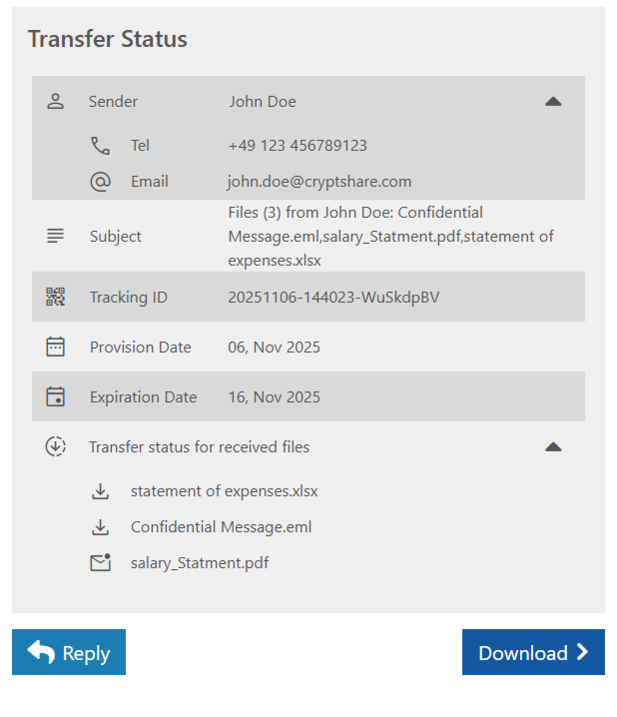
Sender panel (collapsible)
-
Sender: Display name. (this can not be provided for deleted/revoked transfers, as its completely deleted, due to data privacy regulations)
-
Tel: Sender’s phone number. (this can not be provided for deleted/revoked transfers, as its completely deleted, due to data privacy regulations)
-
Email: Sender’s email address.
-
-
Subject: Shows the original transfer subject.
-
Tracking ID: The Transfer Tracking ID
-
Provision Date: Date the Transfer was created/made available.
-
Expiration Date: Date after which the Transfer download is no longer accessible for the recipient.
-
“Transfer status for received files” section (accordion section)
-
Lists each file included in the Transfer for this recipient.
-
Per-file status icon indicates whether the file is available to download or has already been downloaded.
-
-
Footer actions
-
Reply: Opens the reply page to the sender in new browser Tab.
-
Download: Opens the known recipient download page in new browser Tab.
-
-
-
Example of Recipient Transfer Status page:
icons and meaning
-
The icons in recipient accordion near the recipient email and the files under each particular recipient has the following meanings

The Recipient has partially or fully downloaded or read the transferred files.

The Recipient didn’t read the Transfer.

The particular transferred File had been downloaded by this recipient.

The particular transferred File was not downloaded by this recipient.
-
The icons on file accordion under each transferred file near the recipient email has the following meanings

This Recipient has downloaded this particular transferred files.

This Recipient did not downloaded this particular transferred files.