
Transfer status
This page is to show a live status of a Transfer and interact with it. Accessing this feature requires the user to be verified and part of the requested transfer.
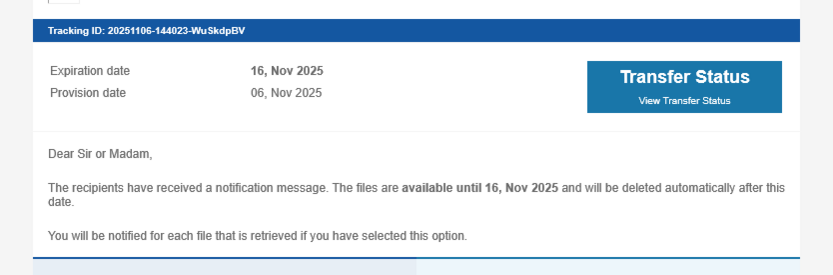
Sender transfer status
The sender can access the live status transfer by using the Transfer Status button inside the transfer notification mail, and complete the verification process.
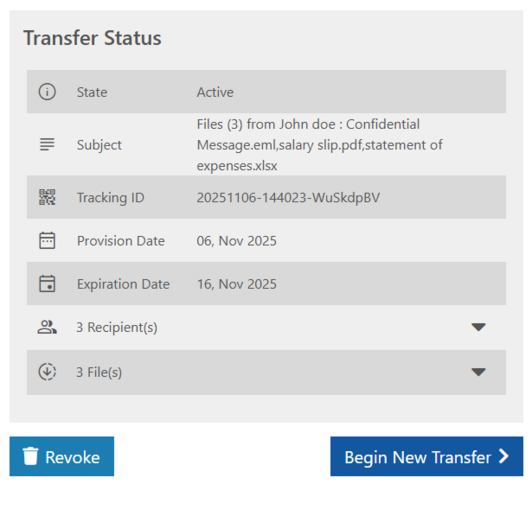
State: Active, Expired, Revoked by sender, Deleted, Files are being processed, All files have been removed
Subject: The original notification subject, this can not be provided for deleted/revoked transfers, as its completely deleted, due to data privacy regulations
Tracking ID: the transfer Tracking ID
Provision Date: Date the Transfer was created/made available.
Expiration Date: Date after which the Transfer state will set to "Expired".
Recipients: Per-recipient read/download status. Expandable to show each particular file status for this recipient both associated with their corresponding icons (see icons section).
Files: Each file with per-recipient status associated with files download state icon (see icons section).
Revoke: If the transfer is in an active state, the sender will see the revoke button bottom. This option is not available for revoked or deleted transfers, a confirmation screen will and the sender to confirm the revocation before finally being revoked.
Begin New Transfer: Open a new tab to start a new Transfer with prefilled recipients list, each recipient email will be listed under it’s corresponding type (TO, CC, or BCC) as it was in the opened transfer.
Example of the Sender Transfer Status page:
Recipient transfer status
Accessible via the recipient notification email.
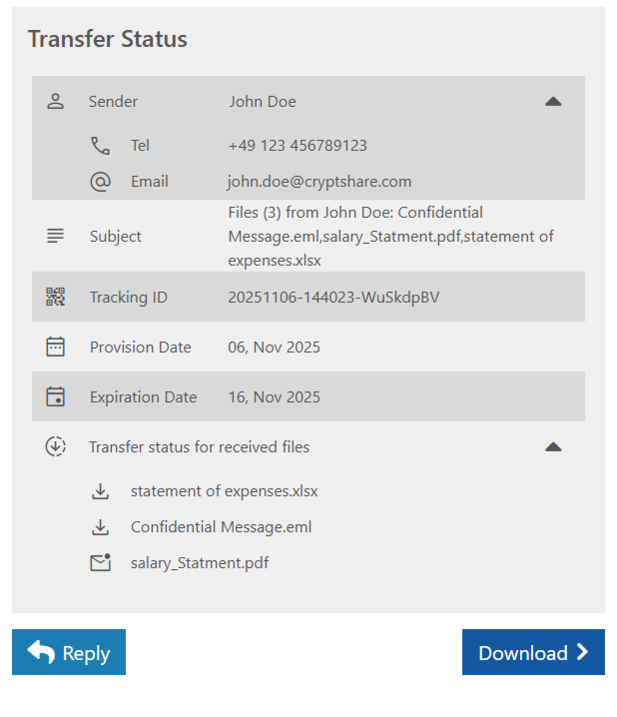
Sender: Display name. (this can not be provided for deleted/revoked transfers, as it is completely deleted, due to data privacy regulations)
-
Tel: Sender’s phone number. (this can not be provided for deleted/revoked transfers, as it is completely deleted, due to data privacy regulations)
-
Email: Sender’s email address.
Subject: Shows the original transfer subject.
Tracking ID: The Transfer Tracking ID
Provision Date: Date the Transfer was created/made available.
Expiration Date: Date after which the Transfer download is no longer accessible for the recipient.
Transfer status for received files:
-
Lists each file included in the transfer for this recipient.
-
Per-file status icon indicates whether the file is available to download or has already been downloaded.
Reply: Opens the reply page to the sender in new browser Tab.
Download: Opens the known recipient download page in new browser Tab.
Example of Recipient Transfer Status page:
Icons and meaning
The icons in recipient accordion near the recipient email and the files under each particular recipient has the following meanings:

-
The recipient has partially or fully downloaded or read the transferred files.

-
The recipient hasn’t opened the transfer.

-
This particular file has been downloaded by this recipient.

-
This particular file was not downloaded by this recipient.
The icons on file accordion under each transferred file near the recipient email has the following meanings:

-
This recipient has downloaded this particular transferred file.

-
This particular transferred file was not downloaded by this recipient.