
Simplified enrollment of the Login App
| This option is included in version 7.0 and later. |
The enrollment can be performed in the Login App itself, and the user does not need to scan the QR code in the User Portal.
The user simply opens the Login App and enter the user’s email address and performs authentication.
This requires a public DNS entry that starts with “psdiscover”. Example: “psdiscover.domain.com”.
Also required is a matching certificate, or certificate with this name included or wildcard option.
PSID configuration

Add Enrollment Method in PSID Admin:
-
Start Pointsharp ID Admin GUI.
-
Go to the Authentication tab.
-
Create Enrollment method and give it a friendly name.
-
Choose an Authentication Method to use for verifying the user in the Login App.
-
Choose an Enrollment type:
Login Existing PSID users only.
New User New users only.
New User and Login Combination of both.
-
Click Apply.
-
Go to General and Restart the Pointsharp ID Service.
Access Gateway configuration
If no Listener for Login App exists, please follow previous steps to set up authentication methods and configure Pointsharp ID Server for use with Login App.
If a Listener for Login App already exists – there are two options.
First option: Create a new Listener that starts with “psdiscover.*.*” and add both the enrollment and login options into that new Listener. Remove the old Login App Listener (disable it in the Access Gateway GUI until verified that the new Listener works).
Second option: Keep current Login App Listener and only create a new Listener for the Enrollment process. The Listener must start with “psdiscover.*.*”. Follow the steps below for both scenarios.
Enrollment/Login App in Access Gateway
-
Start Access Gateway GUI.
-
Start Tools > New > New Login App wizard.
-
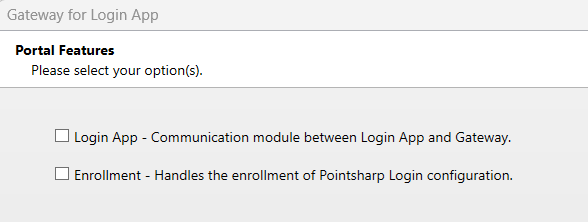
The installation wizard contains both Login App and Enrollment options. Choose the options needed and follow the information displayed in the wizard.
-
When completed, Save and Publish.
Configuration now completed. Next step – enrollment of user.
Enrollment of a user in Login App
When configuration is complete open the Login App to start the enrollment process.
-
Open the Login App.
-
Enter email address and continue.
-
The configured enrollment process will now start for the user depending on the options set on the Enrollment Authentication Method in PSID Admin GUI.
-
Complete the authentication step and the Login App will be added to the user.
-
Enrollment completed.