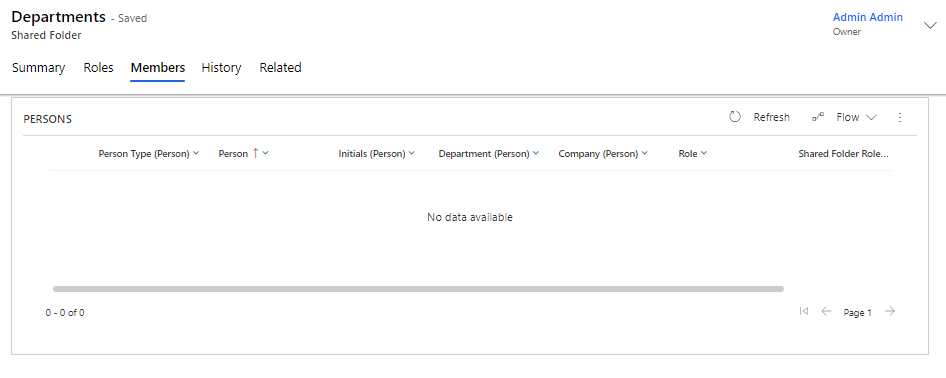
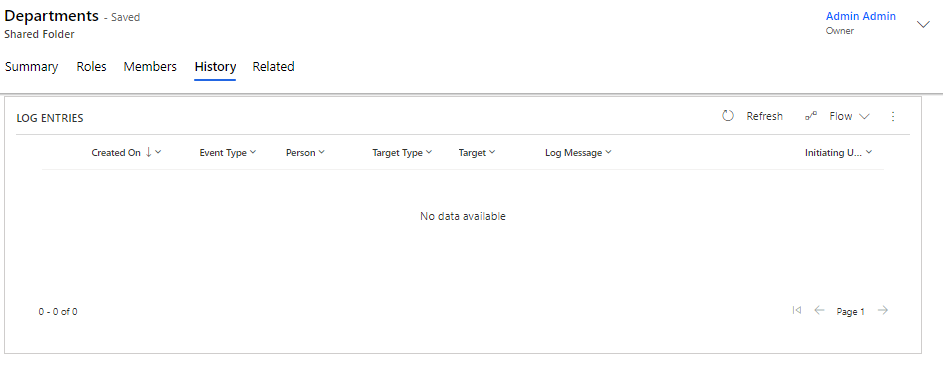
Active Directory - Shared Folders
Shared Folders are created manually directly in Compliance Suite and allow for role-based access management in file drive folders via automatically generated ADDS groups.
You can find Shared Folders in the "Connectors" sub-area.
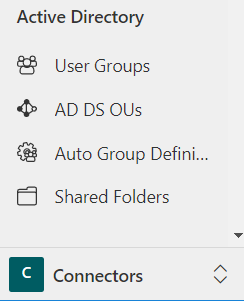
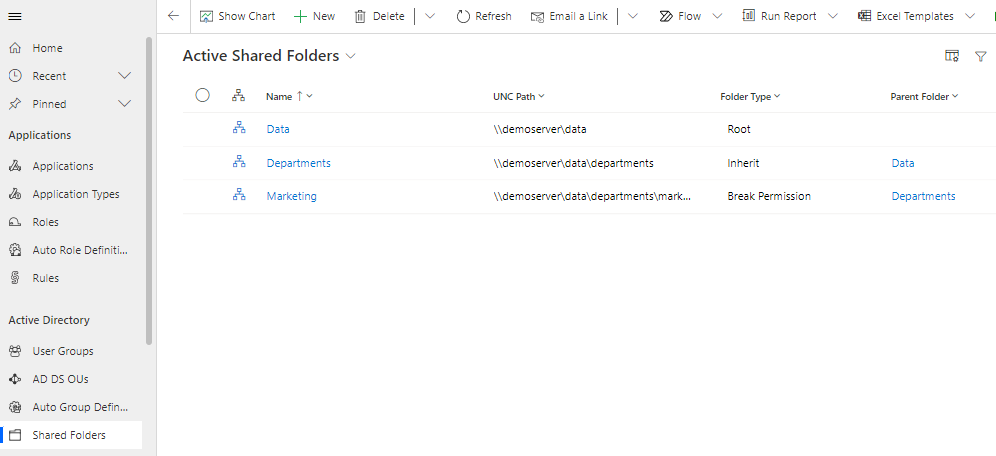
Active Shared Folder Connections
The list of all Active Shared Folders is displayed by clicking on the menu item Shared Folders:
How to create a new Shared Folder connection
Click "+New" in the menu bar to create a Shared Folder connection. Next, the screen below will appear:
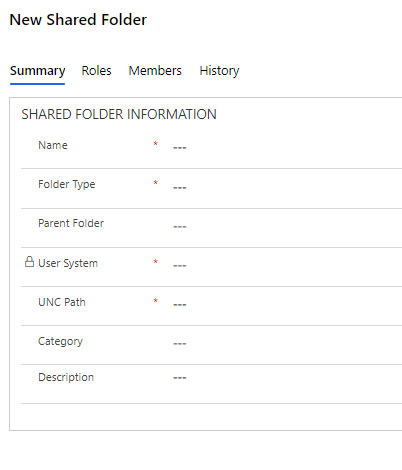
Fill in the metadata for your Shared Folder connection and click "Save". You will then be given the opportunity to fill in the next tab "Roles".
A completed Shared Folder connection might look like this:
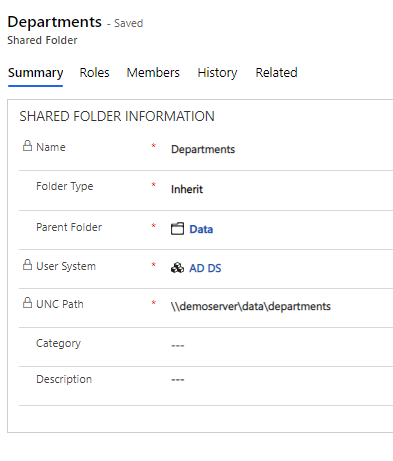
How to link roles to your Shared Folder
On the "Roles" tab, there are three role levels:
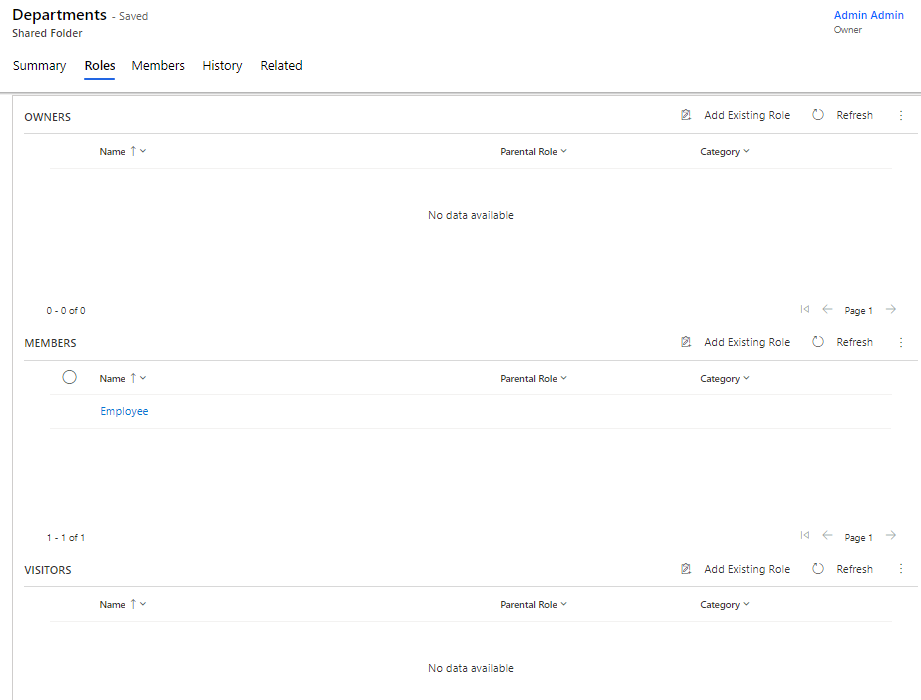
The role levels are "Owners", "Members" and "Visitors". These accesses are put on the shared drive. You can choose to create a new role for one of the three levels, each of the three levels or use an existing role by clicking on "Add Existing Role".