
Active Directory - Auto Group Definitions
AD groups (called Auto Groups) can be automatically created and linked to different entities in Compliance Suite via Auto Group Definition.
To create auto-groups, you need the following:
-
Auto group definition
The auto role definition is created first as the auto group definition requires the use of an existing auto role definition.
Overview of Auto Group Definition
Click on "Connectors | Auto Group Definitions" to see an overview of all the auto group definitions created in Compliance Suite:
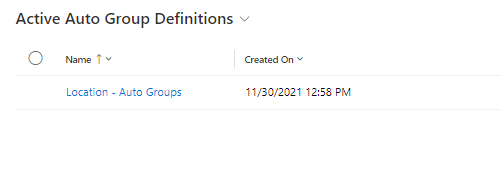
Create new Auto Group Definition
| If you want to match the here created auto group to an existing user group, you have to make sure that the user group is available in Compliance Suite before clicking Start Auto Group Calculation. |
You can create new auto group definitions by clicking on the menu item +New:
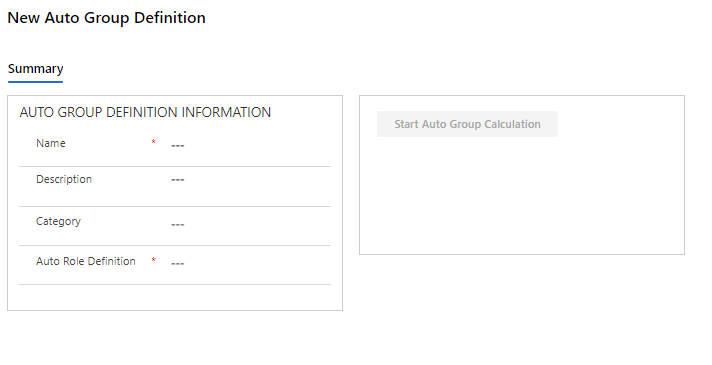
Fill in "Name" – for example "Location – Auto Groups".
Auto Role Definition can be looked up in the field. The last used values are in the field when you click in it.
Click on the magnifying glass if the desired value does not appear in 'quick selection'.
Select Auto Role Definition "Location - AutoRole" (then the fields filled in Auto Role Definition for the selected definition are displayed):
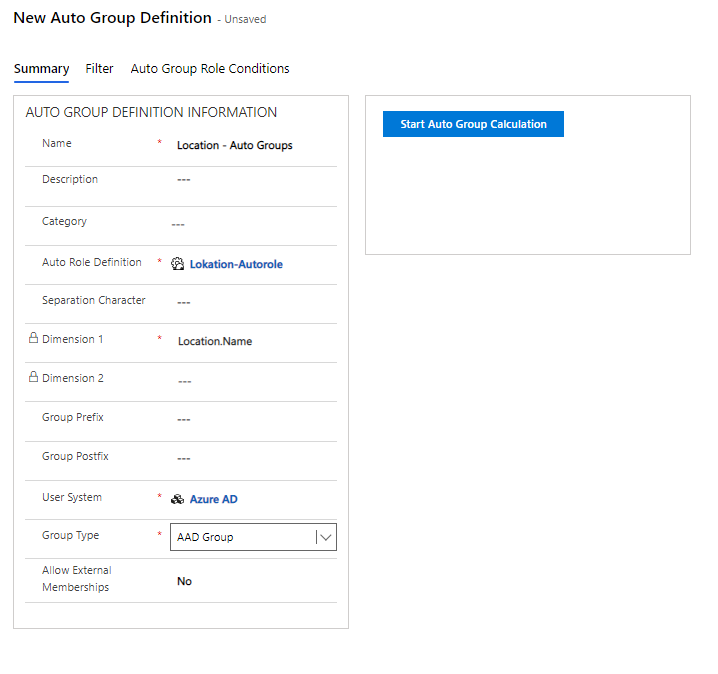
Fields
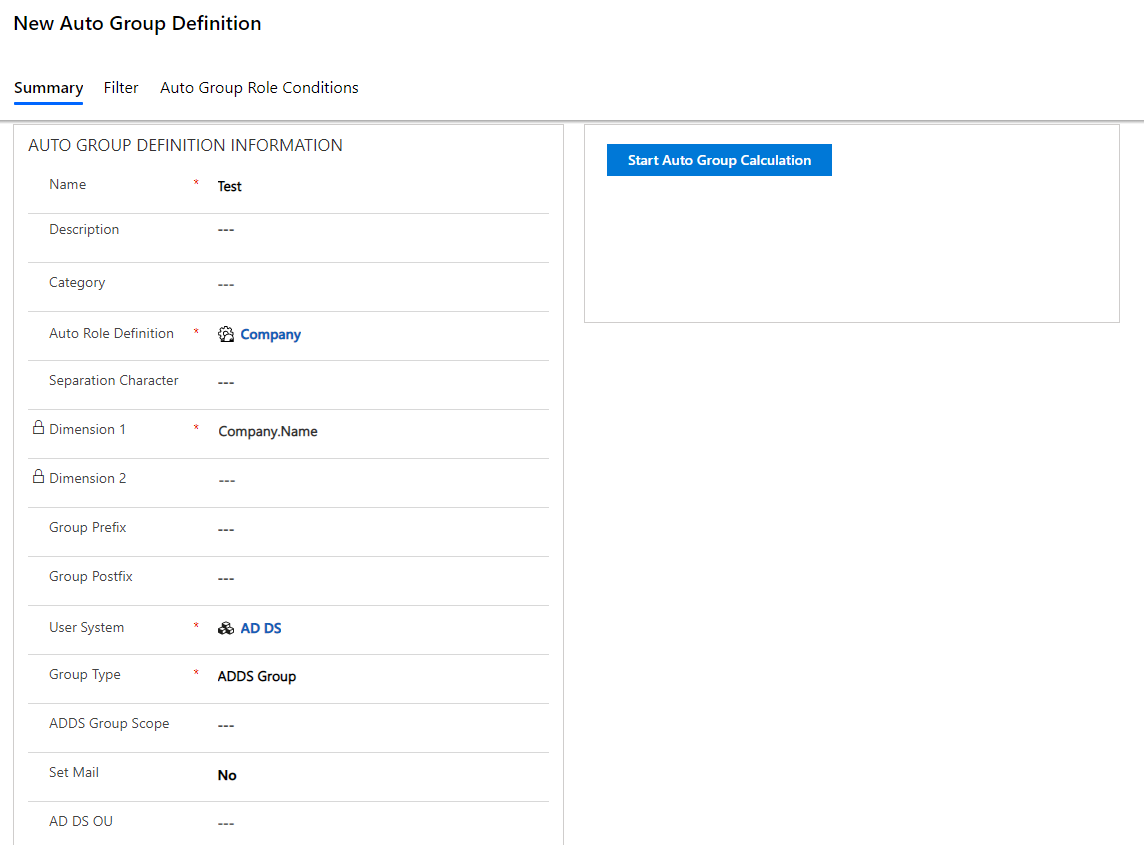
Then you have the option to fill in the remaining fields:
| Field Name | Type | Description |
|---|---|---|
Name |
Text |
Fill in the name of your new Auto Group Definition. |
Description |
Text |
Enter a description. |
Category |
Lookup |
Select any category. |
Auto Role Definition |
Lookup |
Select the Auto Role Definition on which your groups should be based. |
Separation Character |
Text |
Enter the desired character. |
Dimension 1 |
Locked |
To be filled in from the Auto Role. |
Dimension 2 |
Locked |
To be filled in from the Auto Role. |
Group Type |
Choice |
Here you choose whether it is an ADDS Group or an Entra ID group to be created. |
Group Prefix |
Text |
Could be ”Store – ”. |
Group Postfix |
Text |
Could be ”- Group”. |
User System |
Choice |
Choose User System. |
Group Type |
Choice |
Should it be an ADDS or Entra ID group |
Allow External Memberships |
Choice |
Yes or no to whether externals may be a member of the group. |
Filled Auto Group Definition
Click on "Save Auto Group Definition" to save the Auto Group definition.
Click on "Start Auto Group Definition". Next, you will be able to see how many groups will be created:
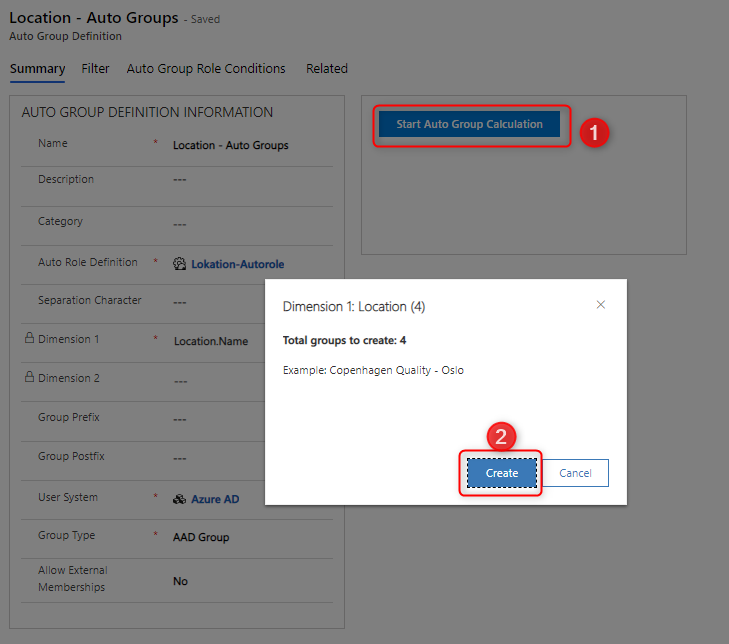
Click on "Create" to complete the auto-creation of the groups.
Click on "Cancel" to return to the Auto Group definition without creating the groups.
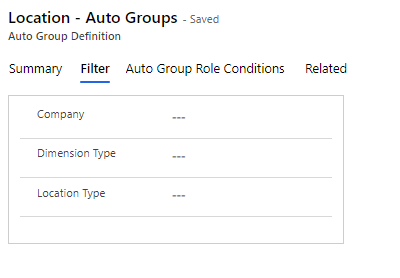
Filter
On the "Filter" tab, you can define additional selection criteria by filling in "Company" and "Type":
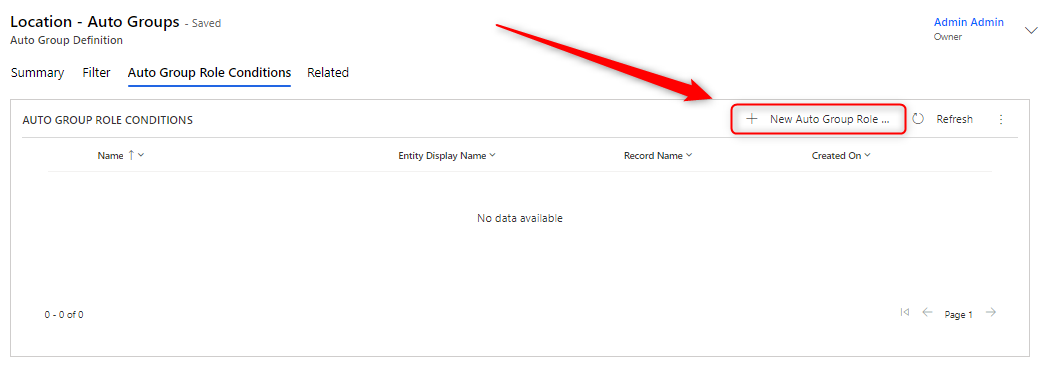
Auto Group Role Conditions
Auto Group Role Conditions are used on Job Titles and Positions. These are used to filter out groups.
Auto-groups on existing Groups
Compliance Suite can take over the management of an existing group if the name of this group matches the name of the Compliance Suite auto-group. This is done instead of forming a new group.
Entra ID Groups
Create Entra ID groups:
-
User System: User system of the Entra ID type
-
Group Type: Entra ID Group
-
Allow External Memberships: Sets External Additions Policy on the created groups. Keep Access if Yes and Remove Access if No
-
Entra ID Groups cannot be mail-enabled from the Auto Group Definition.
ADDS Groups
Create AD groups:
-
User System: User system of the AD DS type
-
Group Type: ADDS Group
-
Allow External Memberships: Add External Additions Policy to the created group
-
ADDS Group Scope: Domain Local, Global or Universal
-
Mail-Enabled: If set to yes, it will be set to e-mail address, alias (NickName) and primary proxyAddress (SMTP) in ADDS
-
The email-address is created as alias@{userSystem.UniqueIdentifierConcatenator}. alias or mailNickname is the same as {Group.Name } except maximum 64 characters are allowed and illegal characters are removed.
If e-mail addresses are in use, add 1,2, etc. after the alias. -
If ADDS Group Scope is Domain Local: Groups is a Distribution Group in Exchange OnPrem, in ADDS it is a Security Group - Domain Local, and in Entra ID it is a Mail Enabled security group.
-
If ADDS Group Scope is Global: The group is a Distribution Group in Exchange OnPrem, in ADDS it is a Security Group - Global, and in Entra ID it is a Mail Enabled security group.
-
If ADDS Group Scope is Universal: The group is a Mail Enabled security group in ADDS/Exchange OnPrem. In Entra ID it is a Mail-enabled security group.
-
Synched to Entra ID: Domain Local and Global types will become Mail Enabled security groups in Entra ID. This means that if a user has a mailbox in Exchange Online and is a member of this group, and the mail is for one of the groups, the user will receive it in his or her mailbox. Universal is still mail-enabled in Entra ID, but the user will not receive e-mails as the group is bound to Exchange-OnPrem. The user must have an Exchange OnPrem Mailbox to receive emails.
-
AD DS OU: Select which OU the groups will be located in. If no OU is selected, the groups are created in Default OU.