
Applications - Auto Role Definitions
Auto Roles allow you to automatically create a role and a rule based on an Auto Role definition.
This eliminates the need to manually create a role and rule when, for example, a new department or location is added to your solution.
Examples:
-
Create a new role for each department
-
Create a new role for each company
-
Create a new role for each position in each company
-
Create a new role for each Person Type
An Auto Role consists of two parts in Compliance Suite:
-
An Auto Role Definition
-
A role
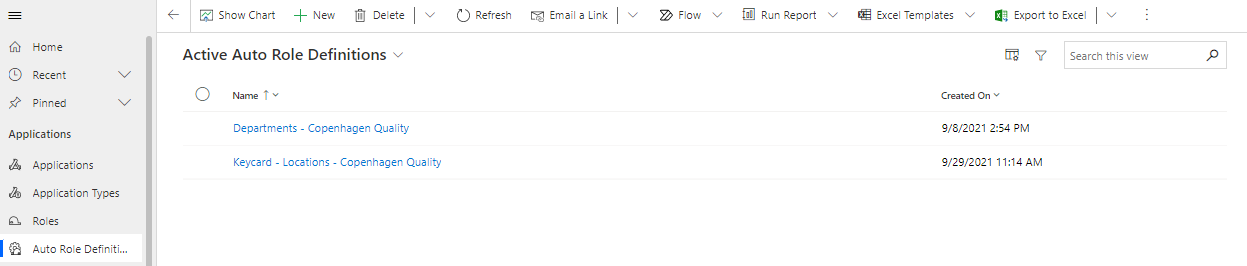
See Active Auto Role Definitions
See "Active Auto Role Definitions" by clicking on the menu item "Connectors | Auto Role Definitions":
Create new Auto Role Definition
You can create new Auto Role Definitions by clicking on "+New":
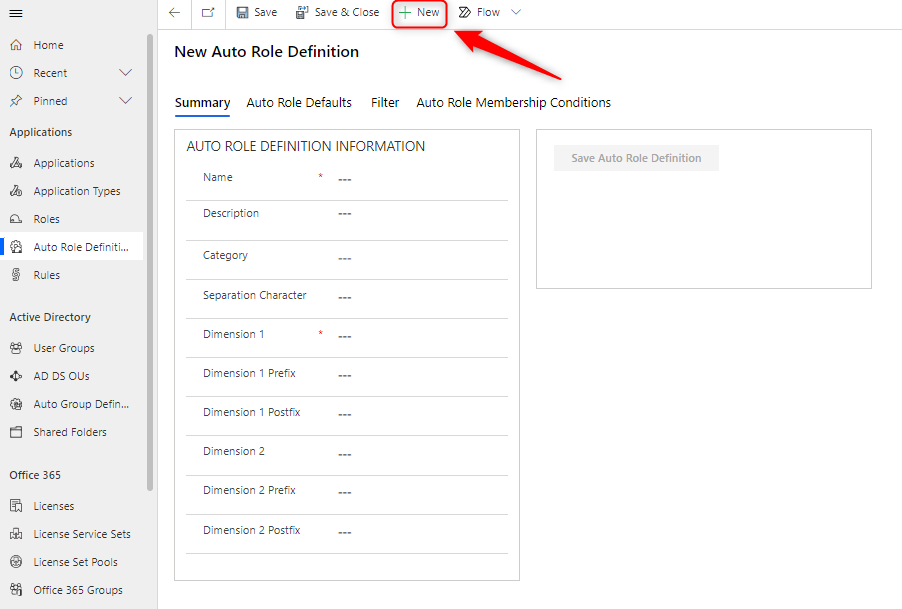
How to fill in the fields of the Auto Role definition:
| Field Name | Type | Description |
|---|---|---|
Name |
Text |
Enter the name of the auto role definition. |
Description |
Text |
Enter a description of the auto role definition. |
Category |
Look Up |
Enter if necessary a category for the auto role definition. |
Separation Character |
Text |
A sign for separating names. |
Dimension 1 |
Option |
Choose which dimension the auto role should be based on. |
Dimension 1 Prefix |
Text |
Enter the prefix for the 1st dimension of the auto role |
Dimension 1 Postfix |
Text |
Specify the postfix for the 1st dimension of the auto role |
Dimension 2 |
Option |
Option to specify a secondary Dimension for the auto role. |
Dimension 2 Prefix |
Text |
Enter the prefix for the 2nd dimension of the auto role. |
Dimension 2 Postfix |
Text |
Specify the postfix for the 2nd dimension of the auto role. |
Dimensions of Auto Roles
You can create Auto Roles for:
-
Company
-
Department
-
Job Title
-
Location
-
Position
The Auto Roles created in the system are all displayed under "Roles".
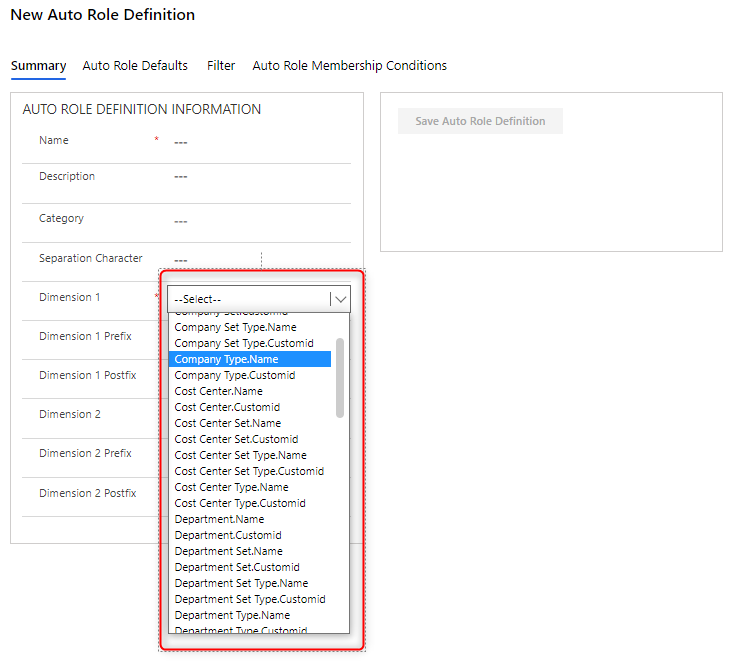
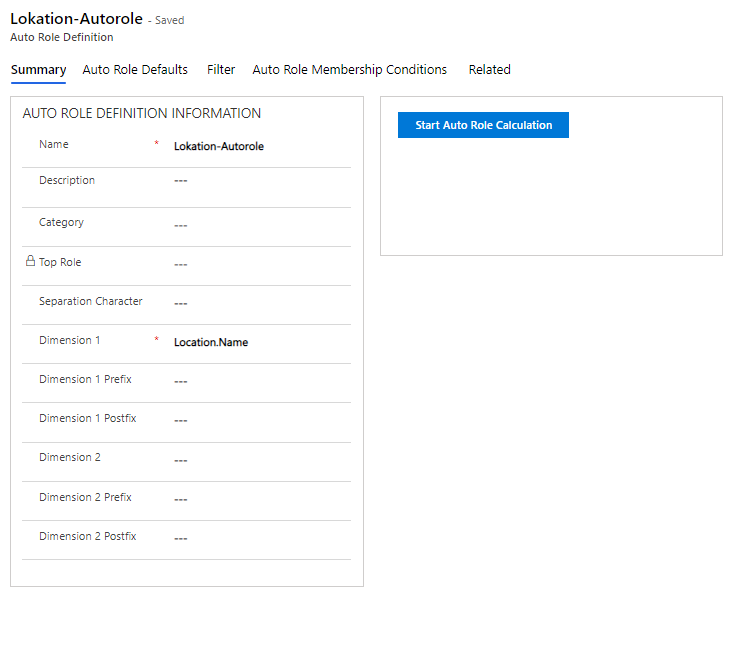
For example, set "Name" to "Location-Auto Role".
For example, under Dimension 1, select Location.Name.
Click on "Save Auto Role Definition" and then "Start Auto role Calculation" and preview what is being created:
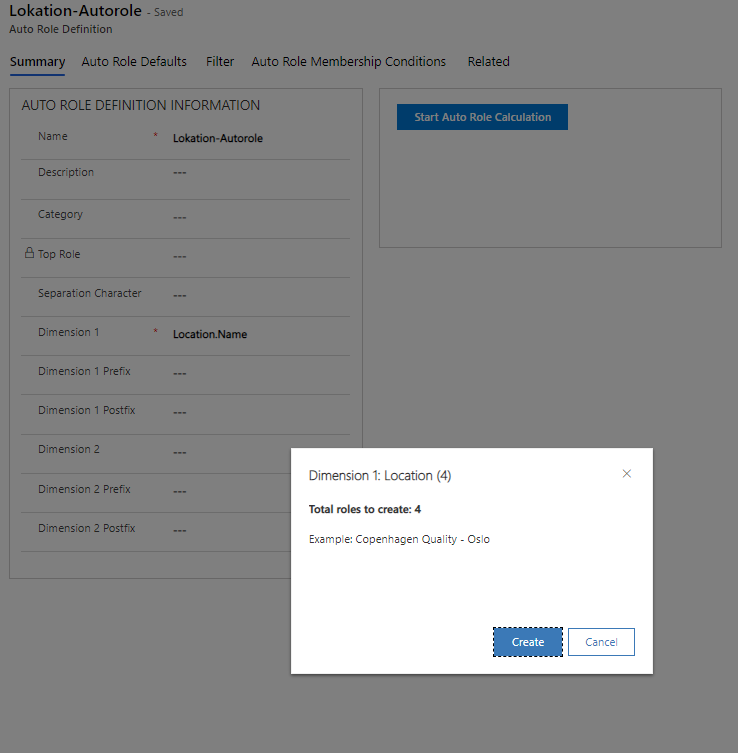
Then click on "Create".
Then roles are automatically created for all the locations in the system.
The Auto Roles can be found under "Roles" and all have the name of your Auto Role Definition as Parent Role.
The following auto roles have been created using the above example:
image::15645966493468.png[]
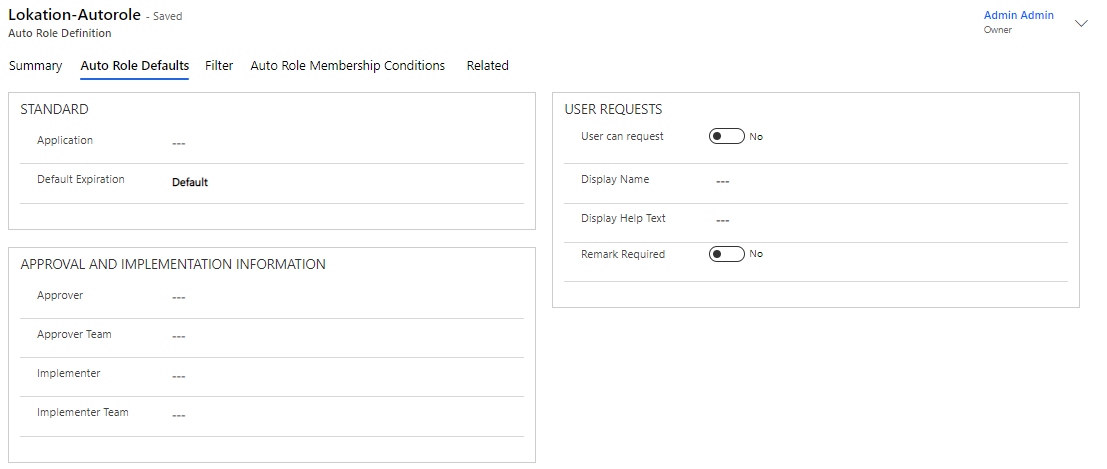
Auto Role Defaults
Here you can specify the status of your Auto Role, Approver, Implementer and User Request scenarios
Filter
On the "Filter" tab, you can define additional selection criteria by filling in "Company" and "Type":
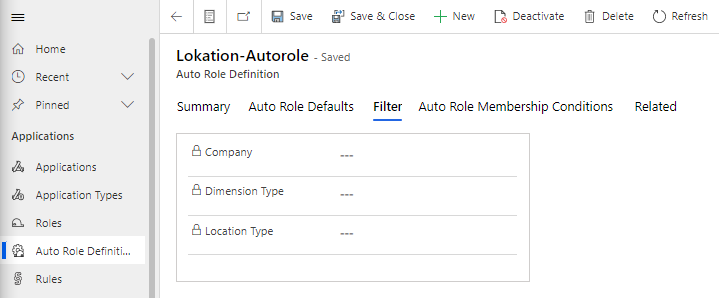
This way, only auto-roles are created on the selected Location Type, for example.
| These filters must be specified BEFORE the role is saved and calculated, |
Auto Role Membership Conditions
On the "Auto Role Membership Conditions" tab, you can define additional selection criteria by clicking on "Add New Auto Role Membership Condition":
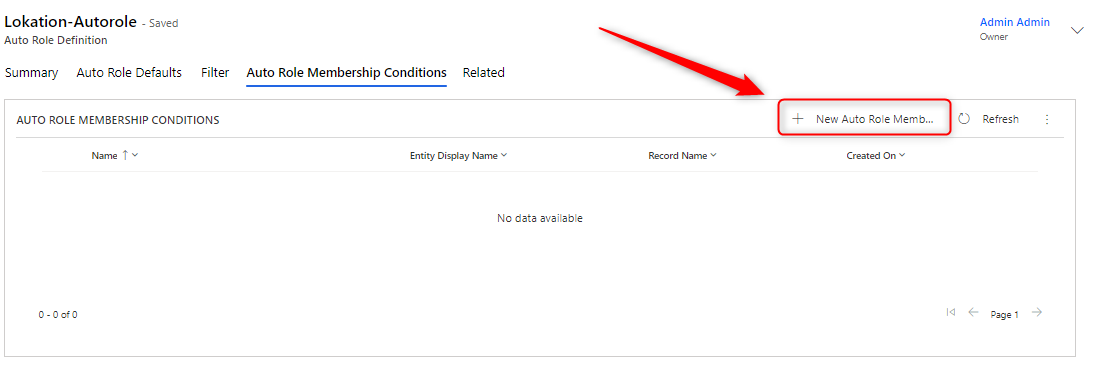
Auto Role Membership Conditions are conditions people must meet to get assigned a generated auto-role. For example, you can add a condition "Position = Director", which means that the person, in addition to fulfilling Dimension1 and possibly Dimension2, must also have the specific position to be covered by the auto-role.
You can also add two conditions "Position = Director" and "Person Type = Salaried Employee". Thus, to be covered by an auto-role, a person must be a director AND a salaried employee, in addition, of course, to meeting Dimension1 and Dimension2.
You can also add two conditions "Position = Director" and "Position = Secretary". Thus, a person must be a director OR a secretary in addition, of course, to meeting Dimension1 and Dimension2.