Applications - Rules
You can find "Rules" in Compliance Suite under the menu "Connectors | Rules" and these are used to automatically assign roles based on master data on persons.
For example, a rule could be that a person from the "Sales" department automatically becomes a member of the "EMEA SALES" role.
Active Rules
See Active Rules under "Connectors | Rules":
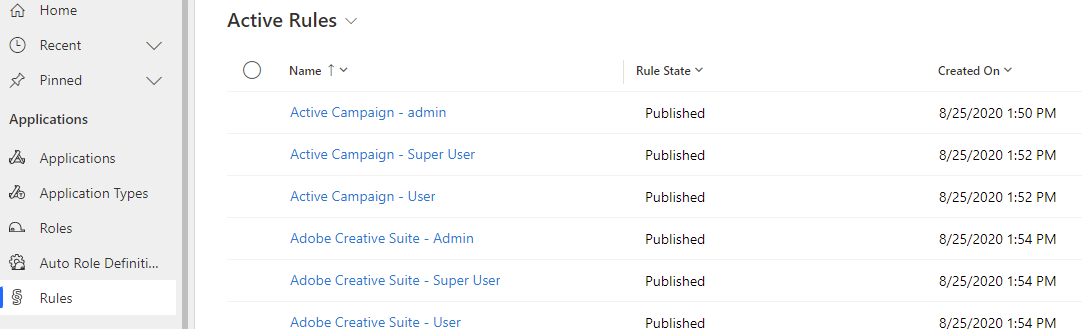
The fields are displayed in the overview:
| Field Name | Description |
|---|---|
Name |
The name of the rule. |
Rule State |
Indicates whether the rule is Published or in Draft. |
Created On |
Specifies the date of creation. |
Create new Rule
Rules are created by pressing "+New" next to the list of rules.
A rule must include three things:
-
An optional name
-
A set of roles that the rule assigns by match on the rule
-
One or more conditions that must be met for the roles to be assigned to the matching people.
-
When adding more conditions of the same attribute, they are OR conditions.
-
When adding more conditions of different attributes, they are AND conditions.
-
A rule is initially created in "Draft". No calculation occurs until you change the"Rule State" to "Published". If you subsequently edit the rule, it will return to "Rule State Draft".
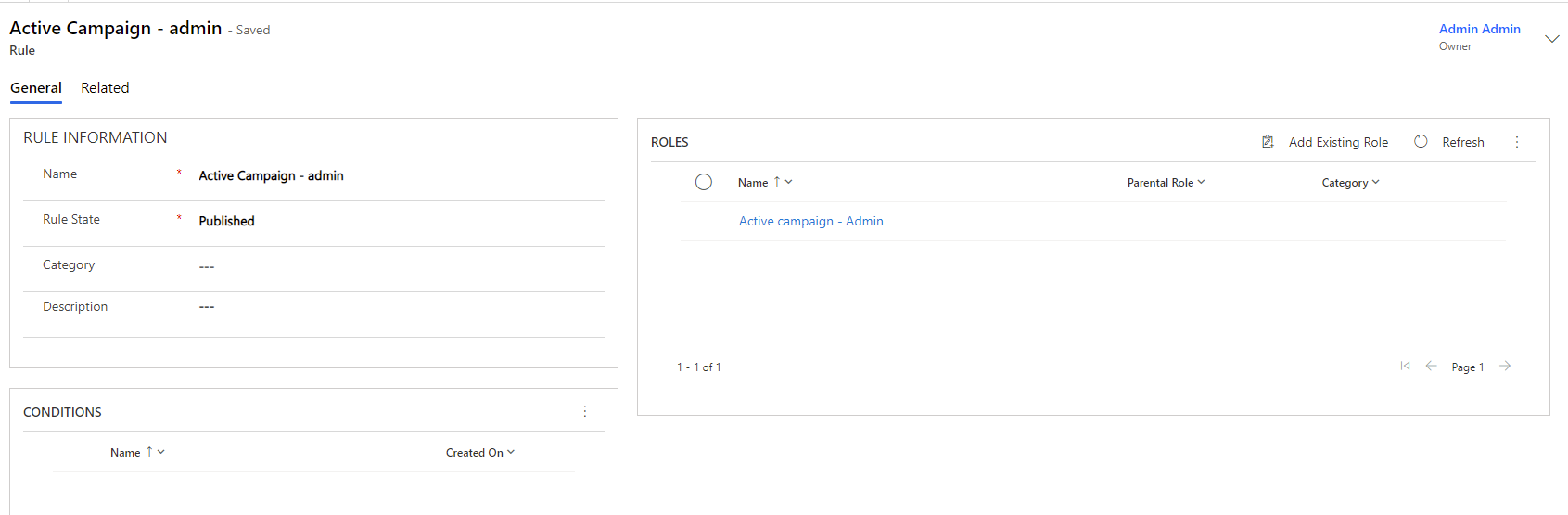
| Field Name | Type | Description |
|---|---|---|
Name |
Text |
The name of the Rule |
Rule State |
Choise |
Rule is in "Draft" until you manually change state to "Published". The rule is only activated when it is set to "Published". |
Category |
Lookup |
Any category for the rule. |
Description |
Text |
Description of the rule. |
Create new application
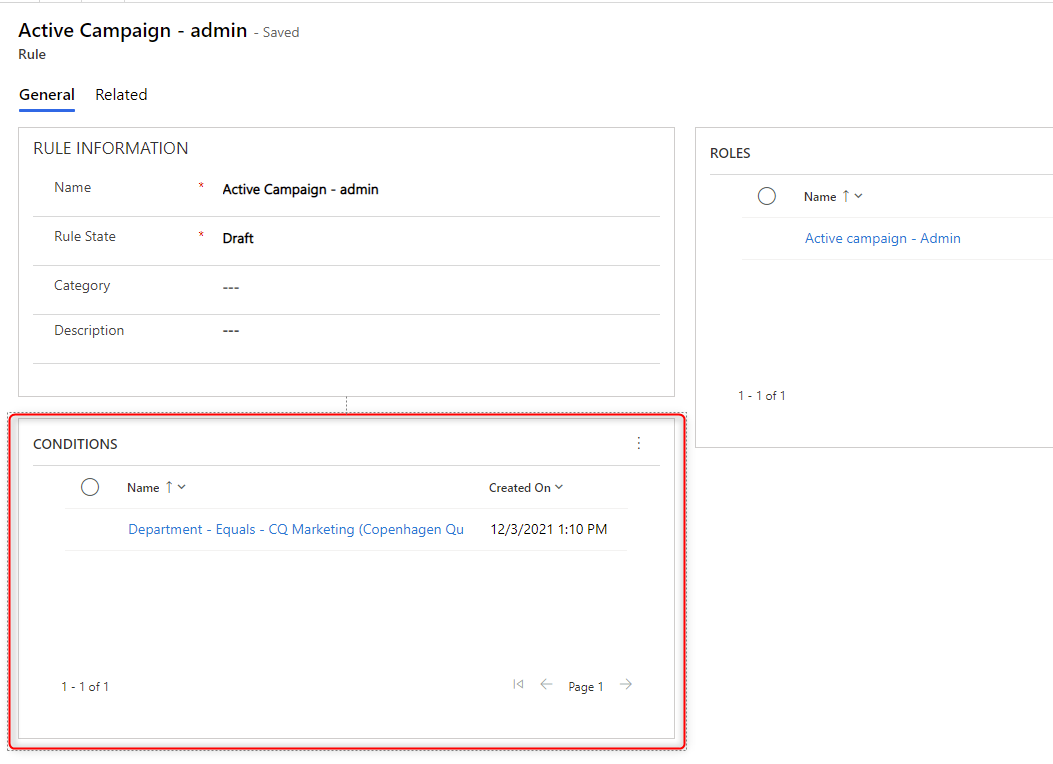
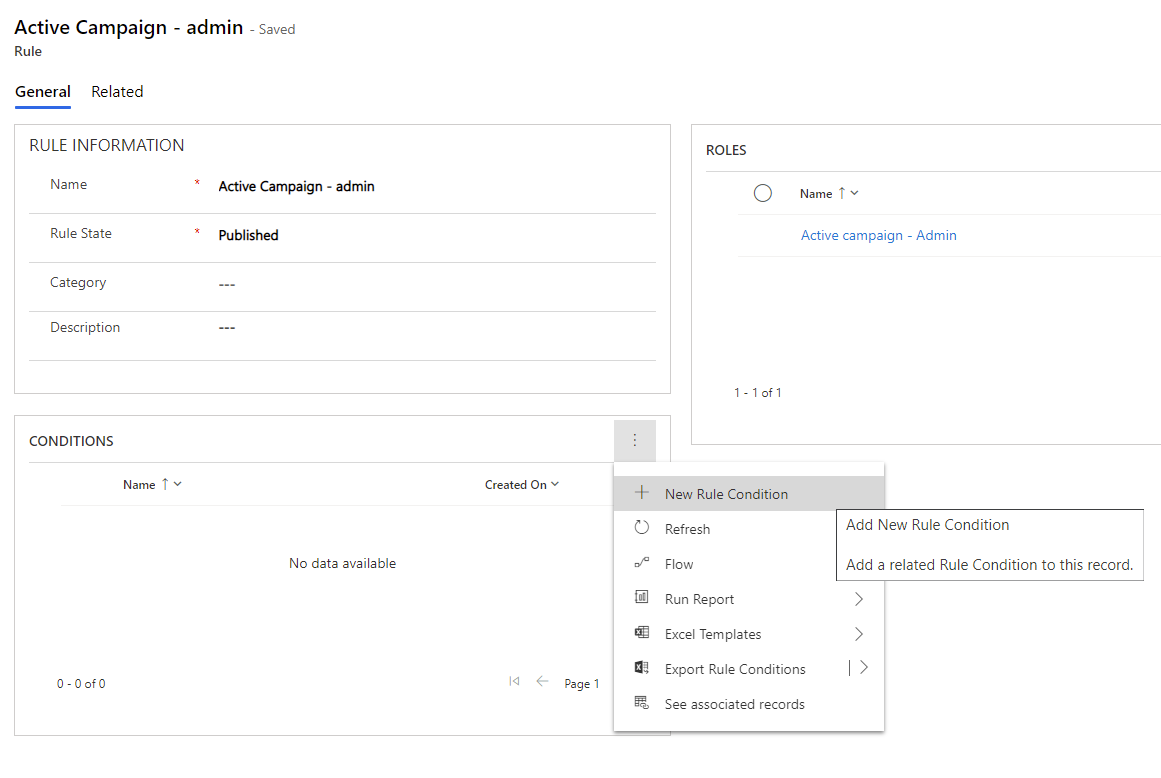
To create a new condition, press + next to "Conditions". If there is no "+", first press "Save" to save the rule that is being created.
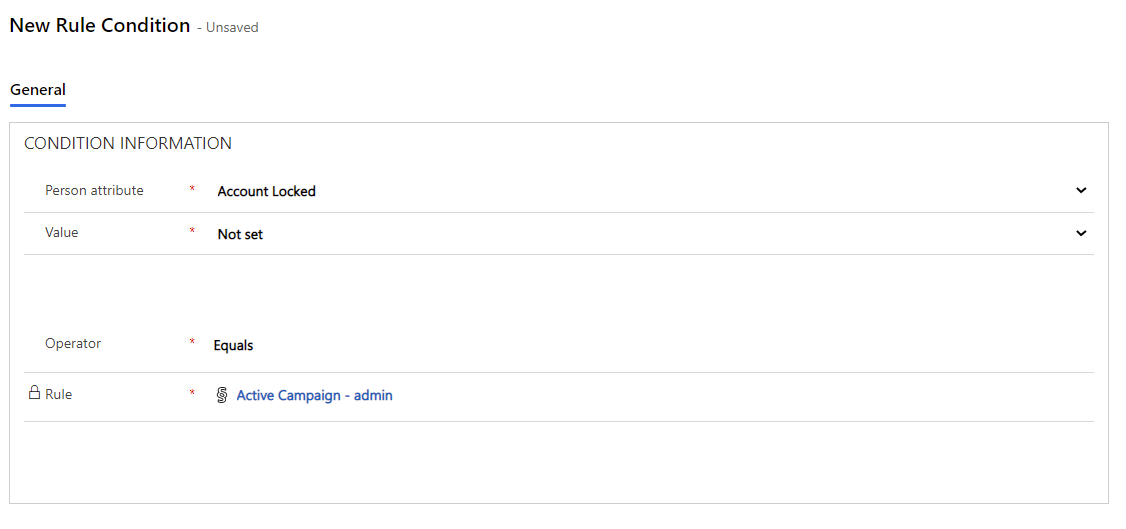
A new window opens where you must define a condition. All fields are required.
Description of the fields on condition:
| Field Name | Description |
|---|---|
Operator |
The type of validation to be performed on the value in the field selected in the Person Attribute. You can use different types of operators depending on field types: Equals / Not Equals: This applies to fields where you select the value from a list. The entire field must have the same value or a different value from Value. These are fields such as Department, Location, Company, and Title. True / False: Fields that can be true or false. The Guest field for an invited user. Equals / Not Equals / Contains / Begins With / Ends With. This can be selected for a field where you enter the value. There are fields like First Name and Last Name. |
Person Attribute |
The field on the Person Card on which validation is to be performed. |
Value |
The value you want to validate against. |
Rule |
The rule to which the condition applies (fixed). |
-
If you add two conditions to the same role, they must both be met.
-
If you want people to get the role based on different conditions, you need to create multiple rules for the same role.
Rules are used in conjunction with Roles to select a set of users who should have a given role. Rules have a condition attached in which the actual selection can take place. For example, a condition could be all persons of the person type "Employee". Or any person with the job title "IT employee".
Create a new Condition for your Rule by clicking on "…" and selecting "Add New Rule Condition":
Next, the screen below will appear:
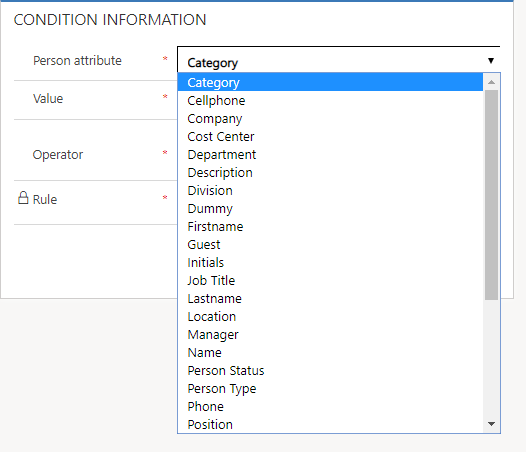
| Field Name | Type | Description |
|---|---|---|
Person attribute |
Lookup |
Here you select which field contains the value that the rule should filter for. |
Value |
Lookup |
Here you select the value (based on selected field) to be filtered by. |
Operator |
Lookup |
Here you select the operator - Equals or Not Equals. |
Rule |
Locked |
The name of the Rule that has the specified Condition. |
Example of completed Condition: