Compliance Suite 2025 - Release Wave 2

New features

Feature Description

FrontDesk UI

We enhanced the FrontDesk UI and now offer you an easier way to access the details of persons you manage.

  • New layout
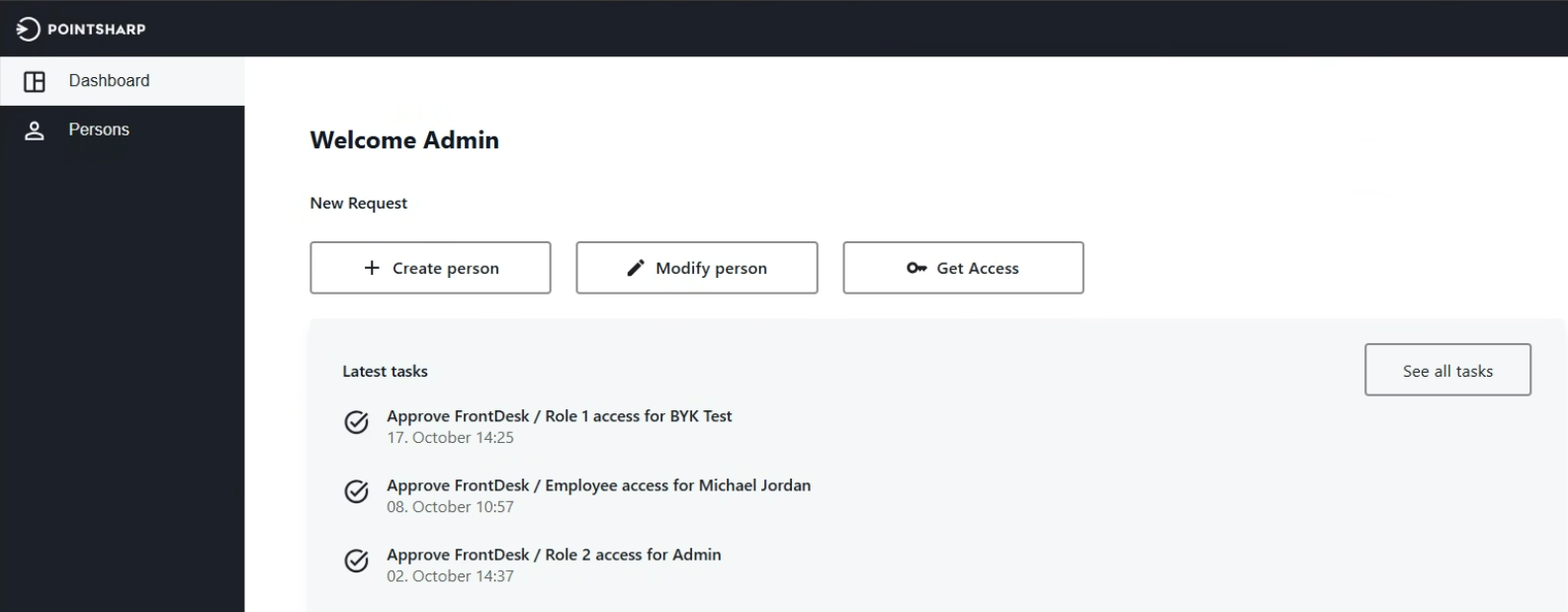
    The layout of the FrontDesk UI has been adapted to Pointsharp layout. The functionalities remain the same.

    Compliance Suite FrontDesk Dashboard
  • Create Person - Overview of defined pages
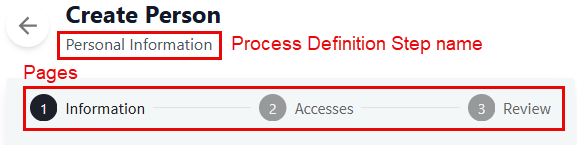
    When you create a person, at the top of the form you can see now an overview of the different pages that are created for the respective Process Definition Step.

    FD Create Persons
  • Modify Person - Improvements
    Here, you can find the following improvements:

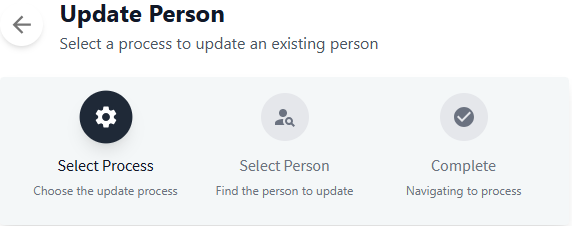
    FD Update Persons
    • When you open the view Modify Person, you can see now an overview of the steps you have to complete to modify a person.

    • In step Select Person, you can only find persons that you are allowed to modify.

      • Same company

      • Same department

      • To whom you are manager for

      • Role-based

  • New tab - Persons
    Until now, if logged users wanted to get an overview of persons they are managing, they had to do this in Compliance Suite.

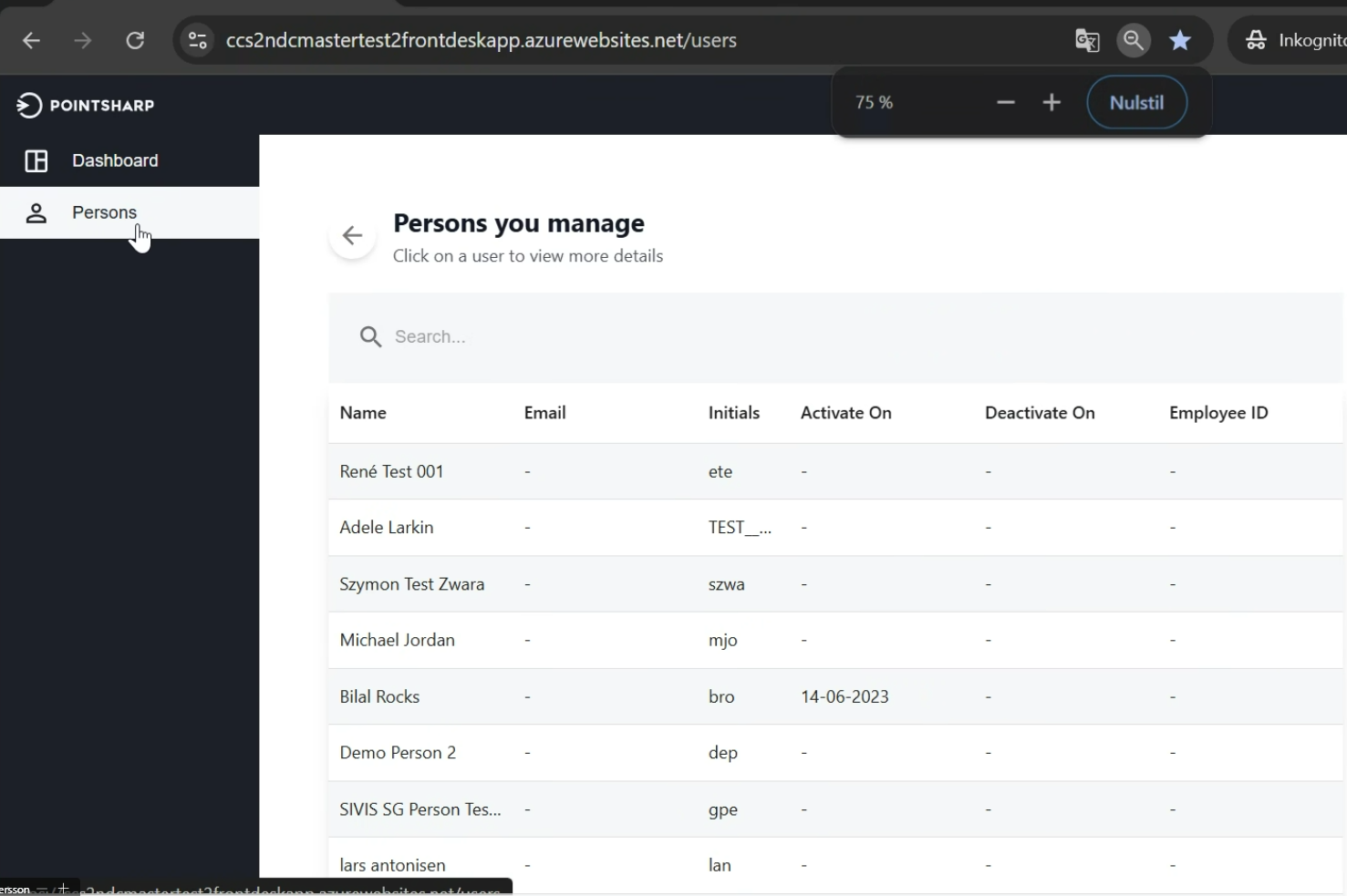
    With this release, we offer you this overview on persons also in FrontDesk. For this, we added the tab Persons to the FrontDesk UI, where you also find the information about accesses and roles of a person. This allows you to get a better overview of your team and the correct rights and data they need to stay compliant.

    The information on this tab is view only!
    FD Persons

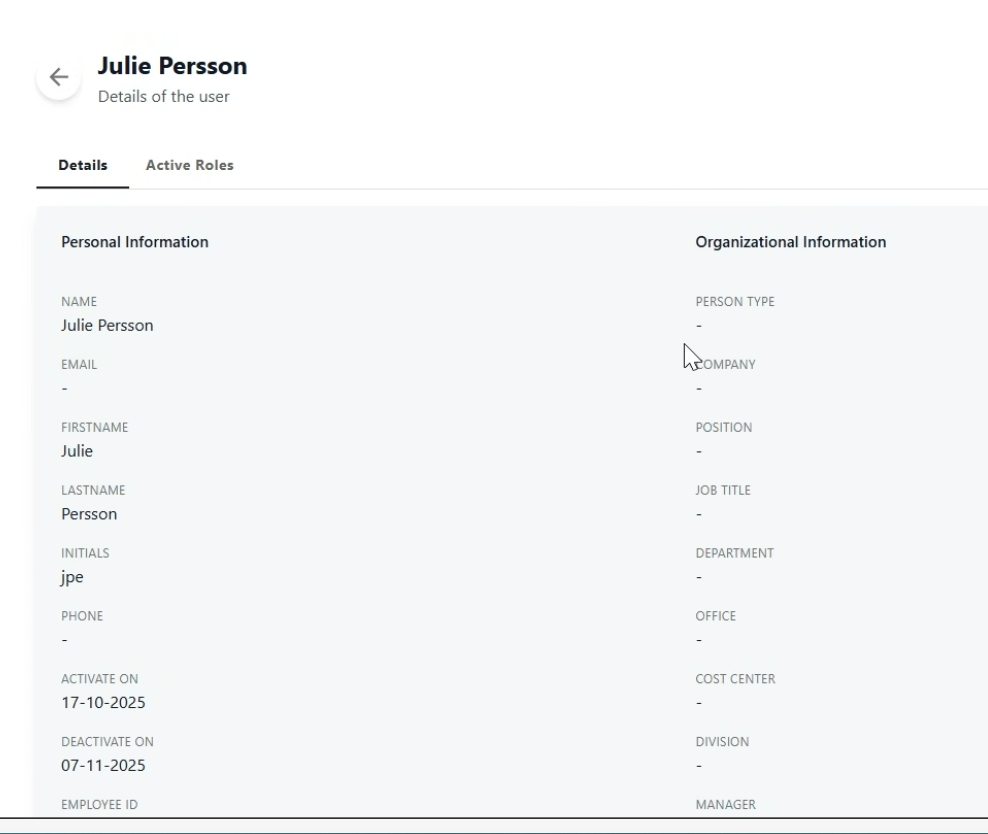
    Here, you find a list of all persons the logged in user is managing, showing some general details for each person and their validity period. By clicking on an entry, the details of the person are displayed. Here, the information you can find can look like this:

    FD Persons details
    Tab Section Description

    Details

    Personal Information

    In this section you can find general information about the respective person.

    In the FrontDesk administration UI, you can define which fields should be displayed here.

    Organizational Information

    In this section you can find information regarding the person in the organization.

    In the FrontDesk administration UI, you can define which fields should be displayed here.

    Active Roles

    On this tab, you find a list of all accesses that are assigned to this person.

    The following information is shown per role:

    • Role name

    • Given by
      Information about who assigned the role to this person.

    • Stage
      Information about the stage the role is in.

    • Expire date
      Information about when the role will expire.

    An access that was assigned and approved in FrontDesk, is shown in this list immediately.

Entra ID mapping

With this release we give you the option to control multiple Entra ID tenants with Compliance Suite. For this, the Entra ID mapping has been enhanced to make the mapping more dynamic and changeable.

Within Entra ID, you can now modify the table AzureADAttributeMapping to change the property of a field to map to a different field. This mapping is only applied to pure Entra ID users. For Entra ID users that are synchronized with an AD DS user, the AD DS attribute mapping is used.

The following table shows the default mapping which is only applied for pure Entra ID users. This mapping is not used for Entra ID users that are synchronized with AD DS users.
D365Field AzurADField (refers to Entra ID field) Mapping direction

person.Name

displayName

In and out of CCS

person.FirstName

givenName

person.LastName

surname

person.Location.CompleteAddress

streetAddress

person.Location.State

state

person.Location.ZipCode

postalCode

person.Location.City

city

person.Location.Country.Name

country

person.Location.Country.Alpha2

usageLocation

person.Phone

businessPhones

person.EmployeeId

employeeId

person.Initials

mailNickname

person.Cellphone

mobilePhone

Additional attributes that can be mapped, are:

  • department

  • jobTitle

  • manager

  • extensionAttribute1-15

The following attributes should not be mapped.
Attribute Description

mail

The primary email address on the person is always mapped.

mailNickName

This attribute is used because Entra ID sets it to userPrincipalName, which is used as name before @ when creating a user.

UserType

This attribute determines if the person’s guest attribute is set to true or false.

The following fields are mapped to the user system identities and cannot be configured:

Compliance Suite field Entra ID user field Comment

identity.External

UserType

UserType is set true if it equal to 0 (Guest)

identity.ObjectId

Id

identity.UniqueIdentifier

UserPrincipalName

For Azure AD USI.

identity.Synchronized

OnPremisesSyncEnabled

  • True
    If synchronized from AD DS.

  • False or NULL
    For other synchronizations.

identity.Name

UserPrincipalName

identity.Statecode/Statuscode

AccountEnabled

For Azure AD USI.

Organization - New column Person Count

To make information about the amount of persons that are assigned to an entity more transparent and give you a better overview of issues that need to be solved, we added column Person Count to almost all entities in module Organization.

By default, the column is hidden, but can be added by using the function Edit columns for every table.

The information for Person Count is updated through Microsoft Dynamics.

Improvements

Improvement Description

Entra ID - Person on multiple Entra ID (AzureAD) user systems.

A person was either a guest in an Entra ID user system or not. This information was stored in the respective field Guest in Compliance Suite.

Now, it is possible for a person to exist in multiple Entra ID user systems. Thus, the person can exist as a guest in one system and as normal user in another.

For this, the following changes have been performed in Compliance Suite:

  • The field External on the user system identity is now used to specify if a person is a guest on the user system.

  • The field Guest has been removed from the conditions of a rule.

FrontDesk in CCS

New messages to inform you about missing roles for a Process Definition Step.

In case a Process Definition Step has no roles assigned to it, the respective Process Definition becomes invalid and thus, is not shown in FrontDesk UI.

To improve the communication in this case, we have added two new messages.

  • Message for view FrontDesk Process Definition
    You will now be informed if any of the assigned Process Definition Steps do not have a role assigned.

  • Besked til visning Process Definition Step
    Du vil nu blive informeret om, at der ikke er tildelt nogen roller til det pågældende trin, og derfor vises Process Definition ikke i FrontDesk UI.

Meddelelserne vises kun, når den pågældende side genindlæses.

Fixed bugs

Sammenfatning Beskrivelse af fejl Løsning

Opdatering af personlige data i AD DS forårsager en loop.

I Compliance Suite er der implementeret en mekanisme, der som standard mapper initialer til attributten sAMAccountName. Initialer mappes således altid, selvom de ikke er til stede i mappingstabellen.

Hvis denne adfærd ændres, så andre data mappes til attributten sAMAcountName, f.eks. EmployeeID, opstår der en loop, når data opdateres.

Det er nu muligt at kortlægge enhver attribut til sAMAccountName.

Værdien af sAMAccountName skal være unik.

Initialer kortlægges kun, hvis de er konfigureret i kortlægningstabellen.