
Create a Team in Dynamics
Create a team if you need to have multiple people as "Approver" or "Implementer" on a role or application in Compliance Suite.
Team types
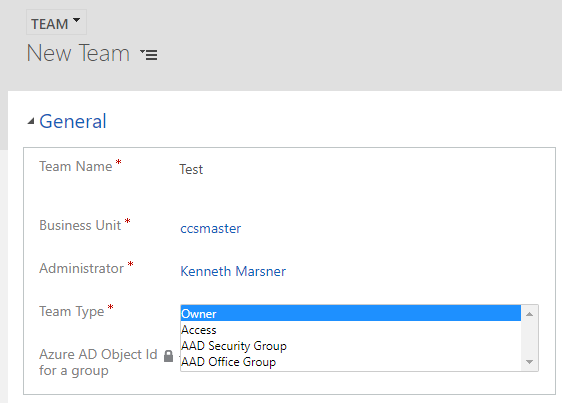
The team can be created as one of the following types:

The team can be created as an "Owner Team" in Dynamics or, for example, an "Entra ID Security Group" can be linked to an existing Entra ID group, thus ensuring that people automatically join a team.
How to create a team:
-
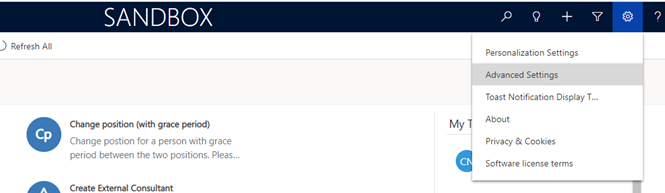
In Dynamics, click on *Advanced Settings.
-
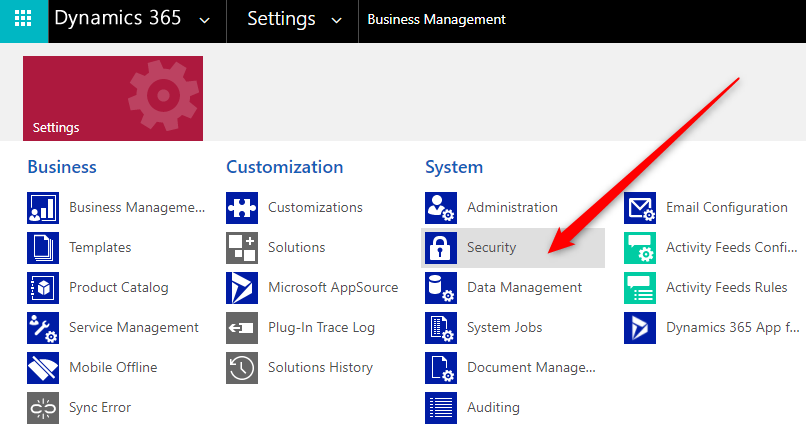
Select Security under Settings.
-
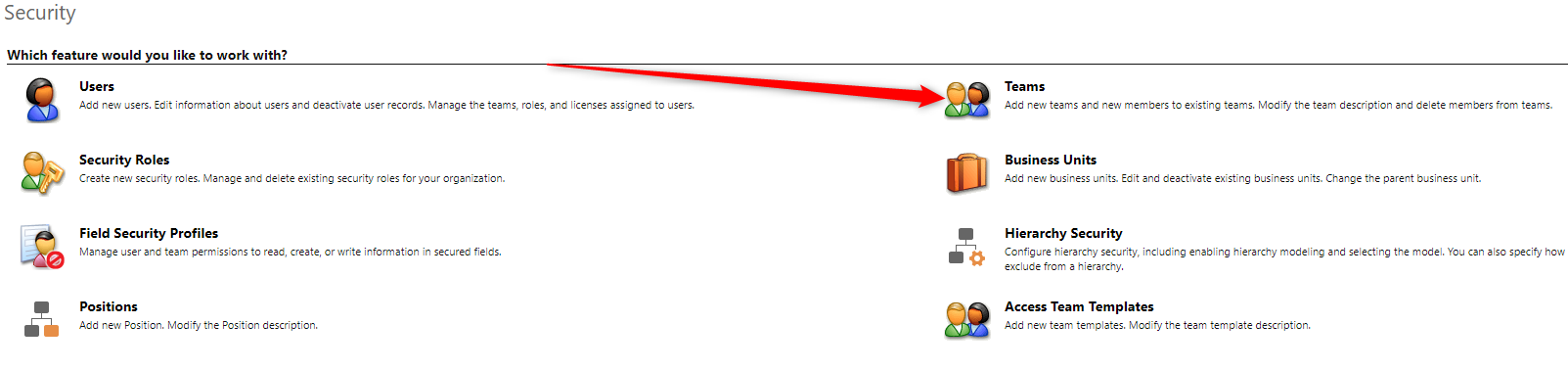
Select Teams.
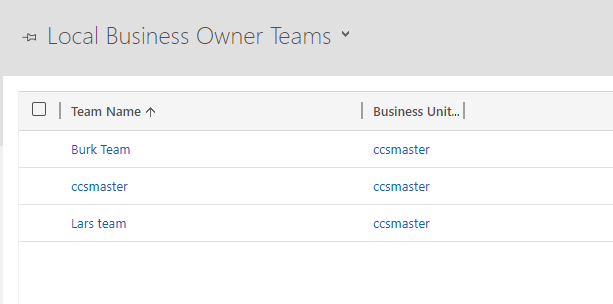
A list of the Teams created in the system is displayed.
-
Click on +New to create a new Team:
-
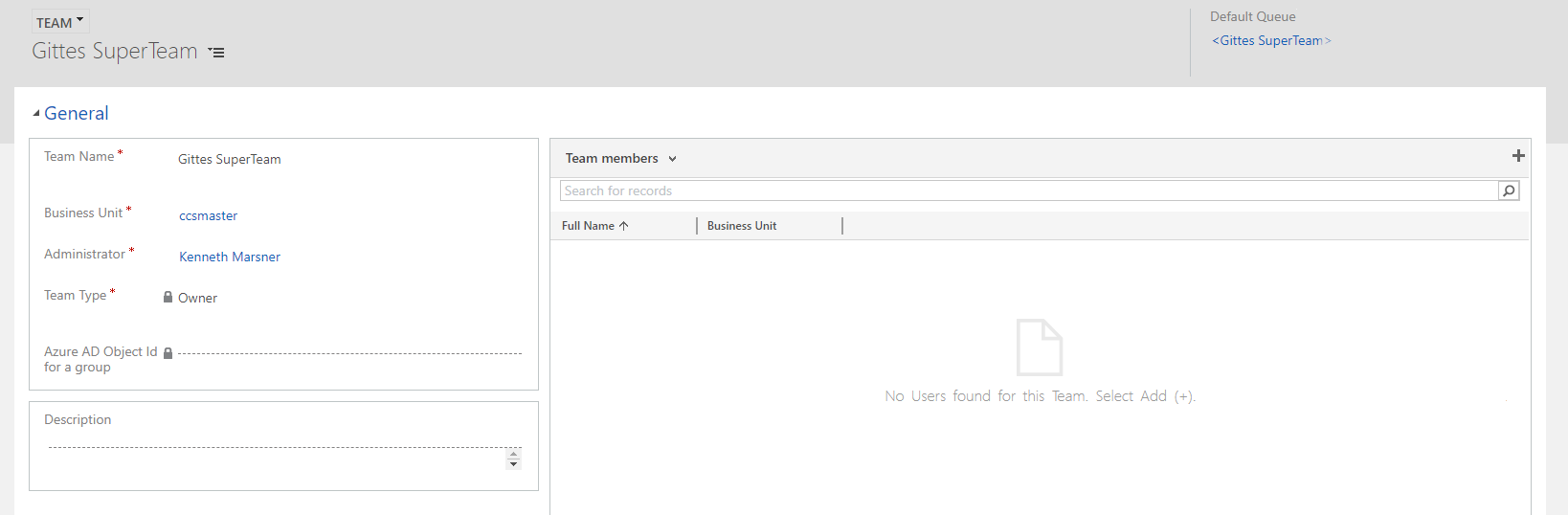
Enter the following details:
-
Team Name - The name of your new Team
-
Business Unit - The name of the unit in which the Team is created (an organization default may be used).
-
Administrator - Select the name of the person who can administer the team.
-
Team Type - Select Owner
-
-
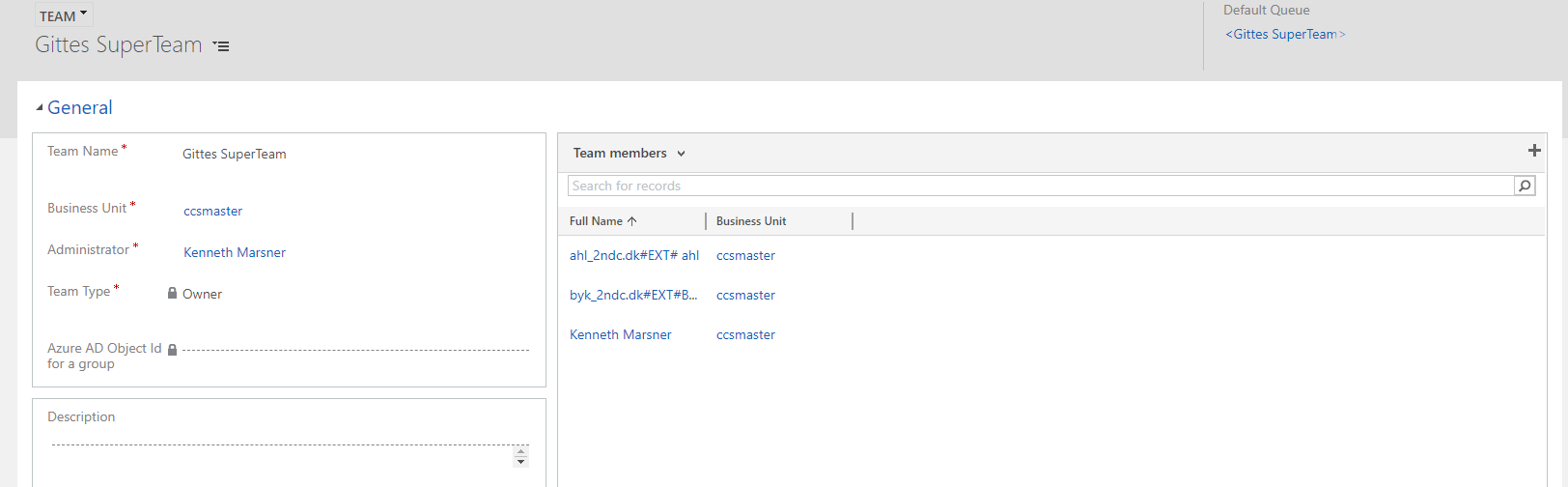
On the right side of the screen, you can add the members you want to be in the Team - by clicking on + and searching for them.
-
To select the team type, e.g. you can also choose to set up the team as an Entra ID Security Group.
-
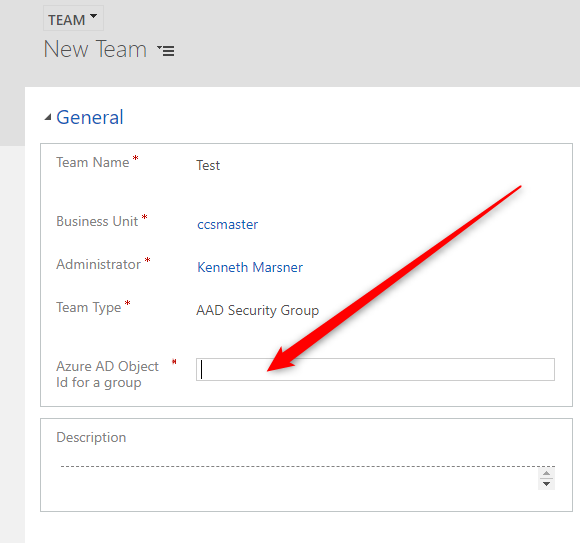
If you select Entra ID Security Group, fill in the ID of the group you want to link the team to
-
Click Save to save your new team.
| The team must have a role in Compliance Suite. |
-
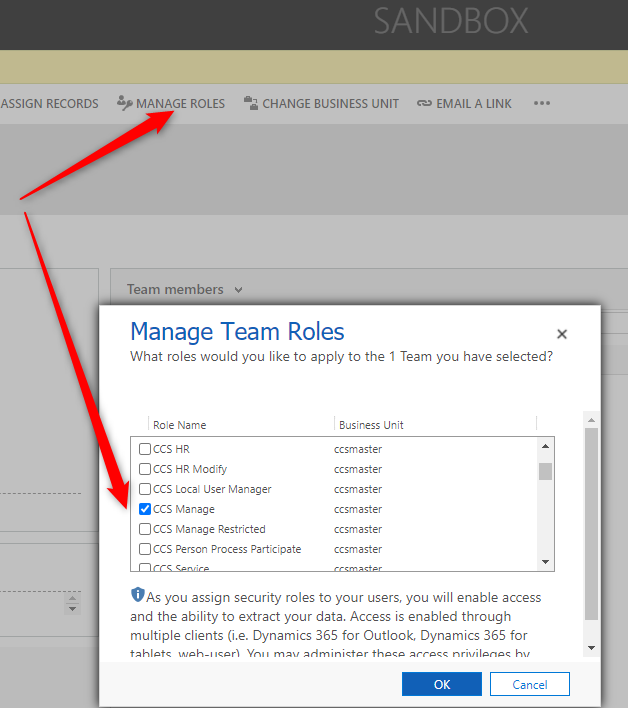
The role is assigned by opening the Team.
-
Click on Manage Roles.
-
Select CCS Manage.
-
Click OK to save.
Then the Team is ready and able to:
-
Accept tasks
-
Send emails