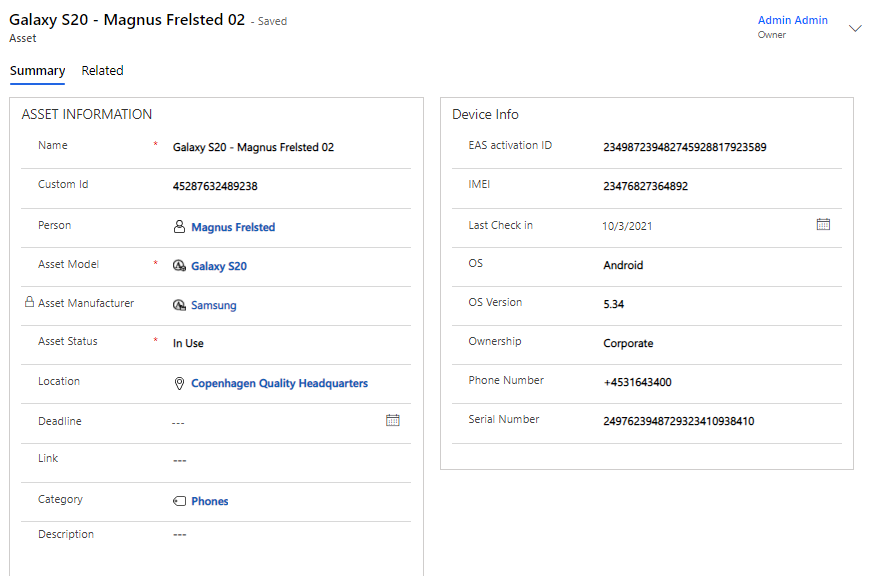
Create new asset
An asset can be imported via the built-in Microsoft Intune.connector.
| If you would like to have a similar setup, please contact support for assistance with the setup. |
In the case of automatic import, much of the data below will be filled in. However, some fields may be missing data that needs to be filled in.
Below is a description of how to manually create an asset in Compliance Suite.
| To create/register a new asset, you must first make sure that you have created the corresponding Asset Model and Asset Manufacturer. |
Articles on this topic can be found here:
-
Article about Asset Model
-
Article about Asset Manufacturer
Click on "+New" in the menu bar to create a new Asset.
First, the Asset Information on tab Asset Form should be filled in:
| On tab Asset Form you can control which fields should be Optional, Hidden, Required or ReadOnly when the user puts an Asset Model on the Asset. If the asset has Asset Sources associated, the Asset Model does NOT control which fields are Optional, Hidden, Required or ReadOnly. |
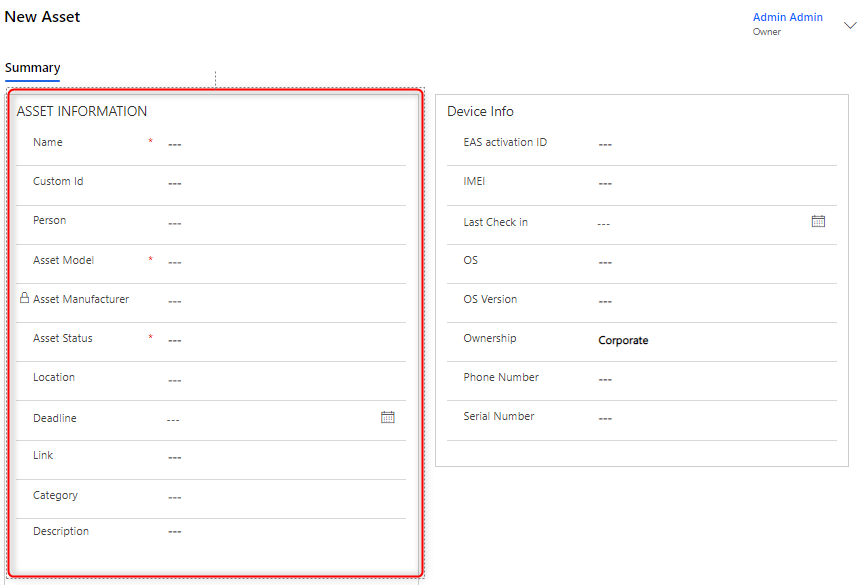
Fields to be filled in on asset information:
| Field (entity) | Type | Description |
|---|---|---|
Name |
Text |
Name Asset |
Custom ID |
Text |
Enter a desired Custom ID |
Person |
Look Up |
Select a person to associate your Asset with |
Asset Model |
Look Up |
Choose which model the given Asset has. Ex. iPhone 12 Pro, 128 GB |
Asset Manufacturer |
Locked Field |
Asset Manufacture is locked to Asset Model and is automatically populated when Asset Model is selected. |
Asset Status |
Drop Down |
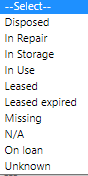
|
Location |
Look Up |
Choose which Location your Asset should be associated with |
Deadline |
Date |
Choose date |
Link |
URL |
Insert a relevant link to Asset. Ex. to a product sheet. |
Category |
Look Up |
Name Category |
Description |
Text |
Make a description |
Filling in Device Info
Device Info is, by default, associated with Microsoft Intune and therefore comes pre-populated from Intune and is also continuously updated via the connector.
Data on Device Info will usually only apply to electronic devices.
However, here is a brief review of the entities on Device Info:
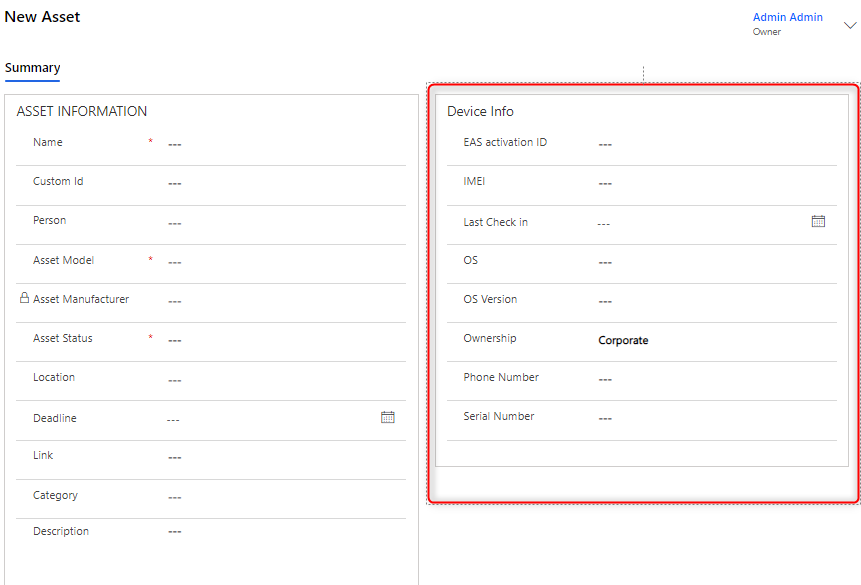
| Field (entity) | Type | Description | ||
|---|---|---|---|---|
EAS Activation ID |
Text/Numbers |
Can be completed or updated via Intune. |
||
IMEI |
Numbers |
Can be completed or updated via Intune. |
||
IP Address |
Text |
Can only be mapped from Custom Connector.
|
||
Last Check In |
Date |
Can be completed or updated via Intune. |
||
Last Check in By |
Text |
Can only be mapped from Custom Connector.
|
||
MAC Address |
Text |
Can only be mapped from Custom Connector.
|
||
OS |
Text |
Can be completed or updated via Intune. |
||
OS Version |
Text |
Can be completed or updated via Intune. |
||
Ownership |
Drop Down |
Choose between Corporate or Personal. |
||
Phone Number |
Numbers |
Can be completed or updated via Intune. |
||
ICCID |
Text |
Can only be mapped from Custom Connector.
|
||
Serial Number |
Numbers |
Can be completed or updated via Intune. |
||
Warrenty Start |
Date |
Can be mapped from Custom Connector, Intune and Lenovo Warranty. |
||
Warrenty End |
Date |
Can be mapped from Custom Connector, Intune and Lenovo Warranty. |
||
Card Number |
Text |
Cannot be mapped. |
||
Pin |
Text |
Can only be mapped from Custom Connector. Note: It cannot be mapped from Intune or Lenovo Warranty. |