
Exchange - Mail Alias & Skype
You can find Mail Alias & Skype in the "Connectors" sub-area of Compliance Suite.
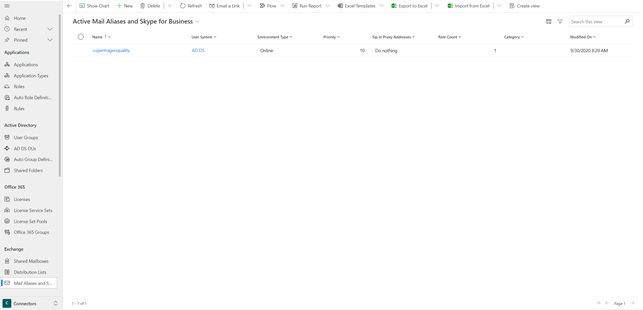
Mail Alias defines one or more aliases via the assignment of a role. A person can only match one Mail Alias entity. If several Mail Aliases are relevant for the same person, the "Priority" field can be used to prioritize these aliases.
You can use the following tags to create a Mail Alias:
-
[initials]: Initials of the person card in Compliance Suite.
-
[firstName]: First name of the person card in Compliance Suite.
-
[lastName]: Last name of the person card in Compliance Suite.
-
[initials].trimStart(xxxx): Initials of the personal card in Compliance Suite and the value starting with "xxxx" are removed. The following is an example: Initials in Compliance Suite are <company name>_kwm and [initials].trimStart(<company name>_) will therefore give the value kwm.
How to fill in the fields on Mail Alias
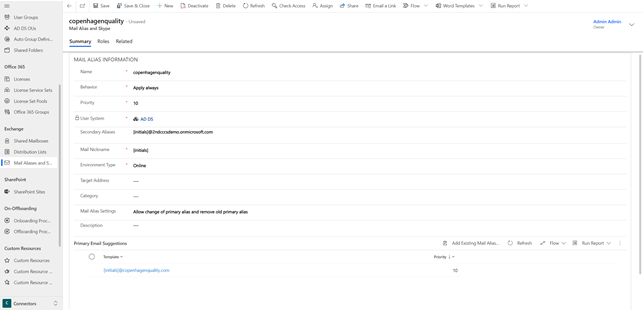
| Field Name | Description | Example |
|---|---|---|
Name |
The name of Mail Alias. |
copenhagenquality |
Behavior |
Choose between "Apply Always" and "Apply on create only". If the last option is selected, existing users will not be affected by Mail Alias setting. Existing users who receive a Mail Alias (for example, via a role) and who, for example, have an on-premises mailbox will not be assigned attributes according to Mail Alias. |
Apply on create only. |
Priority |
If multiple Mail Aliases match one person, the mail alias with the highest priority is selected. Priority 10 is higher than priority 1. |
5 |
User System |
The system to which the Mail Alias setup refers. |
Entra ID |
Secondary Aliases |
The field can contain multiple addresses separated by ";". The values are mapped to AD DS proxyAddresses as alternate smtp addresses. |
[initials]@example.dk;[firstName].[lastName]@example.dk;[initials]@example.onmicrosoft.com;[initials]@kck.dk |
Mail Nickname |
This field can only contain one value, and @ must not be included in this field. Mapped to the AD DS mailNickname attribute. |
[initials] |
Environment Type |
Choose between "Online", "On Premises" and "Hybrid". The field indicates the setup type of the Exchange solution you have. |
Hybrid |
Target Address: |
This field sets the AD DS attribute targetAddress. TargetAddress specifies how Exchange On-Premises forwards mails to an Exchange Online mailbox. Target Address only needs to be filled in if "Environment Type" is "Hybrid". |
[initials]@mail.example.onmicrosoft.com |
Category |
Select any category. |
|
Mail Alias Settings |
This field determines the way Mail Alias is set. Choose between "Do not change primary alias", "Allow change of primary alias and remove old primary alias", "Allow change of primary alias and keep old as secondary" and "Allow change of primary and secondary aliases - remove old". Primary and Secondary Mail Alias are synchronized to Entra ID via these rules: https://learn.microsoft.com/en-US/troubleshoot/azure/entra/entra-id/user-prov-sync/proxyaddresses-attribute-populate |
Allow change of primary alias and remove old primary alias. |
Primary Email Suggestions |
Here you can create one or more Mail Alias proposals via Mail Alias Templates. Compliance Suite will use them in order of priority and apply the first suggestion available. |
[initias]@copenhagenquality.com |
Option to change primary Mail Alias
It is possible to change the primary mail alias for persons in Compliance Suite.
As described in the table above, the following settings are available when setting up a Mail Alias:
-
Do not change primary Mail Alias
-
Allow change of primary Mail Alias and remove old primary Mail Alias
-
Allow change of primary Mail Alias and keep old primary Mail Alias
-
Allow change of primary Mail Alias and secondary aliases - remove old ones
When "Apply on create only" is selected in the "Behavior" field:
-
Existing users are not affected by Mail Alias Setting
-
Existing users who receive a Mail Alias (e.g. via a company role) and who have, for example, an On Premises mailbox, do not have attributes set according to Mail Alias.
Thus, the option applies only prospectively. This makes it simpler to introduce rules that will apply to part of an organization in the future. For example, in cases where aliases need to be changed on all new users while existing users need to remain unchanged.
Skype for Business
Skype for Business in Compliance Suite is used to assign a free phone number from the Skype for Business pool. A Compliance Suite administrator defines one or more pools consisting of a start number and an end number (e.g. 31 64 34 20 and 31 64 34 50). If Skype for Business is set up and one or more number ranges are defined, the icon appears next to the telephone number field on the person card.
When a person is created in Compliance Suite and the Skype for Business icon is pressed, Compliance Suite will automatically suggest a free number from the specified pools. This eliminates the need for maintenance of manual lists of vacant numbers. In the offboarding process, it can be defined when a telephone number should be released to the pool again.
When Skype is paired with either Exchange Online or Exchange On Premises, you can assign people a specific Mail Alias and Skype object to ensure that the person is created using a specified SIP address, which is a unique identifier of the user.
This is done by filling in the "SIP Suggestion" list on the Mail Alias object.
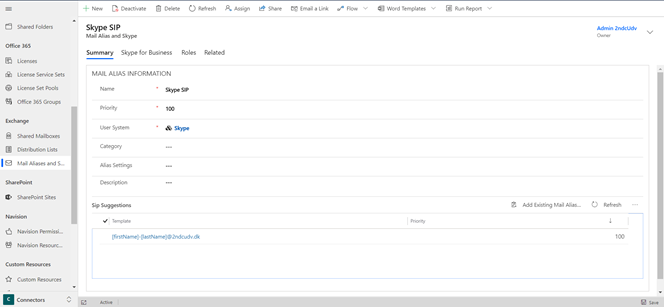
In this example we have filled in a SIP Suggestion "[firstName]-[lastName]@<company name>udv.dk". This value, transformed, will be set as the SIP address of the user in Skype for Business On-Premises.
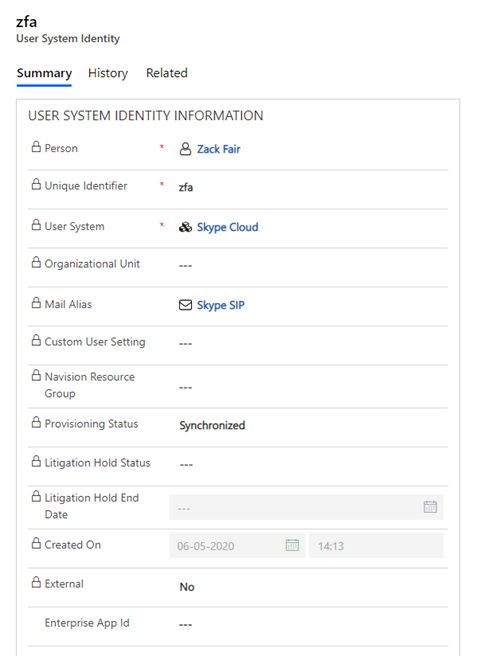
Mapping of SIP address
When you create a new Mail Alias, you can select the "Skype for Business" tab. This is where you set up what to do with the SIP in the proxy address:
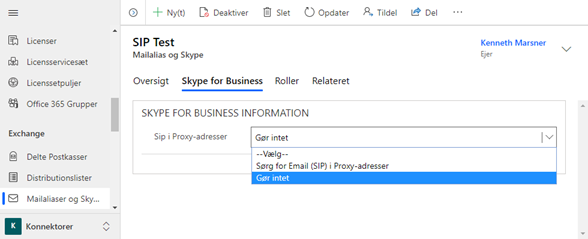
If a user has a Skype entity, this means that the SIP address must be mapped in ADDS. It should be mapped into the proxy addresses, and it should say, for example, "SIP:dn@copenhagenquality.dk".