How do I assign a user group to a new role?
After you have created a user group in a system like Active Directory Domain System (AD DS) - e.g. ADDS Group 1 - or Entra ID, you can assign it to a role.
How to create a role:
-
In Manage, click Roles.
Here, you can find a list of all roles available in the system. -
To create a new role, click New .
This opens the site New Role where you create a manual role and supply information about it. -
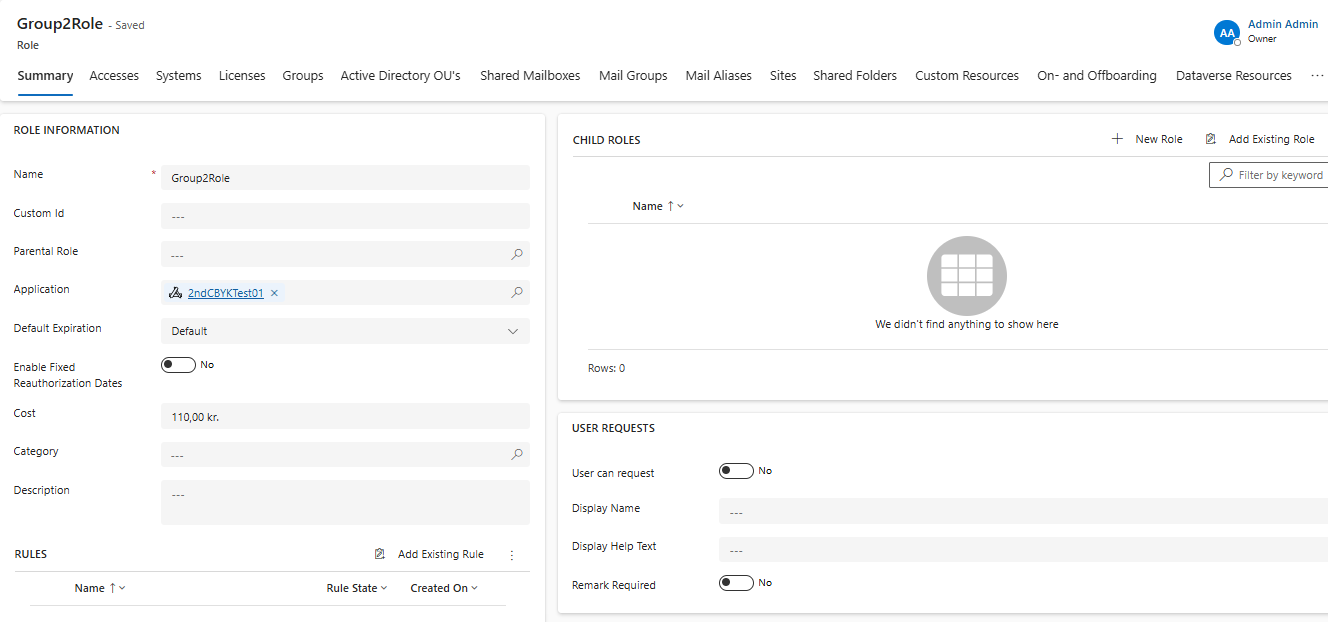
In field Name, enter e.g. Group2Role.
-
To connect the role to an application, browse for the respective application in field Application and select it.
-
In field Default Expiration, enter e.g. 180 days.
This means that the role will expire after 180 days and needs to be reauthorized.If you do not wish to add a default expiration date, you can also activate option Enable Fixed Reauthorization Dates. The reauthorization will then happen after a predefined period of time. -
If a license costs are linked to a role, you can enter the respective license cost for the role in field Cost, e.g. 110 kr.
-
In section Approval and Implementation Information:
-
In field Approver, enter the person who should approve the role in the system.
-
In field Implementer, enter the person who should implement the role in the system.
You can also enter an approver team or implementer team, in case the entered persons are not available.
-
-
If you want the role to be searchable through the self-service app, you have to activate the option User can request in section User Request.
-
If you want the role to be listed with a special name in the self-service app, you can enter this name in field Display Name.
-
Click Save.
| As soon as the role is saved, the site gets updated and you can create rules, assign the role to accesses, systems, licenses etc. A user receives all assignments as soon as this role is assigned to this user. |
How to assign a user group to the role:
-
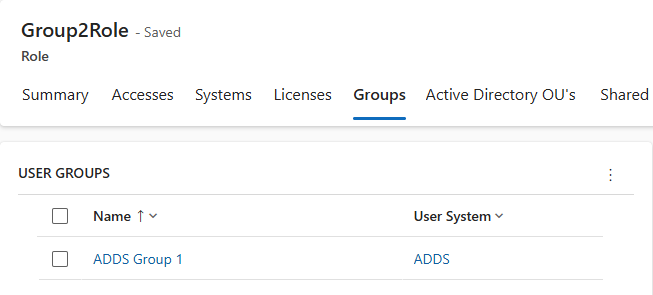
In the created role, open tab Groups.
-
In section User Groups, open the More menu and select Add Existing User Group
The pane Lookup Records is opened. -
In the field Look for records, enter the name of your user group, e.g. ADDS Group 1.
-
Click Add.
The user group is added and is shown in section User Groups. -
To save the changes on the role, click Save.
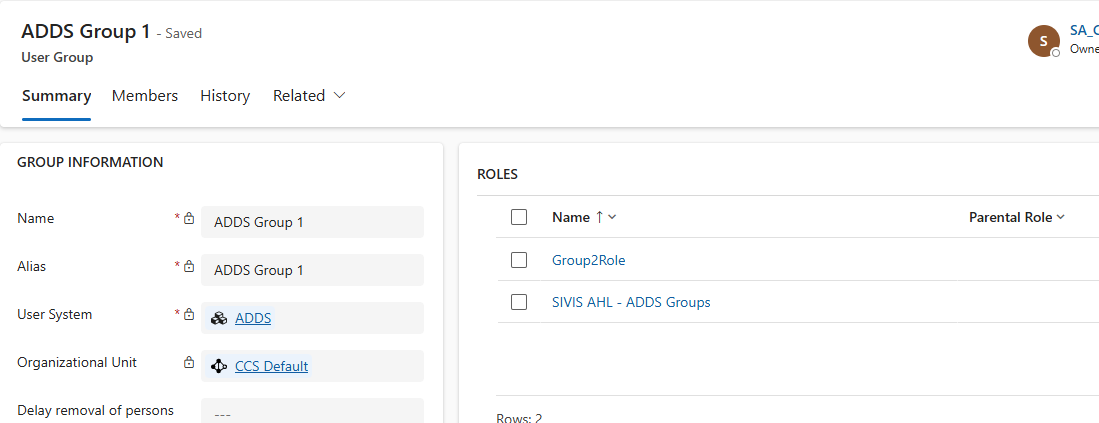
| When you open user group ADDS Group 1 in Connectors > Active Directory > User Groups, you can see in section Roles all roles that are assigned to this user group. |