
Mail Notifications
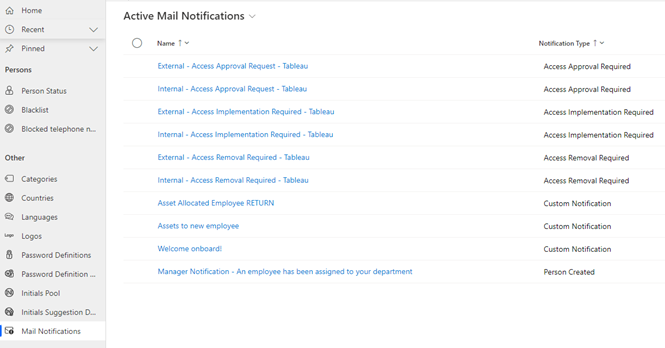
Mail Notifications is one of the operational cornerstones of Compliance Suite.
From here, it is possible to create standard templates for automatic sending of mails to relevant approvers, implementers, managers etc.
When an access needs to be approved by a manager or a system administrator, or an email about the return of assigned assets is sent to an employee during offboarding, it is done based on the default templates you create in this area.
When are notifications sent?
When an event occurs in Compliance Suite that has a notification associated with it, the notification will be sent by email via SendGrid.
When the notification is generated, mail notification templates and variables are derived from template objects (e.g., the person it is about) and substituted into the email. This means that it is possible to include data from Compliance Suite in mail notifications via the aforementioned template objects.
Notification entity
The notification entity is used to set up mail notifications. You set up mail notification templates under Mail Notifications in the Configuration sub-area.
Fields on mail notifications:
| Field | Prerequisites | Allow template merge fields | Max Size | Explanation | ||
|---|---|---|---|---|---|---|
Name |
Yes |
No |
100 characters |
Name of the notifications. The name will not be used in the sent mail, and should be explaining and indicative of what it does or where it is sent. |
||
Type |
Yes |
No |
N/A |
Type of notification. This will decide when it is sent and which merge fields will be available. |
||
To |
Yes |
Yes |
255 characters |
The email address that receives the notification. If there are more than one recipient, they should be separated by a semicolon (;). You can also use merge-fields such as a person or manager mail. |
||
CC |
No |
Yes |
255 characters |
Email address for CC recipients. As with the To field, multiple recipients needs to be separated by a semicolon. Still you can use merge fields. |
||
BCC |
No |
Yes |
255 characters |
Email address for BCC recipients. As with the To field, multiple recipients needs to be separated by a semicolon. Still you can use merge fields. |
||
Reply To Name |
No |
No |
100 characters |
The "reply to" name. The notification will show the this name as the sender of the email. |
||
Reply To Email |
No |
No |
100 characters |
The "Reply to" email address. The notification will show the this email address as the sender of the email. |
||
Subject |
No |
Yes |
100 characters |
Subject field for the notification. You can also use merge fields in the subject field. |
||
Body |
No |
Yes |
20000 characters |
Body text of the notification. You can use template merge fields. |
||
Category |
No |
No |
N/A |
The Select a fitting category for the notification template |
||
Description |
No |
No |
2000 characters |
Internal description of the notification template. Will not be included in the mail. |
Template Objects
Template objects are the options for actions in a mail notification
-
access – the option of assigning an access or processing an access, i.e., in the initiation of the predefined process
-
dashboards – pull data from a dashboard or send ref. to a given dashboard
-
person – Person-related incidents. Transfer of an employee to a manager, return of assets etc.
-
receivedmail – is used when a response to an approval email is not accepted (see the article Approve, renew or reject via mail notifications)
-
selfservice – is used for notifications based on actions in the self-service module
-
manageorder same as a person, but person name is {manageorder.PersonName}
Notification types and criteria for sending
| Name | Criteria for sending | Available template objects |
|---|---|---|
Access Ambiguous Reply |
Only relevant when using Approval via the email function. |
access, dashboards, person, receivedemail |
Access Approval Required |
When an Access request shifts status to Approve. |
access, dashboards, person |
Access Disabled |
When an Access shifts status to Disabled. |
access, dashboards, person |
Access Enabled |
When an Access shifts status to Enabled. |
access, dashboards, person |
Access Expired |
When an Access expires and the stage for the Access shifts to Remove or Disabled. If there are multiple Mail notifications defined both will be sent. |
access, dashboards, person |
Access Expires In 1 Day |
When an access expires in 24 hours and 5 minutes. |
access, dashboards, person |
Access Expires In 14 Days |
When an access expires in 14 days. |
access, dashboards, person |
Access Expires In 30 Days |
When an access expires in 30 days. |
access, dashboards, person |
Access Implementation Required |
When an access changes stage to Implement. Relevant if someone within the organization performs a manual task in connection to provisioning an access. |
access, dashboards, person |
Access Removal Required |
When an access changes stage to Remove. Relevant if someone within the organization performs a manual task in connection to removing an access. |
access, dashboards, person |
Access Requested |
When an Access is requested. |
access, dashboards, person |
Custom Notification |
Possibility of taylormade email notifications. |
access, dashboards, person |
Manage Order Disabled |
||
Manage Order Enabled |
||
Manage Order Planned |
||
Person Created |
When a person is created in Compliance Suite. |
dashboards, person |
Person Manager Changed |
When a person changes manager. If the person has just been created it is not considered a manager shift. |
dashboards, person |
Person Welcome Mail On New Mailbox |
When the email field on a person is linked to an active email address. |
dashboards, person |
Self Service Access Requested |
When an access is requested via the self-service portal. |
dashboards, selfservice |
Self Service Support Message |
When you click the support link (didn’t find what you were looking for?) in the self-service portal. |
dashboards, selfservice |
User Created with password in the system |
When a person is created with a new password in an external system. Most relevant for AD DS. The mail notification that is sent can include the new password for the user. |
dashboards, person |