Office 365 - License Service Set
Assignment of licenses in Compliance Suite is done through License Service Sets. A license in Office 365 (e.g. E3) consists of one or more services, such as OneDrive, SharePoint, Exchange Mailbox, Yammer, etc.
A License Service Set is the set of licenses to be used for a person. This makes it faster and easier to distribute licences to the organization’s users.
You can find your License Service Sets under "License Service Sets" in the sub-area "Connectors".
Here you get an overview of the active License Service Sets created in your system:
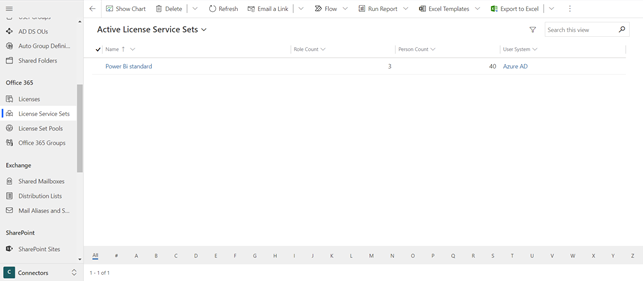
You can open an existing License Service Set by clicking on its name in the overview.
How to create a new License Service Set
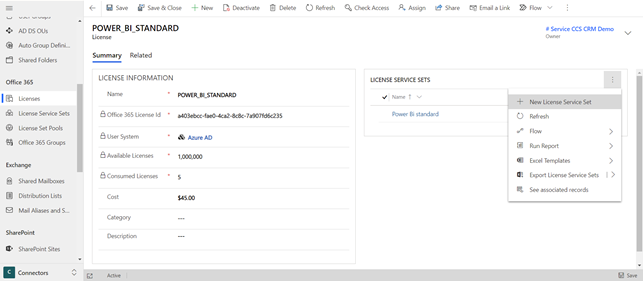
To create a License Services Set, open the Office 365 license for which you wish to create a Set and press "+ New License Service Set" next to License Service Sets.
When you create a new License Service Set, as a minimum, you must name the set:
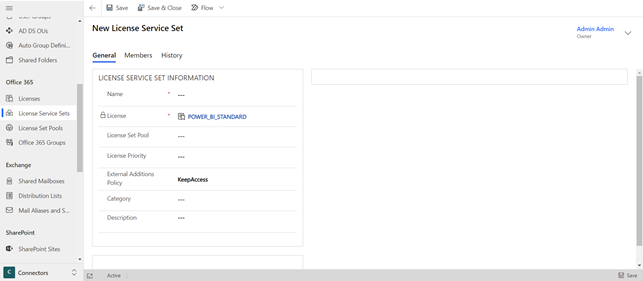
You can fill in the fields as follows:
| Field Name | Type | Description |
|---|---|---|
Name |
Text |
Enter the name of the new License Service Set. |
License |
Lookup (Locked) |
To be filled in automatically when creating the new License Service Set. |
License Set Pool |
Lookup |
Select a License Set Pool for the new License Service Set. |
License Priority |
Numeric |
Enter a priority for the new License Service Set. |
External Additions Policy |
Option Set |
Choose between "KeepAccess" and "RemoveAccess". |
Category |
Lookup |
Select category for the new License Service Set. |
Description |
Text |
Enter a description of the new License Service Set. |
Change Status |
Drop-down menu |
|
Due to License Set Pools, there will be a priority on the License Service Set. The user will be assigned the License Service Set that has the highest priority. For example, if a user is assigned the two License Service Sets "R10C1 License Service Set E3" and "R10C1 License Service Set E1" (which share the same License Set Pool), the License Service Set with the highest priority will be the one assigned to the user. In this example it would be "R10C1 License Service Set E3".
In the log, you will be able to see which License Service Set the user has been assigned.
When the license service set is saved, the "Services" box will be populated with the features available under that license.
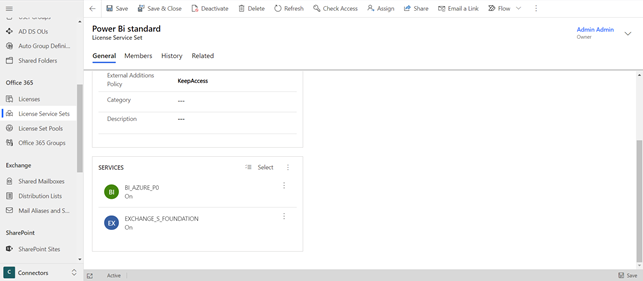
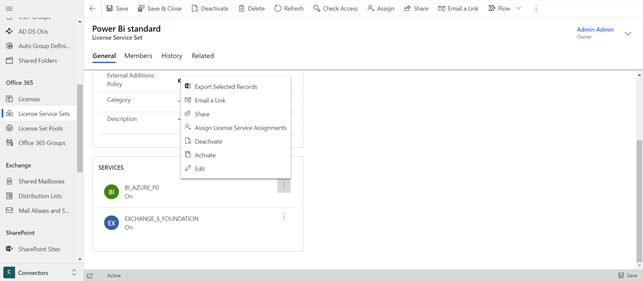
Under "Services" it is possible to activate or deactivate the different features. To do this, click on the three dots next to the specific Service and select either "Activate" or "Deactivate".
How to add a License Service Set to a role
It is possible to add a License Service Set to a role. You can either do this from a License Service Set or directly from a role.
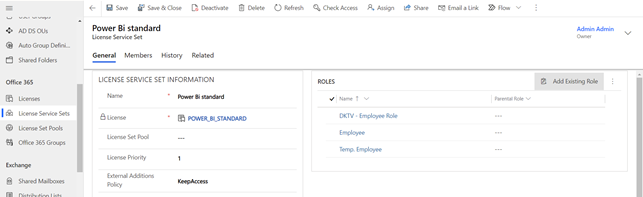
On your License Service Set, you can add an existing role in the "Roles" box.
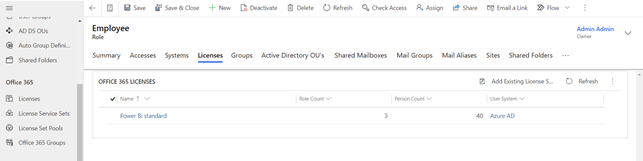
On a role, you can add an existing License Service Set via the "Licenses" tab.