
Office 365 - License Set Pools
You can link two or more licenses so that a person is assigned only one of these licenses via roles. This scenario may be desirable if a person has roles that allow that person to be granted an F1 and an E5 licence at the same time. The linking is done by creating a "licence pool" to which F1 and E5 are linked.
On the License Set, the fields "Priority" and "License Set Pool" can be found.
If two or more license sets (e.g. F1 and E5) are in the same pool, and a person matches multiple license sets in the pool via roles, only the license set with the highest priority is assigned to the user.
Overview of License Set Pools
Under "Connectors | License Set Pools" you can see all the active License Set Pools:
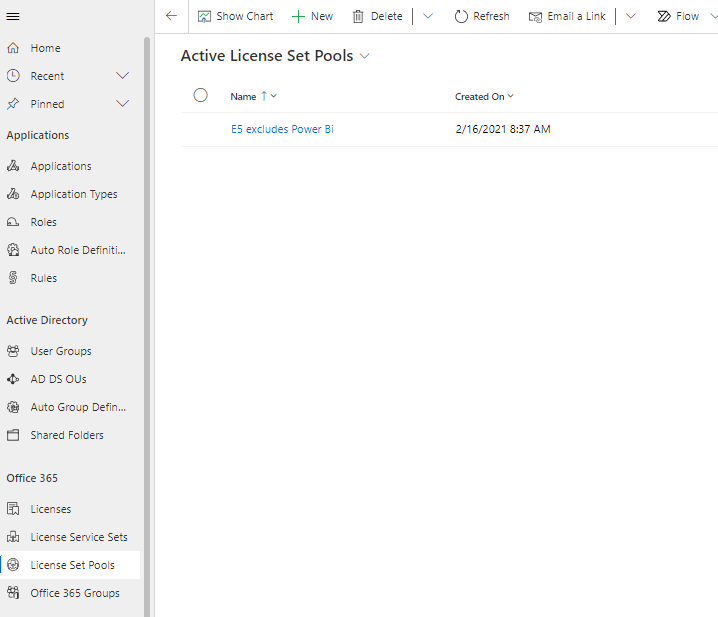
View existing License Set Pool
Click on a name on the list of Active License Set Pools to open an existing item:
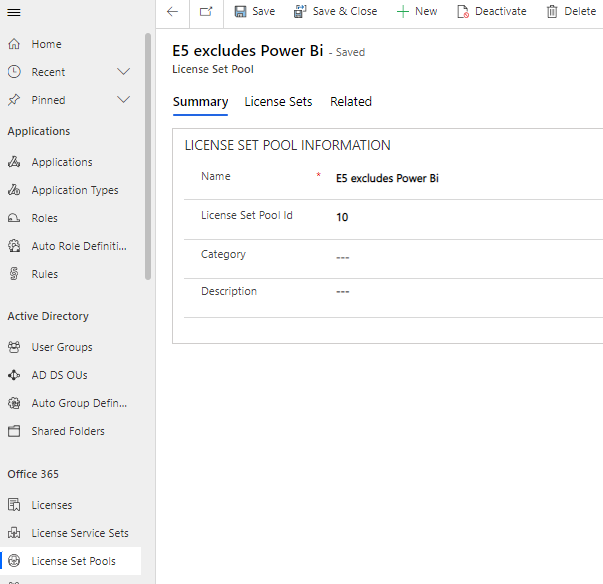
Create new License Set Pool
Create a new License Set Pool by clicking on "+New". When creating a new License Set Pool, only the name is mandatory:
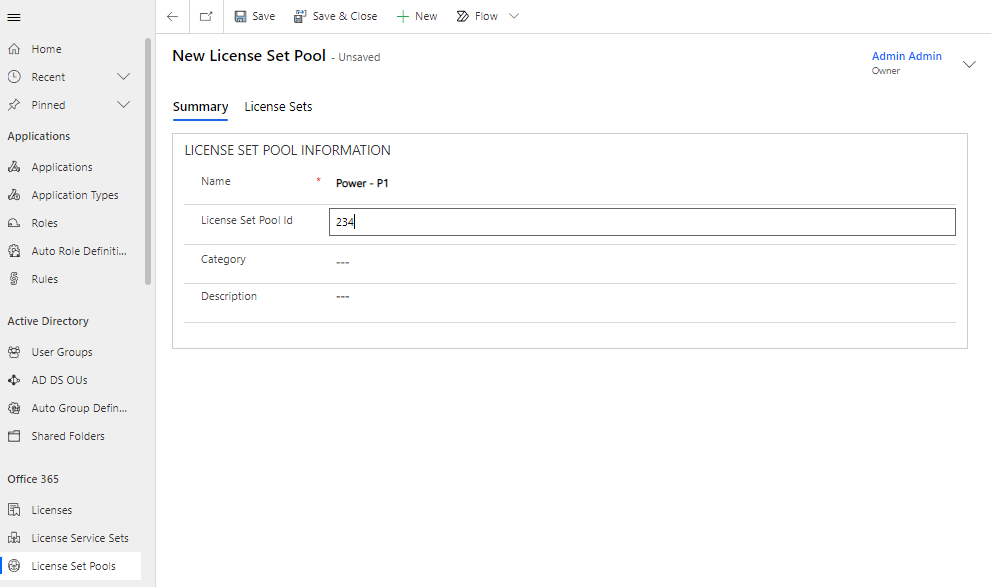
The change to License Set Pools has resulted in a priority on the License Set.
The user will be assigned the License Set with the highest priority. Take the situation, for example, when the user is assigned two License Sets: "R10C1 License Service Set E3" and "R10C1 License Service Set E1".
Note that both License Sets have the same License Set Pool, but "R10C1 License Service Set E3" has the highest priority, and thus it will be this License Set that the user will be assigned.
In the log you will be able to see which License Set the user has received.