
Profile - User Settings
Custom User Setting is used to provide special settings on ADDS users via roles, including UPN.
In other words, here you can set up the rules for the UPN setup of new users.
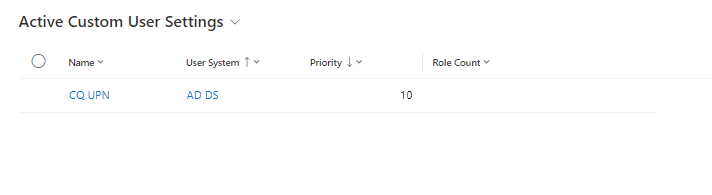
Create new Custom User Setting
Click on "+New" to create a new Custom User Setting.
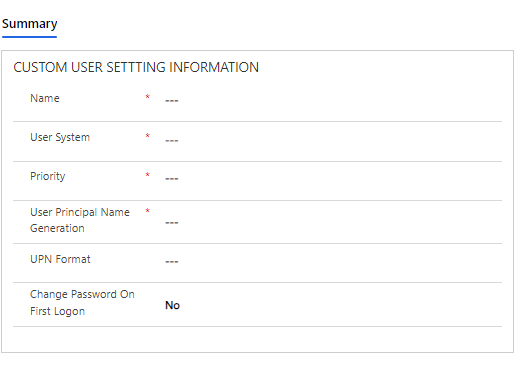
Fields to be filled in:
Field |
Type |
Description |
Name |
Text |
Name Custom User Setting. |
User System |
Look Up |
Select which system is connected to. |
Priority |
Number |
Highest priority wins by assigning two Custom User Settings. |
User Principal Name Generation |
Grouped setting |
Choose between
|
UPN Format |
Text |
Indicated by [] if necessary. field name ex. [firstname]. [lastname]. See all merge fields under "UPN Merge Fields" later in this article. |
Change Password on First Logon |
Grouped setting |
Select whether to change the password the first time the user logs in.After you have filled in the fields, you can fill in the AD DS tab |
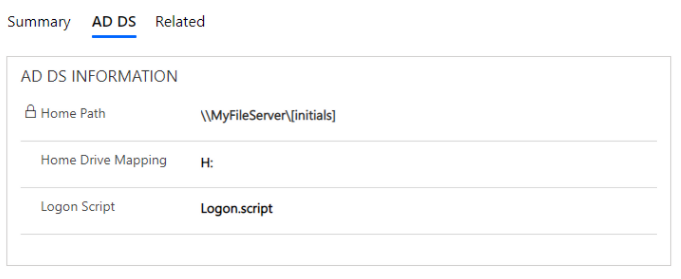
AD DS tab
Field |
Type |
Description |
Home Path |
Text |
Specify the path to the home folder followed by e.g. user initials. |
Home Drive Mapping |
Text |
Specify the user’s drive. |
Logon Script |
File name |
Enter the file name of the Logon Script. |
The above works as follows:
-
Creates home drive folder for this user (username/samaccountname)
-
Removes inheritance
-
Sets the user as the owner of the folder
-
Sets the ADDS home folder for this user to the ADDS object
-
Sets the ADDS drive mapping for this user on the ADDS object.
Add Roles
Once you have clicked on "Save", a role box will appear on the right side of the screen where you can fill in which roles this definition should be assigned to: Click on "Add Existing Role" or add a new role from the same place.
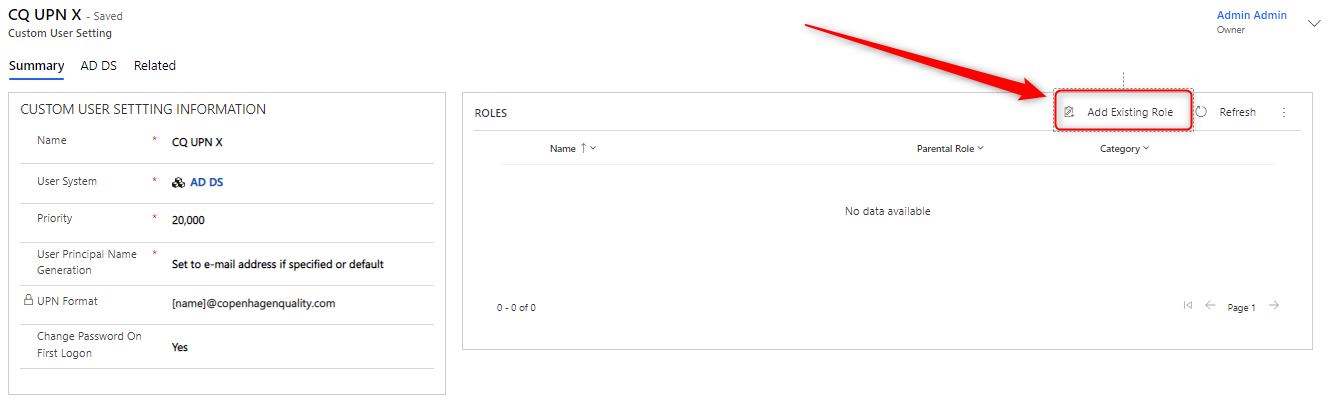
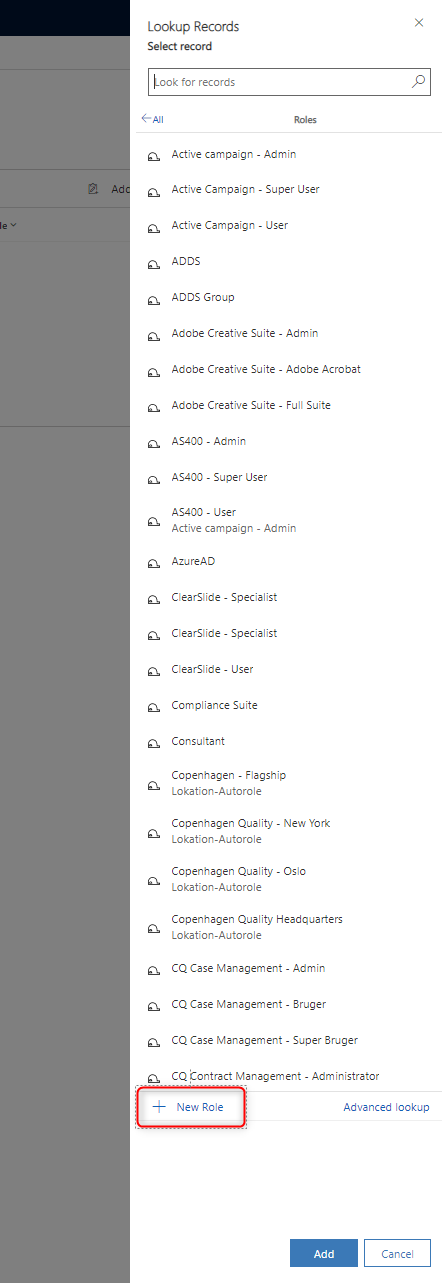
Next, the people affected by the role will get the specified UPN.
Do the following:
-
Create home drive folder for this user (username/samaccountname)
-
Remove inheritance
-
Set the user as the owner of the folder
-
Set the ADDS home folder for this user to the ADDS object
-
Set the ADDS drive mapping for this user on the ADDS object
UPN Merge Fields
Person fields (tags) that can be used in Person Template fields:
-
[initials] - corresponds to the entire content of the Initials" text box on the person card.
-
[name] - corresponds to the entire content of the "Name" text box on the person card.
-
[lastName] - corresponds to the entire content of the "Last Name" text box on the person card.
-
[name] - corresponds to the entire content of the "Name" text box on the person card.
| Tags are case-sensitive. |
Subset operator on person fields
On all person fields it is possible to include only part of what is in the field, e.g., the first word until a space.
-
[firstName] - corresponding to the entire content of the text box "First Name".
-
[firstName(0)] - corresponds to the first word, up to spaces, in the text box "First Name".
-
[firstName(1)] - corresponds to the second word in the text box 'First Name".
-
[firstName(1,0)] - corresponds to the first letter (1,0) of the second word(1,0) in the "First Name" text box.
-
[firstName(1,0)] - corresponds to the first three letters (1,0-2) of the second word (1,0-2) in the "First Name" text box.
Functions on person fields
Functions can be performed on all fields. A function is called on the value of the field after the subset operator is applied.
The following functions are available:
trimStart(abcd)
This function removes abcd from the start of the field. The value is
only removed if there is an exact match.
Example 1: (lastName = 'Sørensen')
-
[lastName].trimStart(Søre) => nsen
-
[lastName].trimStart(ø) => Sørensen
-
[lastName(0,1-6)].trimStart(ø) => rensen
Example 2 (initials = '<company name>_kwm')
-
[initials].trimStart(<company name>_) => kwm
How User Settings work
-
Creation of person in Compliance Suite with User Setting with UPN gets the User Setting specified UPN set.
-
Creation of person in Compliance Suite with User Setting with UPN gets the User Setting specified UPN set.
-
No updates are made to other persons who do not have a User Setting specified UPN. They are not changed to what is the default UPN on the given User System.
How to handle Compliance Suite ADDS User Principal Names
-
By default, after a person is created in ADDS, Compliance Suite will not change the User Principal Name. Changes to the User Principal Name in ADDS will be reflected on the ADDS User System Identity of the person. It is therefore possible to change the User Principal Name of a user in ADDS without Compliance Suite overwriting this.
-
The situation is different if a person created in ADDS is given a role that provides a Custom User Setting that is linked to the ADDS System. Giving the person such a role is perceived by Compliance Suite as taking control of the User Principal Name. Then the User Principal Name will be changed based on the configuration on Custom User Setting.