
Self-Service App
To access the Compliance Suite self-service solution, use your organization’s specific URL and log in via Single Sign On from your preferred browser.
In the self-service solution, you can choose to order an access for yourself or for someone else.
The accesses have an "Approver" associated with them. This means that the requested access is only granted when an "Approver" has accepted the request. There may also be an "Implementer" assigned to set up access in a system before it takes effect.
All texts and logos in the self-service solution can be customized to your organization (with the help of Pointsharp). Thus, there may be discrepancies between your solution and the screenshots in this article.
Order an access for yourself or someone else
When you open the self-service solution, you will see this screen:
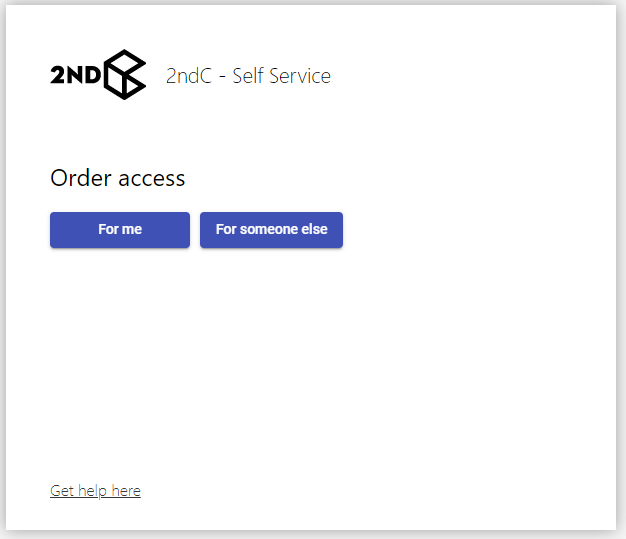
You should click on the "For myself" button if you wish to order an access for yourself. If you wish to order an access for someone else, click on the "To someone else" button.
The only difference between the two options is that choosing "For myself" will skip the option to search for a person in the self-service solution.
Clicking on the "Click here for help" button opens a guide to the self-service solution.
In the following, the scenario where "To someone else" has been selected is reviewed.
Select a person
After clicking on "To someone else", the following screen appears:
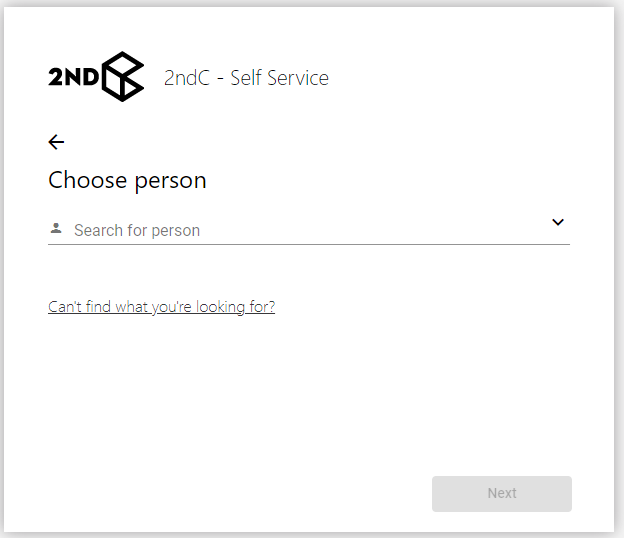
You can either search for a person by entering their name in the search box. Or, you can click on the arrow and select a person from the drop-down list.
However, it is recommended to search by name, as the list contains all persons in the company (all those registered in Compliance Suite).
You have the option to search by:
-
First name
-
Last name
Select a person and click the "Next" button to move to the next screen.
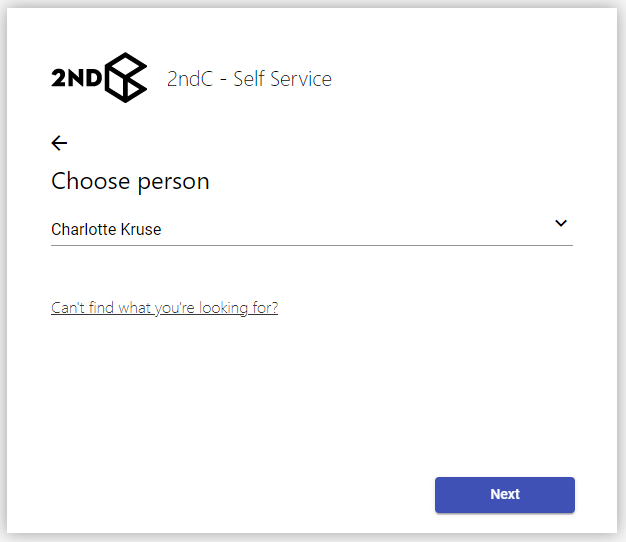
The button, "Can’t find what you’re looking for?" is available on all screens and allows you to send an e-mail to your Service Desk if you can’t find what you are looking for. The system summarizes how far along you are in the ordering process, so the Service Desk is in the best position to help you.
Select access
On the next screen, select the type of access you are looking for or the system you are looking for access to:
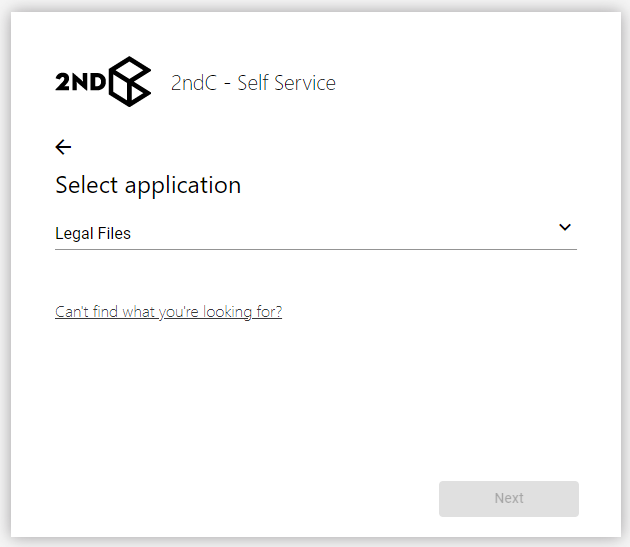
For example, select "Legal Files" and click the "Next" button to continue the process.
For Finance, you may choose to access one of the available accesses/roles:
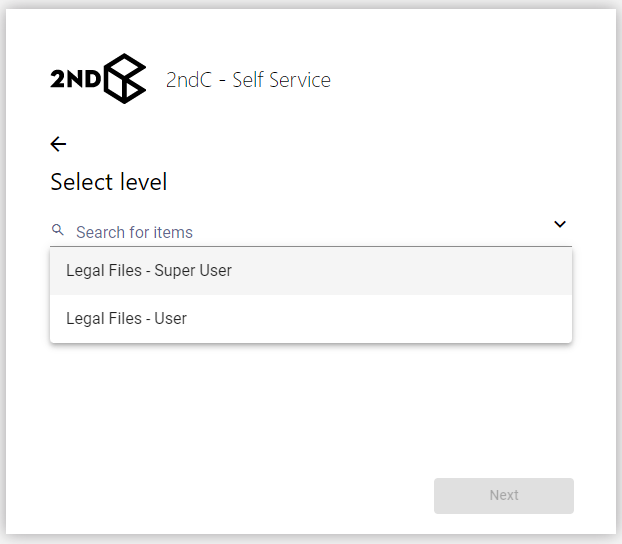
For example, select "Legal Files - User" and click the "Next" button to proceed.
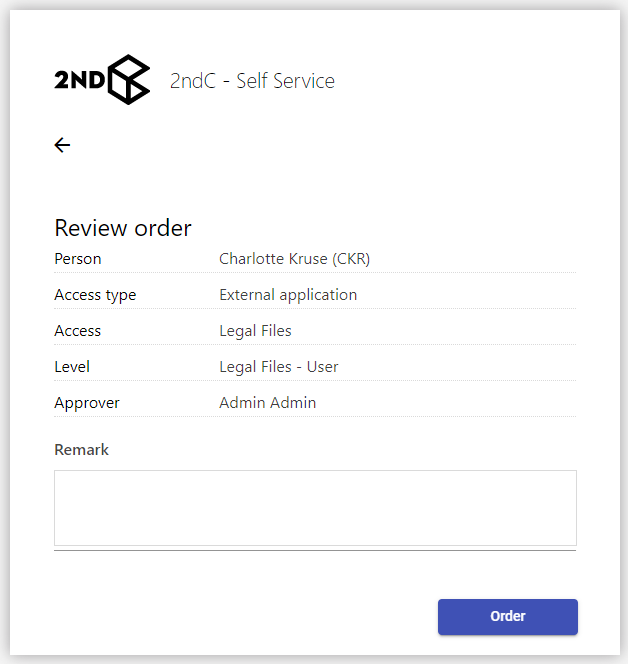
You always have the option to navigate back in the order by clicking on the arrow in the top left corner.
To order access and start the corresponding process, click on the "Order" button.
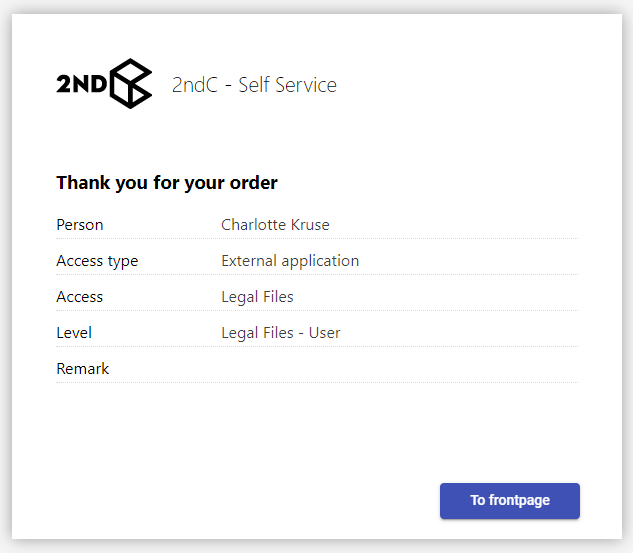
Once you have ordered the access, you will receive an acknowledgement of receipt:
Mail notifications from the self-service solution
You can set up mail notification templates in Compliance Suite that can be used to send to "Approver" and possibly "Implementer" notifications when ordering accesses in the self-service solution. Here is an example of an authentication e-mail:
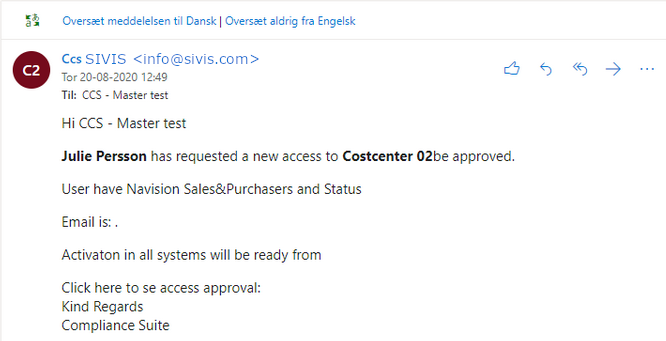
In Compliance Suite, the access will have the status of "Approve" until the approver either approves or rejects the requested access.
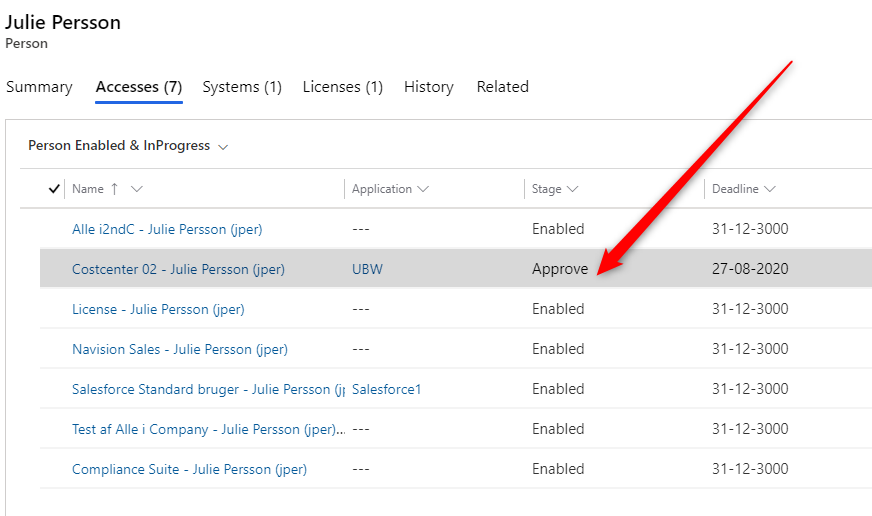
You can read more about e-mail notifications and their setup in Compliance Suite in this article.
Respond to access requests by e-mail
Mail notifications of access requests can be answered by the specified "Approver", and thus be either approved or rejected via e-mail. They do this by replying to the notification with a word chosen by your organization, for example, "Approve". The word must be the first word in the text of the e-mail. The notification will then be sent to the "Implementer", if applicable.
When the notification is answered, the status in Compliance Suite will be updated:
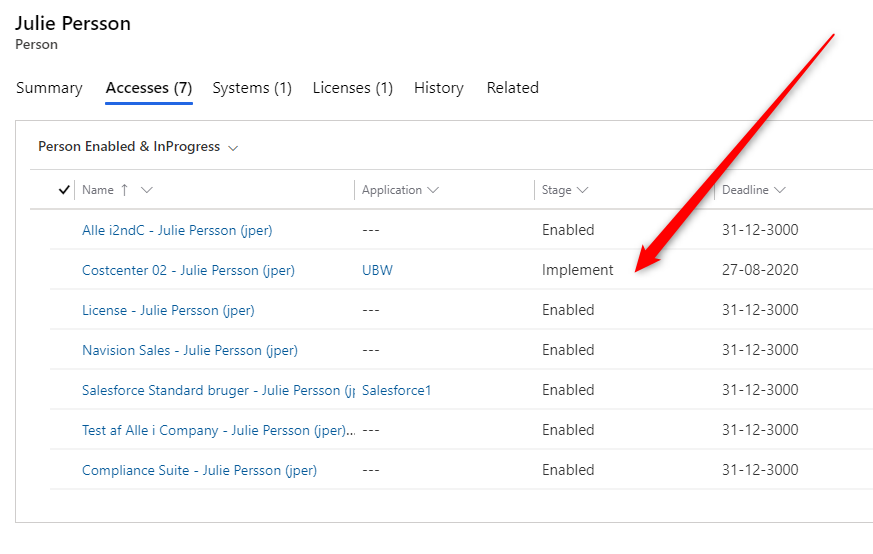
For example, the notification to a possible "Implementer" could look as follows:
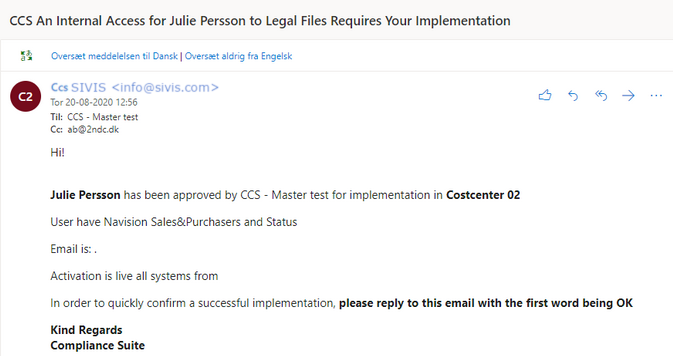
When the person responsible for implementing the access needs to acknowledge the implementation, he or she simply replies to the e-mail with, for example, the word "OK" as the first word in the text.
Mail notifications can also be sent to the person who requested the access ("Requester") and the person’s manager.
You can see the list of variables for mail notifications right here.
Approving or denying an access by e-mail
You can use the following words to approve an access request by e-mail. The word must be the first word in the text of the e-mail.
-
Approval
-
OK
-
Yes
-
Approve
-
Approved
You can have more words added to the list if your organization needs it. The words should be set up by an administrator.
You can use the following words to reject an access request by e-mail. The word must be the first word in the text of the e-mail.
-
Reject
-
Denied
-
Deny
-
No
-
Reject
-
Rejected
You can have more words added to the list if your organization needs them. The words should be set up by an administrator.