
MIME headers for outbound messages
Allows the sending of email header information in outgoing Notes emails.
This setting is useful if email recipients use Cryptshare’s Outlook integration "Cryptshare for Outlook." Starting with version 2 of the add-in, messages from Cryptshare that contain appropriate MIME header information can be retrieved directly via the Outlook add-in. The recipient system automatically downloads the data from the Cryptshare server and inserts it back into the recipient email. To prevent this information from being removed by the Domino server’s SMTP task when the message is sent, the required fields containing the header information must be explicitly enabled before SMTP conversion.
|
This only affects outgoing CS4N&D emails that contain this email header information. These settings do not affect standard emails from your personal mailbox or other sources. |
To enable this setting, please proceed as follows:
-
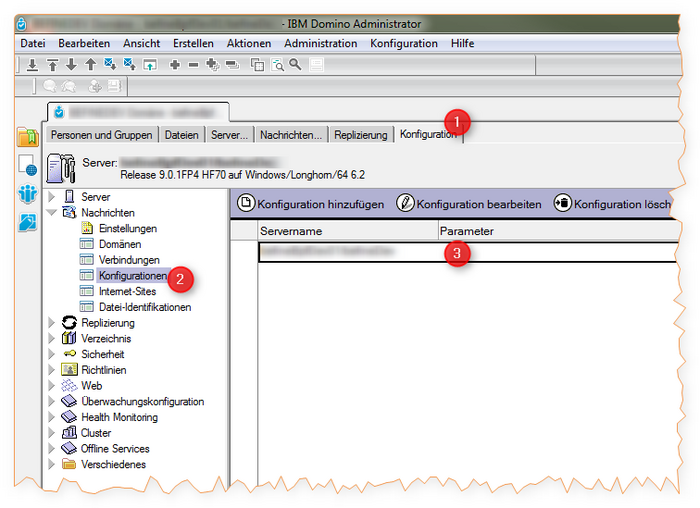
Open the Notes administration client.
-
Select the server on which the SMTP task is running.
-
Now switch to the *Configuration*
 -→ In the
navigator, click
*Configurations*
-→ In the
navigator, click
*Configurations* → then open
the corresponding document in the
view.
→ then open
the corresponding document in the
view.
-
-
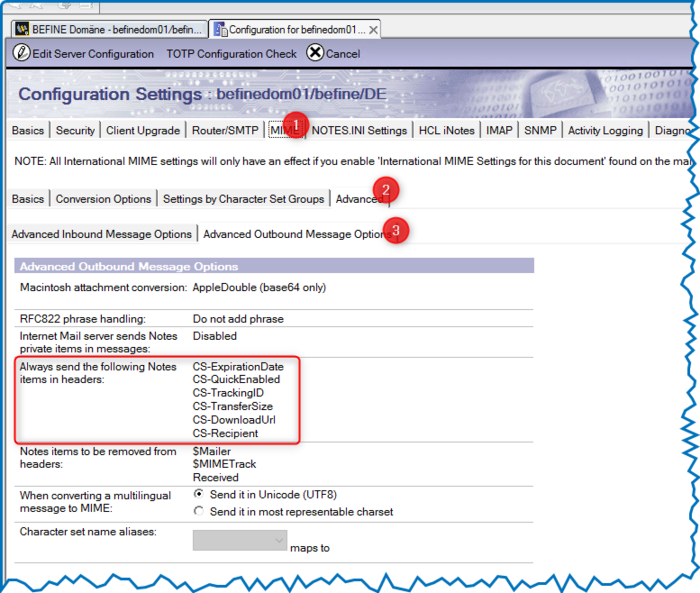
Now open the tab *MIME*
-→
then the Sub-tab *Advanced*
-→ and then the tab *Advanced options for outgoing
messages* -
-
In the "Always send the following Notes elements in header:" field, enter the following three values:
| Name | Function |
|---|---|
CS-DownloadUrl |
Contains the download URL of the files on the Cryptshare Server. |
CS-TransferSize |
Contains the greater sum of all files in bytes. |
CS-ExpirationDate |
Contains the date until which the files remain available for retrieval on the Cryptshare Server. |
CS-TrackingID |
Contains the tracking ID of the transfer |
CS-QuickEnabled |
Contains information about whether Transfer Quick is enabled. Currently always "false." |
CS-Recipient |
Contains the SMTP recipient of the transfer |
|
Restart SMTP task
Option 1) Console command: `restart task smtp` Option 2)
This means that the above entries are immediately taken into account. |