Roll out via email
-
A database link to the CS4N application can be sent to the user group by email.
-
To roll out the toolbar icon, email the users containing an action button with the setup script for the toolbar icon to be installed. The toolbar icon can be installed into the "Universal" or the "Editing" toolbar in the Notes client. This is the recommended deployment option.
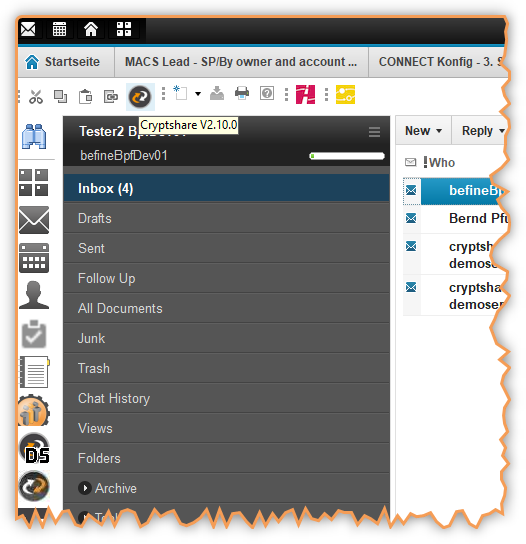
Rolling out the toolbar icon is the recommended way to make Cryptshare available to the users because:
-
CS4N is always available using the toolbar icon bar.
-
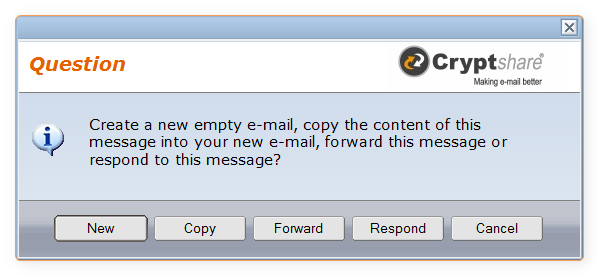
If the user is currently working in his mail file and clicks on the toolbar icon, he can not only create a new message, but also copy the content of the selected message into the new one, forward the message or respond to it.
If an EML file is viewed and the user clicks on the CS4N icon, the following dialog will appear (depending on configuration settings):
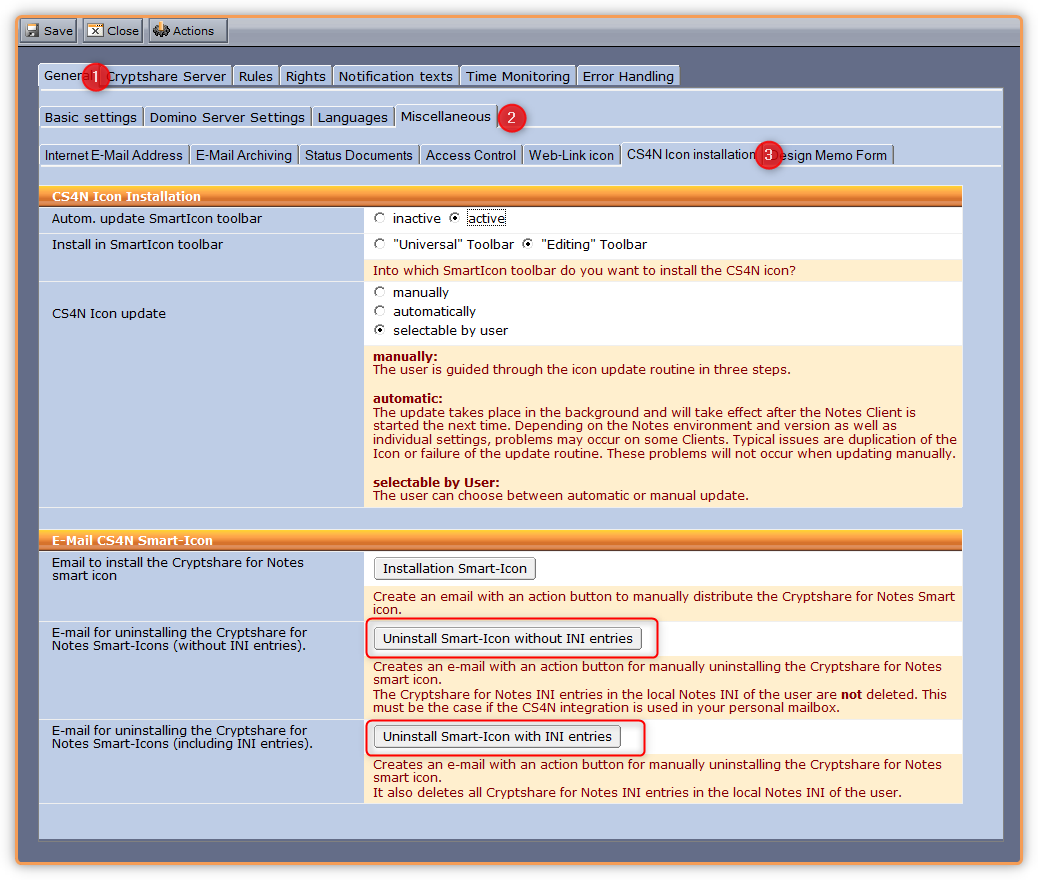
Installation of the CS4N Toolbar Icon You can create an email for your users by going to the General section → Miscellaneous → CS4N icon installation and clicking on the button "Installation Smart-Icon". When the users click on the received button, the application will install the CS4N Toolbar Icon as well as install the necessary .ini entries according to the CS4N configuration. You can configure the email text as well as the title of the button accordingly if desired.
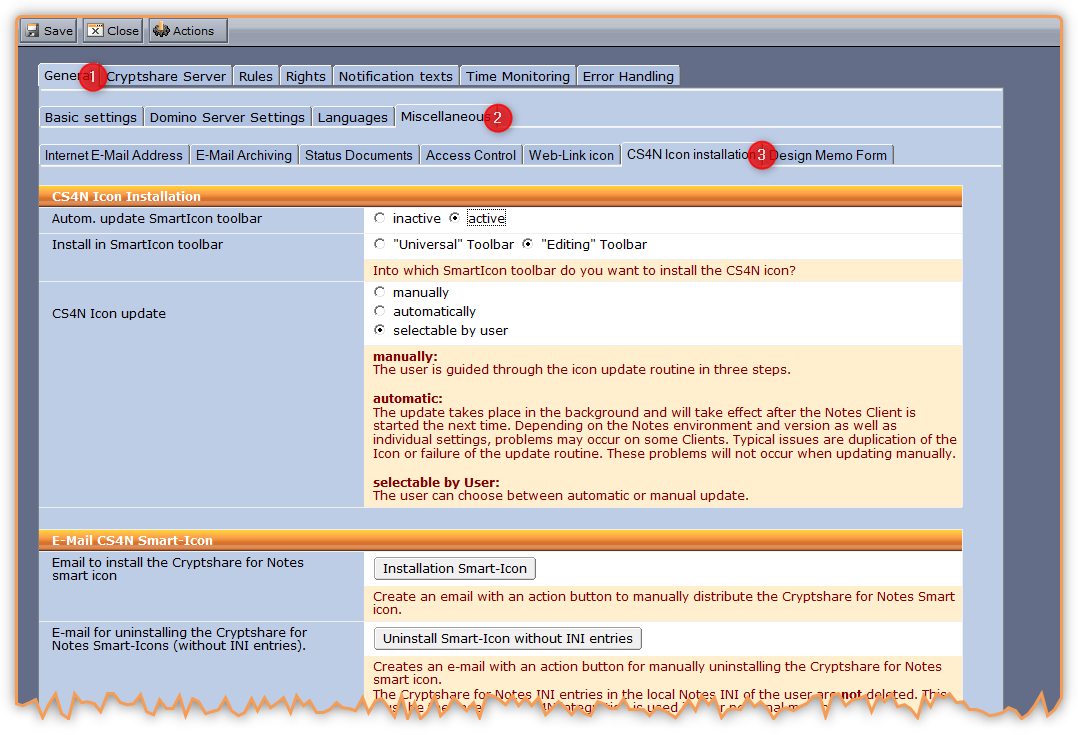
Uninstall the CS4N Toolbar Icon You can also create an email to uninstall the Toolbar Icon. Again in the section General → Miscellaneous → CS4N Icon Installation click the button labelled: "Uninstall Smart-Icon with/without INI entries" (see below). Once the users click on this button the uninstall will proceed. As with the installation, you can also customise the text of the button and wording in the email.
Uninstall Smart-Icon with INI entries With this option you create an email with an action button for the manual uninstall of the Toolbar Icon. When the user clicks this the CS4N Toolbar icon will be removed as well as the ini entries.
Uninstall Smart-Icon without INI entries
With this option you create an email with an action button for the manual uninstall of the Toolbar Icon. However this time the ini entries will remain in the users notes.ini.
|
These are necessary for the CS4N integration into the users Notes mail |
Notes INI entries
During runtime the installation script will add the following three entries to the .INI file of the Notes client:
| INI entry | Comment | Example |
|---|---|---|
$BEFINE_CS4LNServer |
Domino Server |
$BEFINE_CS4NServer=yourserver/domain/DE |
$BEFINE_CS4LNApp |
Application Pathname |
$BEFINE_CS4NApp=befine\Cryptshare4Notes \cryptshare.nsf |
$BEFINE_ContentLanguage |
Language setting that is used by CS4N. This value is automatically set to reflect the language preference setting of the Notes Client. If no matching language pack can be found, CS4N defaults to English. |
$BEFINE_ContentLanguage=EN |
As it is not guaranteed that the Universal toolbar is always shown in the Notes client, make sure that your message has tips on how to enable this toolbar.
|
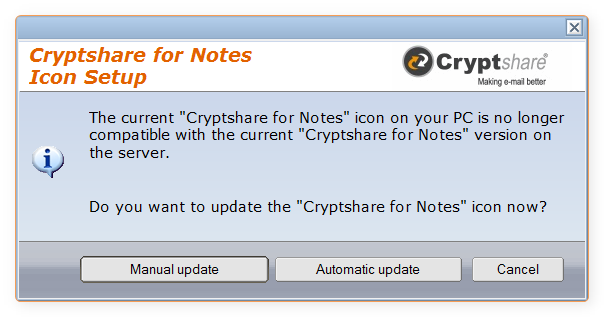
The Cryptshare for Notes Icon contains a version check and update routine that makes sure that the icons installed locally are always up to date and do not require manual intervention for updating. |