Smart icon rollout via email
Installation
-
You can send a database link that refers to the CS4N application to the user group you have defined by email.
-
It is also possible to send users an email containing an action button that launches the installation routine for the Smart Icon to be installed. The Smart Icon can be installed in the ‘Cryptshare for Notes’, “Universal” or ‘Edit’ icon bar of the Notes client.
Installation CS4N Smart-Icons
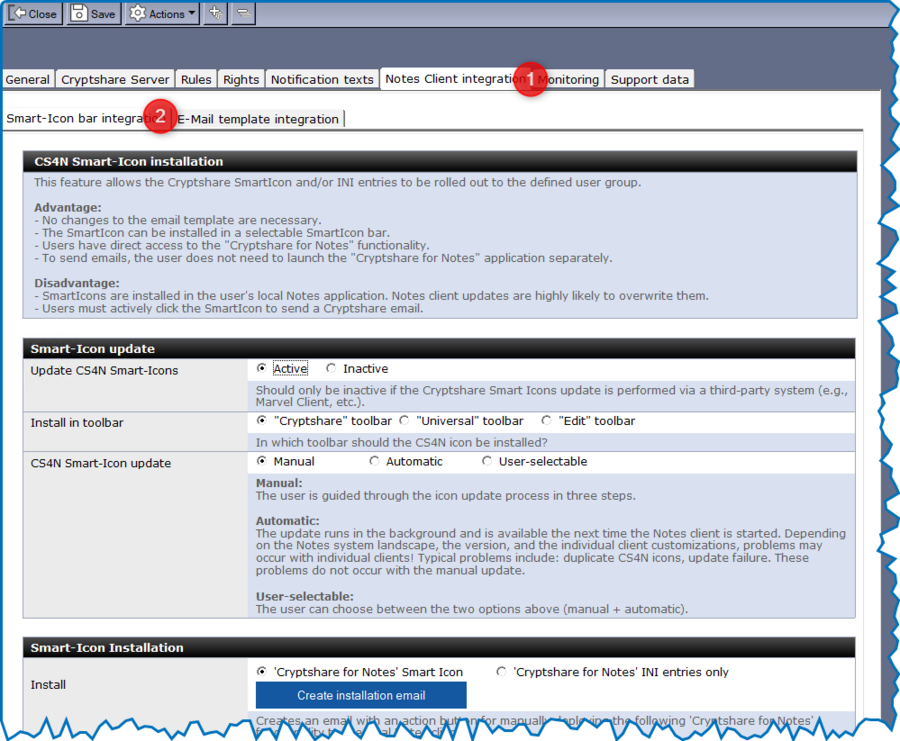
In the ‘Notes Client Integration → Smart-Icon bar integration’ tab,
clicking on the ‘Create installation email’ button creates an email that
you can send to your users. By selecting ‘Cryptshare for Notes Smart
Icon’ or ‘Cryptshare for Notes INI entries only’, you can choose which
action should be performed when sending the email with the ‘Create
installation email’ button. By clicking on the button contained in the
email, the user can install the CS4N Smart Icons
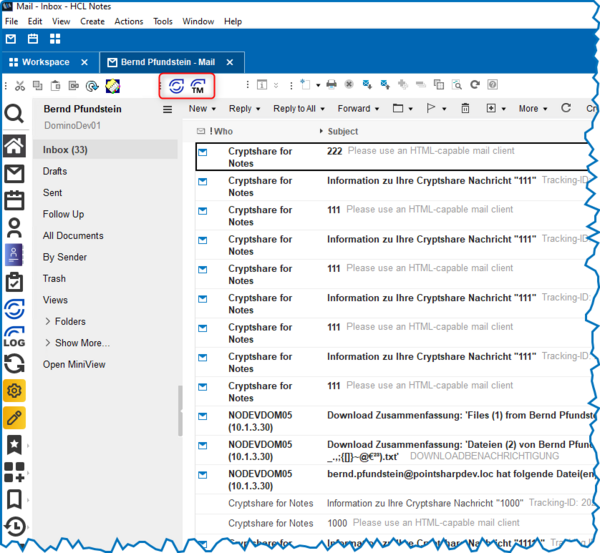
(  Cryptshare and Transfer Manager Icon) including the required INI entries
in the Smart Icon bar set according to the CS4N configuration. Before
sending the email, you can customize the button label and email text
according to your preferences.
Cryptshare and Transfer Manager Icon) including the required INI entries
in the Smart Icon bar set according to the CS4N configuration. Before
sending the email, you can customize the button label and email text
according to your preferences.
Deinstallation CS4N Smart-Icon
In the ‘Notes Client Integration → Smart Icon Integration’ tab, clicking on one of the two buttons ‘Create uninstallation email’ creates an email that you can send to your users. First, select the desired action: ‘Including Cryptshare for Notes INI entries’ or ‘Without Cryptshare for Notes INI entries’. By clicking on the button contained in the email, the user uninstalls the CS4N Smart Icons from their Notes client. You can customize the email and the text of the button according to your preferences before sending the email.
Notes INI entries
The installation routine for the CS4N Smart Icon adds the following three entries to the Notes INI file of the Notes client:
| INI entries | Comment | Example |
|---|---|---|
CS4N_Server |
Domino Server |
CS4N_Server=serverDom01/befine/DE |
CS4N_App |
application path |
CS4N_App=Cryptshare\cryptshare.nsf |
CS4N_ContentLanguage |
The language setting is automatically set by the CS4N&D application. If no configured language setting matching the Notes client language could be found, English is used as the default language. |
CS4N_ContentLanguage=DE |
Since it cannot be assumed that the ‘Cryptshare for Notes’, “Universal” or ‘Edit’ icon bar will always be displayed in the Notes client, users may need to be provided with instructions in the email on how to activate the desired icon bar (possibly by displaying the icon bar via Desktop Settings (policy setting)).
|
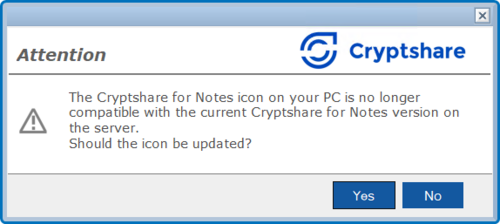
The CS4N&D icon installed on the user’s computer includes a version check. This ensures that the rolled-out CS4N&D icons are always up to date and that no administrative tasks are required to update them. |