
Config Creator — CS4OutlookDefaultUserConfig
The CS4OutlookDefaultUserConfig.xml can be used to preconfigure Cryptshare for Outlook (Classic). If the CS4OutlookDefaultUserConfig is created with the Cryptshare for Outlook (Classic) Config Creator and placed in the program directory, the add-in will use the config file to set all or a certain part of the settings.
| The CS4OutlookDefaultUserConfig must be placed in the installation folder of Cryptshare for Outlook (Classic). In addition, the validity date of the configuration file must be later than that of an already existing one in order to be prioritized. |
See Configure: CS4OutlookDefaultUserConfig for a variable config description in detail.
Start Cryptshare for Outlook (Classic) Config Creator tool
Start the Cryptshare for Outlook (Classic) Config Creator by double-clicking on the CS4OCC.EXE.
You can download the Cryptshare for Outlook (Classic) Config Creator Tool from the Support Portal.
Create user config example
-
Click Create User Config to create a new, empty, CS4OutlookDefaultUserConfig.xml file.
-
Using the button Create User Config Example, you can create a sample configuration with default values and modify them instead of editing a new empty file. The example configuration includes three classifications for non-confidential, confidential and strictly confidential content.
File menu
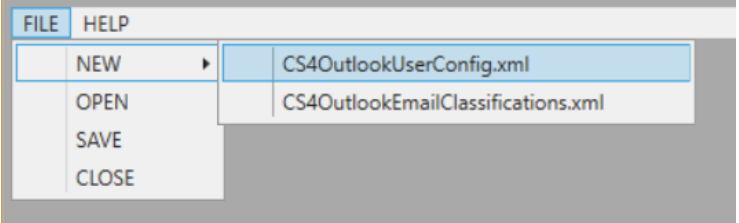
Using the File menu, you can create a new CS4OutlookUserConfig.xml file, open an existing file, edit the current file or close it.
Account-related settings
-
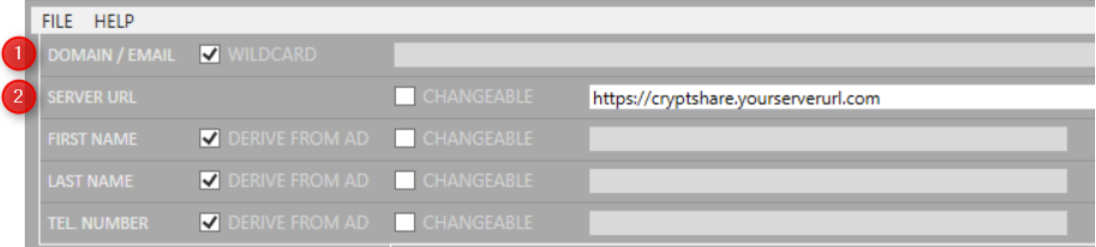
DOMAIN / EMAIL: Enter the email address of the account to be configured. If you want to initiate all accounts with the same settings, select the WILDCARD option.
-
SERVER URL: The Cryptshare Server URL entered here is used to configure the account(s).
If the option CHANGEABLE is set, the user is able to change the value set via the configuration file.
By enabling the DERIVE FROM AD option, Cryptshare for Outlook (Classic) will attempt to obtain the user information from the Active Directory. If no information is provided, the user is prompted to enter the data when using Cryptshare for Outlook (Classic) for the first time.
Global user settings
These settings are valid for the whole application not for a certain email account.
-
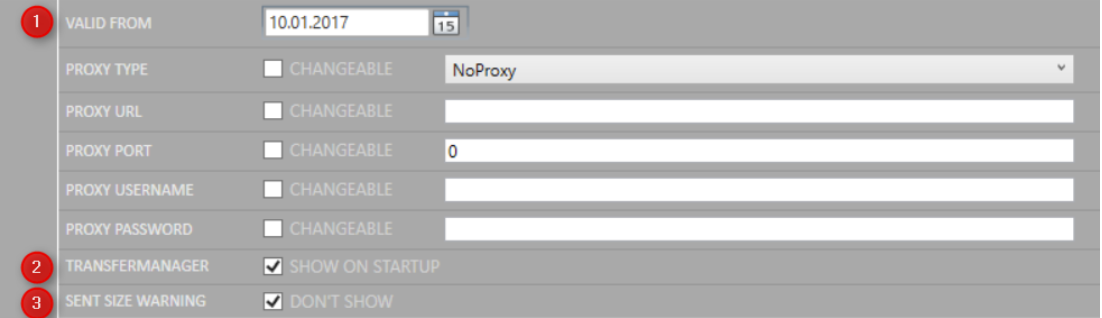
VALID FROM: Defines the date when the config will be valid. This parameter will be used when the Add-In should be configured.
-
TRANSFER MANAGER: If this option is disabled, the transfer manager will not be shown on the startup from Outlook.
-
DISABLE TRANSFER SIZE WARNING: This option suppress the warning message for the threshold “Keep sent attachments smaller than (MB)”