
Logging
Remote logging
Cryptshare for Outlook (Classic) writes logging information into the AppData folder. Considering the likely high amount of users/clients working with the add-in, error analysis can get very time-consuming and complicated this way. In order to make this process easier for administrators and users, the add-in is equipped with a so-called remote logging feature. This allows administrators to receive logging information from clients at a central place, the Cryptshare Server.
Client ID
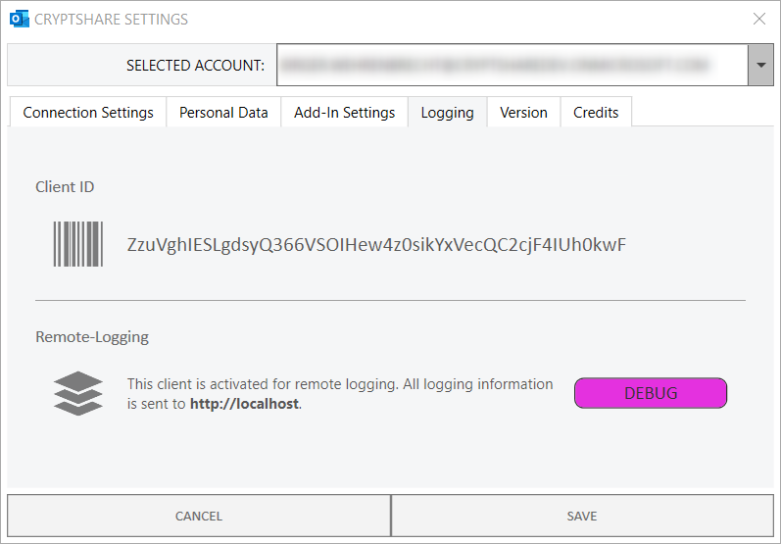
The client ID is an unique ID each add-in is equipped with and can be identified by. It is the basis for the remote logging feature. The client ID can be found under Settings > Logging > Client ID.
Activate the remote logging
In order to activate remote logging for an add-in, the Cryptshare Server Administrator needs the client ID of this particular installation.
Steps for the add-in user:
-
Go to Settings > Logging.
-
Copy the Client ID and hand it over to the administrator.
-
Once the Administrator is done, you need to restart Outlook.
Users can check if their add-in is activated for remote logging and which log level is set. This information is also found under Settings > Logging.
Steps for the administrator:
-
Please refer to Remote Logging in the server manual for general information about this feature on server side, and instructions on how to activate clients for remote logging.
Log level
| The logLevel variable is defined in CS4OutlookAdminConfig.xml. |
This setting controls whether the add-in gathers detailed processing information about the add-in during runtime or not. This information can be very useful for the Cryptshare Support to investigate and get to the bottom of any malfunctions. We therefore recommend it to be activated.
If the log level is set high, detailed information is logged in the file CS4OutlookLog.txt in the settings directory.
To keep the space required on the system low, information is automatically deleted from the log file that is older than 48 hours. We recommend to send the log file to Cryptshare support immediately after the occurrence of any issue to avoid that relevant information has been removed again in the meantime.
-
The setting "1" is the standard value.
-
The setting "0" is considered "high".