
Retrieve files
When someone sends you a message or files via Cryptshare, you will receive a notification mail in your inbox. The download of the encrypted message and its associated files can be done via the Transfer Manager > Downloads in Outlook (Classic).
The notification contains information about the content and the sender, as well as a download link, which allows you to retrieve the content via the browser.
Cryptshare for Outlook recognizes such incoming notifications automatically, opens the Download Manager, and automatically adds the new item to the Download list. The Download Manager is a much more convenient way to retrieve and manage the data than using the Browser.
-
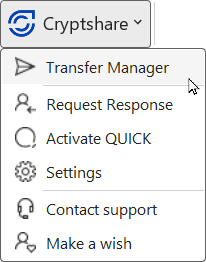
Open the Transfer Manager.
-
Go to the Downloads list and click the Cryptshare download item to expand it.
-
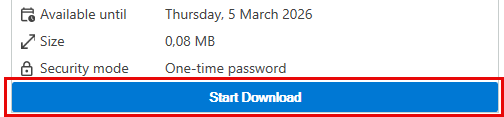
Click Start Download. Note that the "Start Download" button is only visible if the message’s retention period (expiration date) has not yet been reached.
-
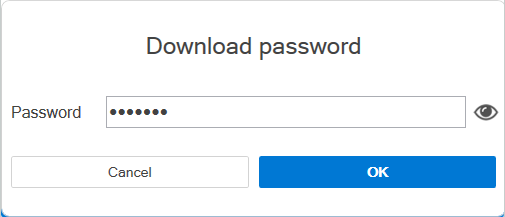
Enter the password provided to you by the sender. Click the eye icon to toggle between show/hide password. If the sender did not set a password, move on with the next step.
-
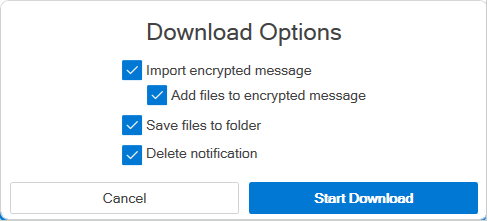
Mark the Download options to apply:
-
Import encrypted message
-
Save encrypted message to folder
-
Add files to encrypted message
-
Save files to folder
-
Delete notification
- Import encrypted message
-
The message and its subject are downloaded to, and displayed in, the Outlook (Classic) Inbox, with the icon next to it indicating that it is a secured transfer, now decrypted.

- Save encrypted message to folder
-
Browse for a destination folder and store the message on your local disk.
- Add files to encrypted message
-
The attached files are downloaded together with the encrypted message to the Outlook (Classic) Inbox.
- Save files to folder
-
Browse for a destination folder and store the files on your local disk. This option causes both the attachments and any available encrypted message to be stored in the file system. Confidential messages will be stored as a file in .eml-format.
EML files can be opened at any time from the file system by double-clicking. They will be displayed in the email program installed on your PC.
Please note that the email program is merely used to display the message, it is not imported into the Inbox. However, depending on your email program, you have the ability to move the displayed email to a folder of your mailbox, so it will remain permanently available in the email program.
- Delete notification
-
This option is only available if the option Import Encrypted Message has been activated. It has the effect that the notification email in your inbox will be automatically moved into the Trash folder after the encrypted message has been successfully imported into your Inbox.
-
Access the message and files after download
The downloaded content can be accessed in different ways, depending on the options selected in Download options.
Each item in the list has an associated menu (click the three dots). From this menu you can manage and view your downloads.
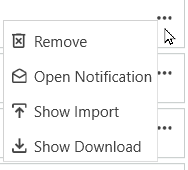
- Open notification
-
Opens the notification email, unless it has already been deleted in the Download options > Delete notification.
- Show Import
-
Shows the already downloaded encrypted email and files.
- Show Download
-
If you downloaded the message and/or files locally, you will be redirected to their destination folder.
- Remove
-
Deletes the selected item from the transfer history.
Retention period
The retention period is the time frame during which the server keeps the files accessible for download. The end of this period is referred to as the Expiration date. This date is set by the sender when the transfer is created.
After the retention period, the files are deleted from the server independent if the recipient has downloaded the files or not.