
Transfer Manager — Downloads
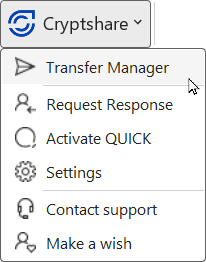
The Transfer Manager can be accessed directly from the Cryptshare drop-down menu in the Outlook ribbon.
Synchronize all available transfers
All transfers from the Cryptshare Server will be displayed, not only the ones handled by Cryptshare for Outlook (Classic). This makes it easy to switch between different Cryptshare Clients, while still having an overview of all transfers.
Transfers that are available on the server, but are not available in Cryptshare for Outlook (Classic), are added to the appropriate transfer list. The synchronization is done:
-
when Cryptshare for Outlook (Classic) starts, and
-
when manually refreshing the upload / download tab.
Go to the Downloads to see the Download Manager.
Download Manager
| See Retrieve files for instructions in detail on how to download the message and its associated files. |
Using the symbol in the upper left corner of a Download Manager item, the view can be expanded or collapsed. In the expanded view you can see details about your transfer.
-
Subject: The subject seen in the Download Manager has the neutral subject Confidential Message. The subject is visible only for messages that have been sent without "Encrypted confidential message" activated.
-
Tracking ID: The transfer tracking ID.
-
Received: Date and time the notification was received.
-
Sender: Name of sender.
-
Recipient: Most likely, your email address is the one listed here. However, if multiple accounts are associated, and you have chosen to list all accounts, the "recipient" field can be useful.
-
Available until: The files are available for download until this date. After this date, the files are deleted from the Cryptshare server independent if the files have been downloaded or not.
-
Size: Total size of the complete transfer.
-
Security mode: "No password required", "One-time password" or "QUICK".
| Recipients cannot see any other recipients of the same message, nor can they view the transfer status of files sent to others. They only have access to their own transfer information. |
Icons and meaning

-
Hide completed downloads to filter items that have not yet been downloaded. When enabled, completed downloads, as well as messages that have expired or been revoked, will be hidden.

-
Use Refresh to scan and display all the transfers that are present on the Cryptshare Server.
Click Refresh and select the account(s) you want to scan. Click Start search.
Furthermore, it is also possible to clear the transfer list, by pressing Clear list.

-
Filter by recipient account. When using multiple email accounts, the list of download elements can be filtered by these. This means that the download elements for all configured email accounts are listed in the list. In addition, all configured email accounts are offered as a selection option. If a specific account is selected, only those download items that have been explicitly received with this account will be listed.
When the Download manager has exceeded a certain number (see CS4OutlookDefaultUserConfig.xml) of download items, the Show all… is visible. This will display all remaining download items.