
Setting up MS Graph
The add-in utilizes Microsoft Graph to provide some of its functionality. Specifically, the add-in requests access to reading your users mailbox, to provide functionality regarding client verification and retrieving transfers.
Register an application
| Exact procedures are subject to change: Microsoft may change the exact process of registering applications without notice. It is recommended to familiarize yourself with the current process of registering an application with the Microsoft Identity Platform. |
-
Sign in to the Microsoft Entra Admin Center as an account that is a Cloud Application Administrator or greater.
-
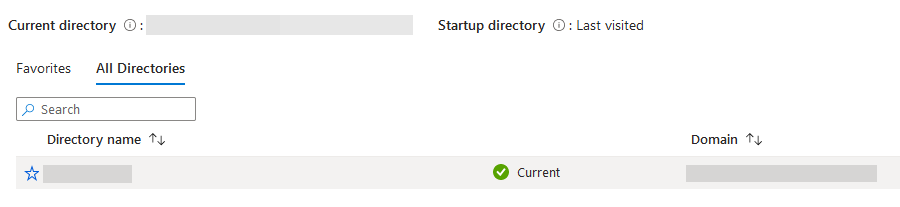
If you have access to multiple tenants, use the Settings icon in the top menu to switch to the tenant you wish to use Cryptshare for Outlook with.

-
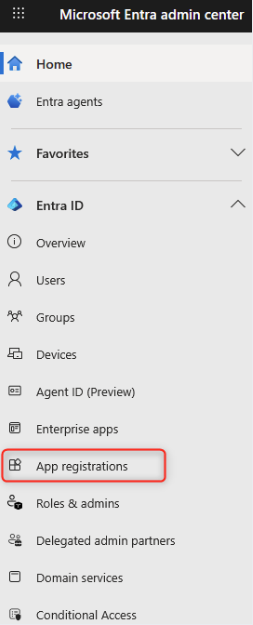
Using the sidebar, navigate to Entra ID > App registrations.
-
Create a new registration by clicking New registration.

-
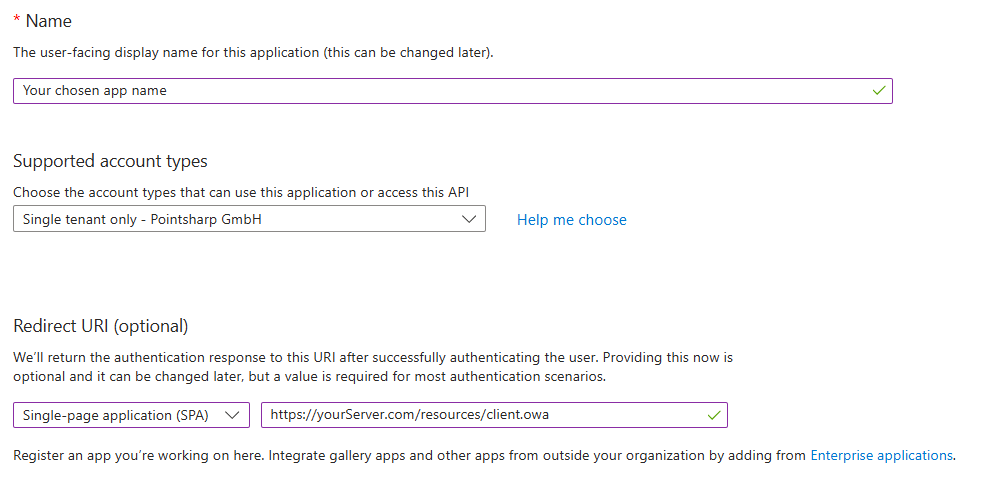
Create your new application with the following settings:
Multi-Tenant configuration
Correct mapping of Entra account types to Cryptshare Authority is vital for successful logins:
-
Multiple Entra ID Tenants: Standard for multi-tenant setups involving subsidiaries or partners.
-
Any Entra ID Tenant + Personal accounts: Use this to include users with private addresses (e.g., @outlook.com, @hotmail.com).
-
The application name may be chosen freely.
-
You may choose the supported account types according to your requirements. Depending on your selection, you will need additional information found after you’ve finalized the app registration in order to finalize the set-up on the Cryptshare Server.
-
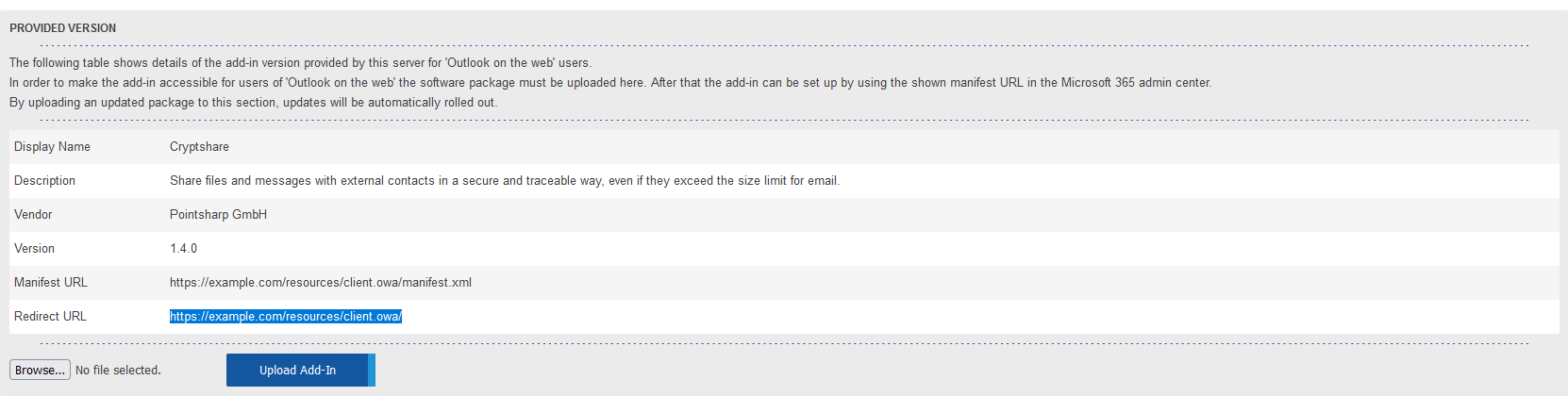
You must add a redirect URI, configured as a Single-Page Application (SPA). The redirect URI must exactly match the one that is displayed on the Add-on products > Cryptshare for Outlook configuration page of your Cryptshare Server.
-
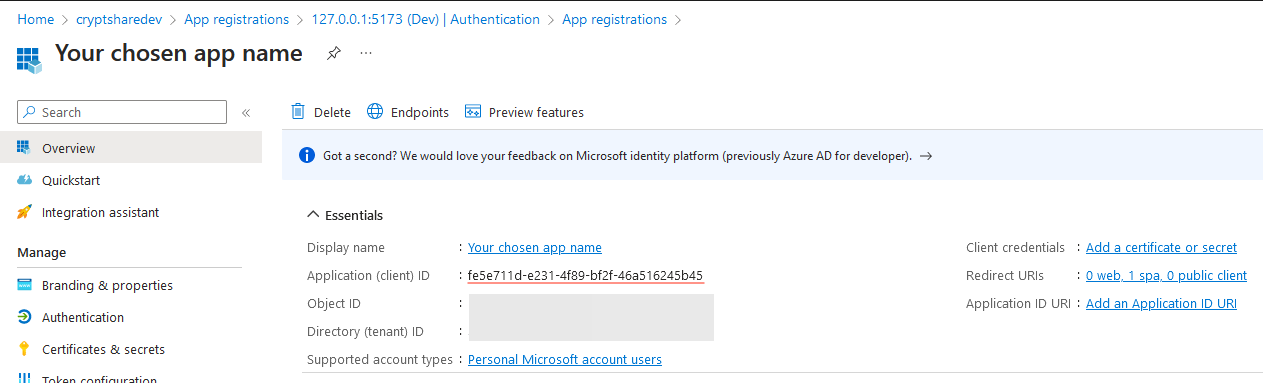
Once you’ve created the application, copy/store the Application (client) ID.
-
To enable the use of MS Graph, the add-in requires two permissions:
-
User.Read and Mail.ReadWrite. There are two ways to grant these permissions:
-
Add-In users can confirm these permissions via a dialog when launching the add-in. In this case, no further configuration is required in Microsoft Entra and you can proceed with the configuration on the Cryptshare Server.
-
The required permissions can be granted by the administrator for all users. The following steps describe how the administrator can grant permissions.
-
-
-
Permissions granted by administrator:
-
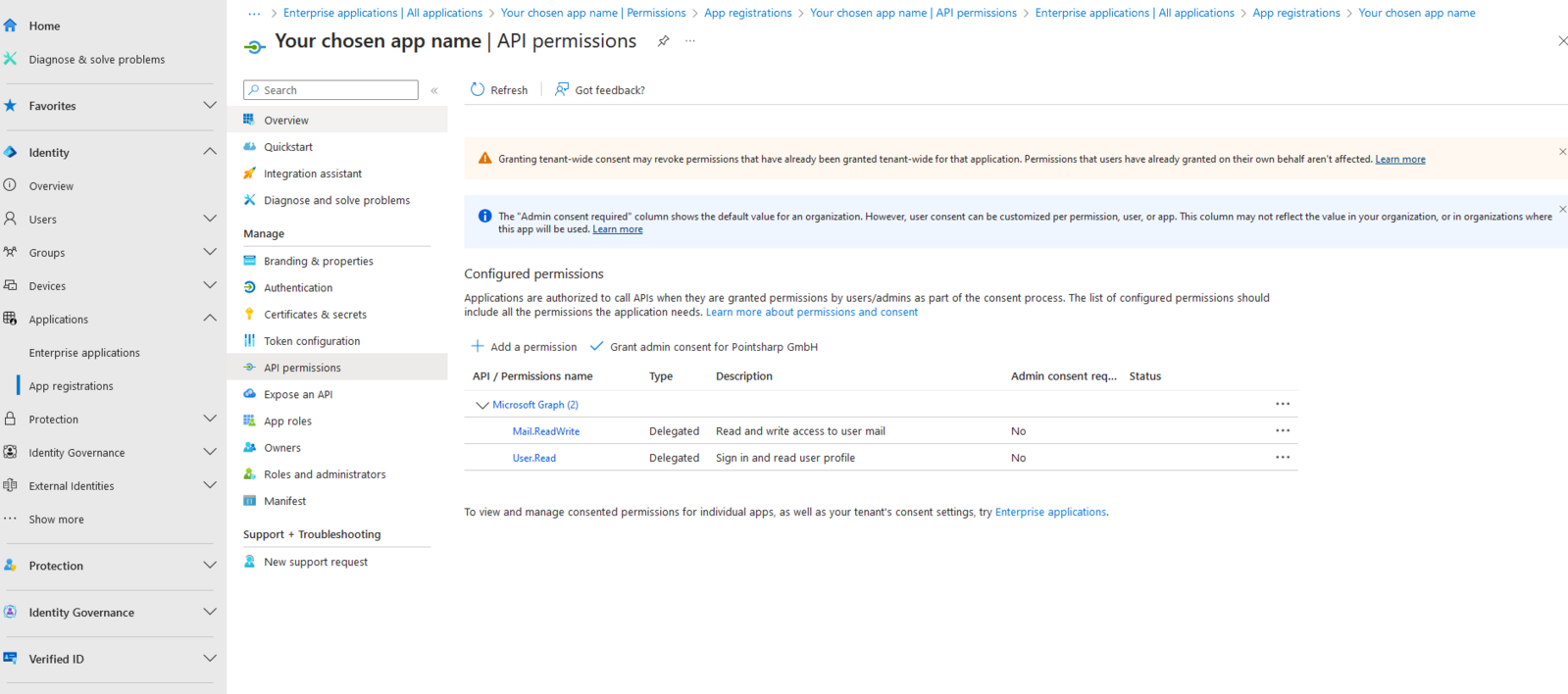
In the sidebar of the registered application, select API permissions.
-
Use the Add a permission button to add the delegated permissions User.Read and Mail.ReadWrite under the Microsoft Graph section, so that both appear in the list.
-
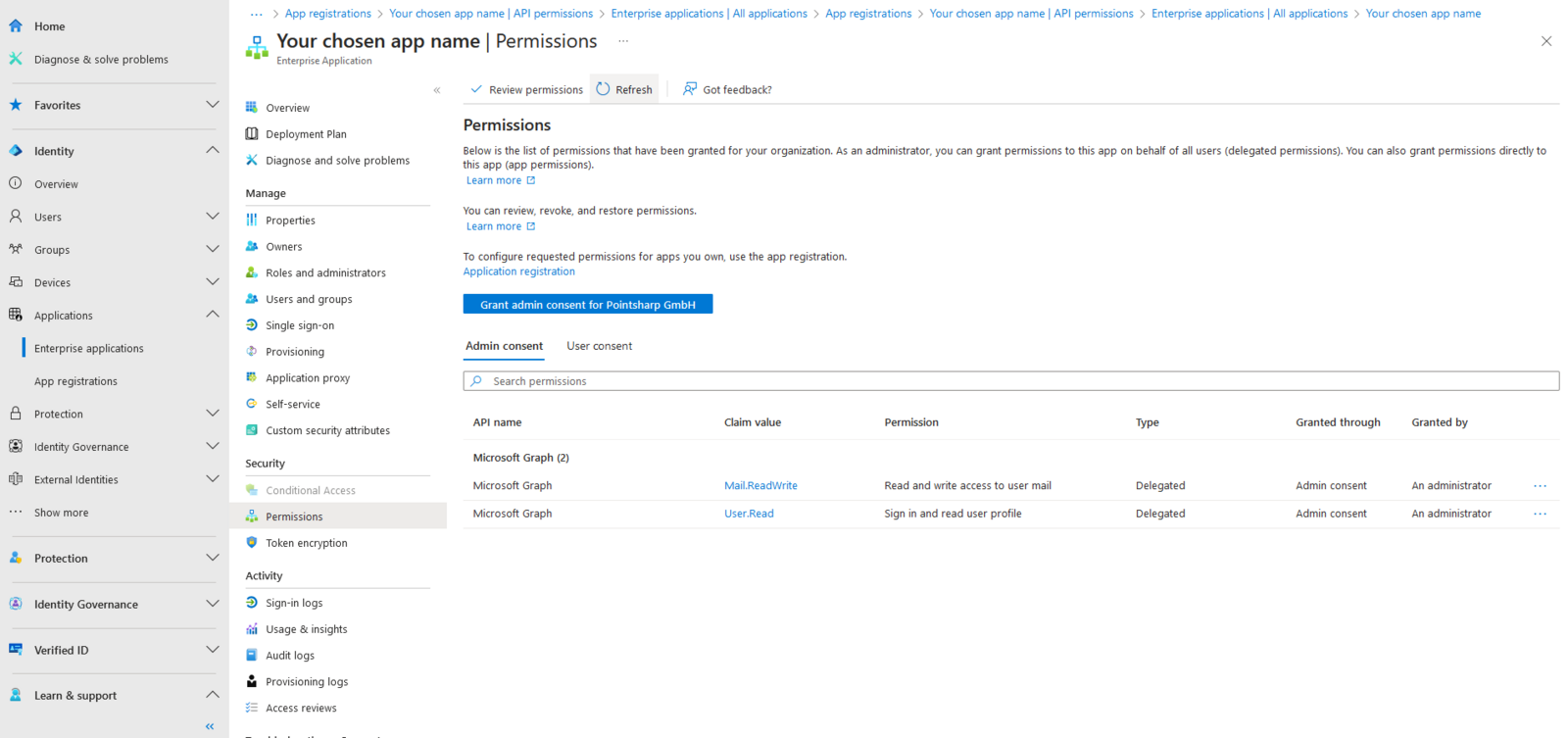
Navigate to the Enterprise Applications section, select your application from the list and then the Permissions section.
-
Use the Grant admin consent for Pointsharp GmbH button and confirm the requested permissions in the dialog that appears. This will grant the required permissions to the add-in for all users within your tenant.
-
-
Continue with configuring the newly registered app in your Cryptshare Server.
Configuring the registered app in the Cryptshare Server
Cryptshare for Outlook add-ins use the Microsoft Entra application information that is configured within the associated Cryptshare Server.
-
To get started, open the Add-on products > Cryptshare for Outlook configuration page in the admin interface.
-
In the Application (client) ID field, enter the application ID you have retrieved from the Entra portal after registering your application.
-
The authority setting depends on the supported account types you have selected when registering your application on Microsoft Entra.
Microsoft Entra Authorities For more information, refer to the official Microsoft documentation. -
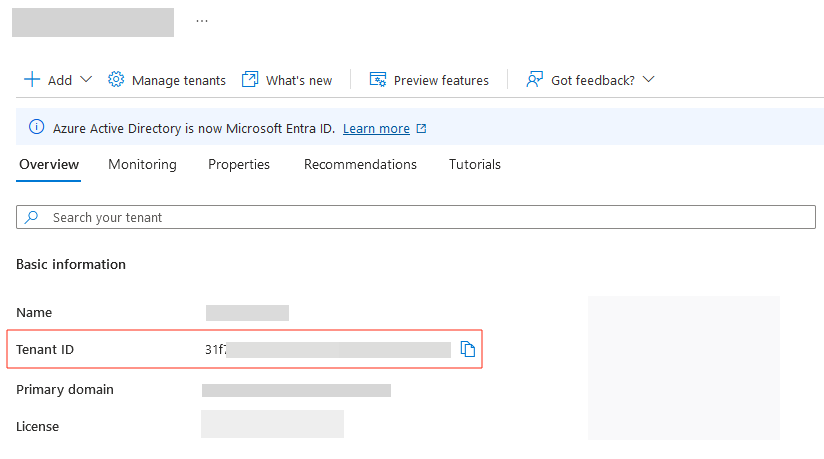
If you’ve chosen Accounts in this organizational directory only (Single tenant), choose Bound to tenant and enter your tenant ID. You can find your tenant ID on the Overview screen of the Microsoft Entra Identity Portal.
-
If you’ve chosen Multiple Entra ID tenants, select Custom and enter: https://login.microsoftonline.com/organizations/ Please ensure that proper cross-tenant access configuration is in place for multi-tenant applications. For details, see the official Microsoft documentation.
-
If you’ve chosen Any Entra ID Tenant + Personal Microsoft accounts, select: https://login.microsoftonline.com/common
-
| Make sure that you save your changes by using the Save Changes button before exiting the web interface. |
Migration to Nested App Authentication (NAA)
| See Microsoft reference for more details on how to enable single sign-on in an Office Add-in with nested app authentication. |
Required changes when migrating to NAA
-
Update Supported account types to:
Accounts in any organizational directory (Any Microsoft Entra ID tenant - Multitenant) and personal Microsoft accounts
-
Add SPA redirect URI:
In Azure Portal > App Registration > Authentication
-
Add platform: Single-page application (SPA)
-
Add redirect URI:
brk-multihub://[customer-domain]
Your domain must include only the origin and not its subpaths. -
OK: brk-multihub://localhost:3000
-
OK: brk-multihub://www.contoso.com
-
NOT OK: brk-multihub://www.contoso.com/go
-
-
Authentication flow with NAA
The Nested App Authentication flow enables single sign-on for Office Add-ins:
-
The add-in requests a bootstrap token from MS Office.
-
If the user is already signed in to Microsoft 365, the bootstrap token is exchanged for an access token via SSO.
-
If SSO is not available, the add-in falls back to interactive authentication using MSAL.js
-
The user is authenticated and the add-in gains access to the required Microsoft Graph scopes.
-
The Outlook add-in now uses the following authentication mechanisms:
-
Nested App Authentication (NAA) for streamlined single sign-on
-
MSAL.js (Microsoft Authentication Library for JavaScript) for interactive authentication fallback
-
Microsoft 365 SSO integration for seamless user experience
| No additional Microsoft Graph permission changes are required for NAA specifically. |