
Retrieve files
The recipient will receive a notification email about the transfer.
-
In the notification email, click the Cryptshare icon to open the Transfer Manager view:

The corresponding transfer will be displayed in the Transfer Manager.
-
To retrieve the files, enter the password provided by the sender. Click the eye-icon to toggle between show/hide password.
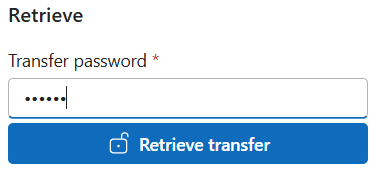
If the sender did not set a password, move on with the next step. The Transfer password is only visible if a password has been set.
-
Click Retrieve transfer.

-
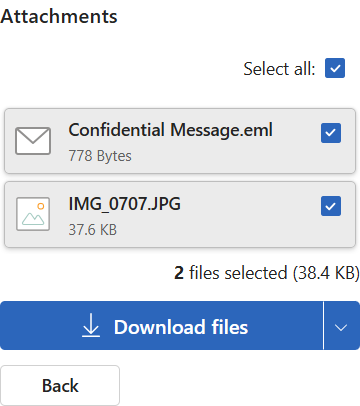
The Confidential Message and files are now available for download.
-
Click Select all to download all files, or save each file individually by clicking the checkbox next to the file.
-
Click Download files to start downloading the selected files. Click Back to return to "Retrieve transfer" state, without downloading any files.