
Cryptshare for Outlook — OWA
Cryptshare for Outlook is an add-in product for Outlook on the web (also known as OWA). It can be used in the browser.
General
The administration section on the Cryptshare Server allows to set up and administer your Cryptshare for Outlook (OWA) add-in from the Cryptshare Server administration interface.
It is possible to upload new add-in versions in this section in order to provide an add-in manifest URL which is required to set up the OWA add-in in the Outlook on the web environment.
|
Hosted Content
Please note, that the Cryptshare Server is hosting the uploaded content under a dedicated file system location on the server. This is a prerequisite for Cryptshare for Outlook (OWA) clients to work properly. Do not manually change content in this directory or add additional resources to it. Pointsharp GmbH is not responsible for hosting resources other than for the intended purpose, and will not grant support services in case of problems caused by not following this requirement. |
Installation
Installation of the Cryptshare for Outlook (OWA) add-in is basically done in 3 steps:
-
Download the Cryptshare for OWA software
-
Upload of the add-in to the Cryptshare server
-
Registering a New Application in Microsoft Azure
-
Setup of application-related data on the Cryptshare server
-
Installation of the required language packs on the Cryptshare server
-
Deploy the add-in to users via Microsoft Exchange Online
Download the Cryptshare for Outlook (OWA) software
You can get the latest version of Cryptshare for Outlook (OWA) from the Downloads | Secure Information Exchange (Cryptshare) Knowledge Base & Download Center.
Upload of the add-in on the Cryptshare Server
Open the administration interface of the Cryptshare Server and go to Add-on Products → Cryptshare for Outlook (OWA). In the section Provided Version general information about the installed add-in is displayed. Here, you are able to upload the Cryptshare for Outlook package.
After the add-in has been installed successfully, the version label shows the version number of the installed add-in.
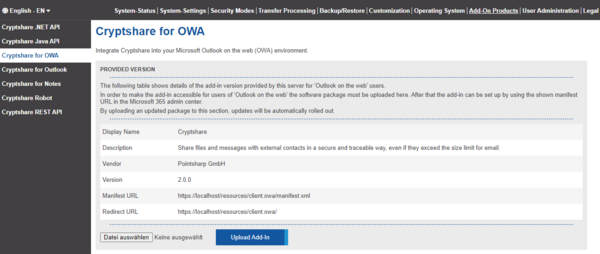
For the next configuration steps, the displayed values Manifest URL and Redirect URL are important.
|
Please also note in this context the information about SSL & HTTPS Access |
Registration of a new application in Microsoft Azure
Register a new application in Microsoft Azure. For the registration process you will need the Redirect URL that is shown in the Cryptshare administration interface.
Setting up application-specific data on the Cryptshare server
To use Cryptshare for Outlook (OWA) it is required to set up application specific data from Microsoft Azure.
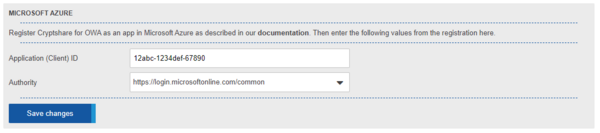
Open the administration interface of the Cryptshare Server and go to Add-on Products → Cryptshare for OWA. In the section Microsoft Azure you would have to enter the application id that is displayed in the Microsoft Azure portal.
If you need another than the default Authority, you can re-configure it in this section.
Installation of necessary language packages
Please refer to 'Installing Language Packages' for instructions on how to install a language package on the Cryptshare Server. You can get the latest language package for the add-in under 'Language Packages'