
User Administration
Introduction
The User Administration allows you to create and edit users with access to the administration interface or to reset their passwords. There are several user groups available which are provided with predefined rights. Each user can be assigned to a group.
|
Administrative users
In any case, these are administrative users, i.e. users who are granted access to the administration interface - not the end users of the application. |
Groups
Group "Administrator"
Administrators have full access to all elements of the administration interface.
Group "Config Admin"
Config Admins have full access to all elements of the administration interface except for settings and views which potentially allow access to information regarding transfers that have been or are being sent.
Group "Log Analyst"
This group is only granted access to the system status overview and the log view. "Log Analysts" do not have the ability to change system settings.
Group "QUICK Supporter"
This group is only allowed to create QUICK activation codes. No settings can be changed and no information regarding transfers that have been or are being sent can be viewed.
Legend
-
Item
-
Foo: A page or sub-page
-
Foo → Bar: A page "Bar" under page "Foo"
-
Foo → Fizz: An action "Fizz" on page "Foo"
-
-
Icon
-
 : Allowed
 -
 : Not Allowed
-
If an action or view is not listed, the permissions of the parent view are used.
Administration Interface
| Main Menu | Sub Menu | Action | Administrator | Config Admin | Log Analyst | QUICK Supporter |
|---|---|---|---|---|---|---|
System Status |
|
|
|
|
||
Overview |
|
|
|
|
||
Log View |
|
|
|
|
||
Licence |
|
|
|
|
||
Support |
|
|
|
|
||
Statistics |
|
|
|
|
||
System Settings |
|
|
|
|
||
Connection Settings |
|
|
|
|
||
Modify base URL |
|
|
|
|
||
Mail Server Settings |
|
|
|
|
||
Modify host and port |
|
|
|
|
||
Verification |
|
|
|
|
||
System Notifications |
|
|
|
|
||
Modify Administrators |
|
|
|
|
||
Transfer Settings |
|
|
|
|
||
Policy Settings |
|
|
|
|
||
Pre-processing command (see "Pre-processing") |
|
|
|
|
||
Policy Conflict Solution |
|
|
|
|
||
LDAP Settings |
|
|
|
|
||
Download Security |
|
|
|
|
||
Password Policy |
|
|
|
|
||
Log Settings |
|
|
|
|
||
Modify automatic sending of logs |
|
|
|
|
||
System Log Settings |
|
|
|
|
||
Messaging Settings |
|
|
|
|
||
Updates |
|
|
|
|
||
Scheduled Tasks |
|
|
|
|
||
Security Modes |
|
|
|
|
||
Default Preset |
|
|
|
|
||
One-Time Password |
|
|
|
|
||
QUICK |
|
|
|
|
||
Activate QUICK Access |
|
|
|
|
||
General Settings |
|
|
|
|
||
Activation Settings |
|
|
|
|
||
Electronic Identity (eID) |
|
|
|
|
||
Transfer Processing |
|
|
|
|
||
Archiving |
|
|
|
|
||
Pre-Processing |
|
|
|
|
||
Modify command and sending of errors |
|
|
|
|
||
File Type Filter |
|
|
|
|
||
Backup/Restore |
|
|
|
|
||
Backup |
|
|
|
|
||
Restore |
|
|
|
|
||
Customization |
|
|
|
|
||
Operating System |
|
|
|
|
||
System Upgrade |
|
|
|
|
||
Upgrade |
|
|
|
|
||
Add-On Products |
|
|
|
|
||
User Administration |
|
|
|
|
||
User Management |
|
|
|
|
||
Modify/create users with different roles |
|
|
|
|
||
Legal |
|
|
|
|
Creating new users
-
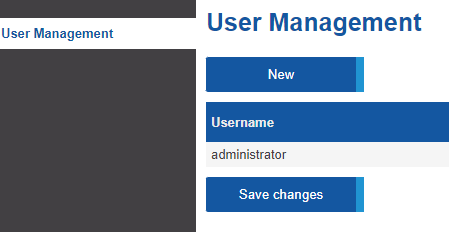
Open the Administration Interface and select the User Administration menu item.
-
click the New button above the user table.
-
First, re-enter your own password. This is necessary to prepare encryption components for the new user.
-
Enter a unique username for the new user. The username identifies the new user and is required to be entered at login. It is not case-sensitive.
-
Select one of the user groups (see Introduction) to which the user will be assigned. This determines the user’s rights.
-
Enter the email address of the new user. After the user has been created, a message is automatically sent to this email address. It contains a link with which the user can choose a password to log on to the administration interface, within 24 hours.
-
If the creation was successful, the new user appears in the table.
Deleting existing users
-
Open the Administration Interface and select the User Administration menu item.
-
Click the Delete icon <i class="fas fa-trash"></i> on the right side of the user table, in the row of the user you want to delete.
-
The user is only removed from the table at first. Click Save changes to confirm the deletion.
Changing passwords
|
Forgot your password?
Please note that it is not possible for users of the administration interface to reset their own password without knowing the existing one. If a password has been forgotten, there are two possibilities:
|
Changing the password of another user
For security reasons, it is not intended to set the password of another user directly. Instead, you can trigger a password reset. To do this, proceed as follows:
-
Open the Administration Interface and select the User Administration menu item.
-
click the Reset password <i class="fas fa-undo"></i> icon on the right side of the user table, in the row of the corresponding user.
-
First, re-enter your own password. This is necessary to prepare encryption components for password change.
-
Confirm or change the user’s email address. The reset will automatically send a message to this email address containing a link that will allow the user to choose a new password within 24 hours.
The selected user cannot log in to the Administration Interface again until the password change has been completed using the delivered message. If this is not done within the validity period of the message, the steps described above have to be repeated.
Changing your own password
-
Open the Administration Interface and select the Change password item in the burger menu.
-
Enter your current password.
-
Enter a new password and repeat it in the input field below. A rating will be displayed to indicate the password security. Please also note the password policy described below.
-
Click Save changes to confirm the change.
Password policy for administrative users
A predefined security policy applies to passwords of administrative users. A password must meet the following requirements:
-
The minimum length is 8 characters.
-
The maximum length is 50 characters.
-
At least 1 special character must be included.
-
At least 1 digit must be included.