
ActiveSync content policy (rules for existing devices)
The content policies are defined here. Content policies are created for the ActiveSync, and the various notifications to be performed when using the synchronization protocol Microsoft Exchange ActiveSync™ with the enterprise’s Exchange server.
Microsoft Exchange ActiveSync™ and Microsoft Lync™ are trademarks of Microsoft Corporation, while Pointsharp Access Gateway for ActiveSync, and Pointsharp Access Gateway for Lync, adds access control to these services.
Add a content policy
-
Start Pointsharp ID Admin GUI as an administrator.
-
Go to the Devices tab.
-
Click Add under the ActiveSync content policy.
-
Name the content policy.
-
Click Add under Content Rules.
-
Choose Type and configure the policy rule according to needs. See Type and Matching pattern for details. Note that several rules can be configured, and all rules must be evaluated "true" before the Content Set is allowed.
-
Choose the Content Set that will be allowed to synchronize.
| The rule Default Deny Rule is a built-in, read-only rule, always last in the rule list. This rule will apply to all devices that are not matching any other rule, and it will deny any content, such as mail and calendar. |
Content Set
The ActiveSync Content Set is configured to control the information allowed to be synchronized over the Microsoft Exchange ActiveSync™ protocol. A Content Set can be applied for a specific set of devices or a named device, defined in Content Rules.
Select Add, Edit, Remove to manage Content Sets.
| Any changes here will have to be saved by pressing Apply in the main window. Any changes will as well take place in all content sets using the same filter, when pressing OK. |
| Parameter | Description | ||
|---|---|---|---|
Name |
Name of Content Set. Predefined Content Sets are:
|
||
Used |
Number of Device Content Policies that this Content Set is being used in.
|
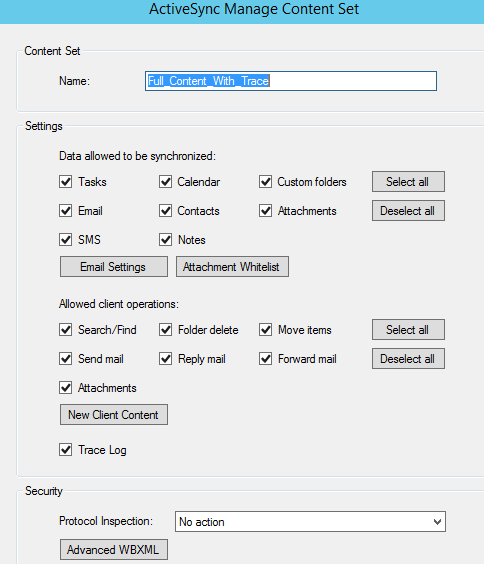
Data allowed to be synchronized
| Parameter | Description |
|---|---|
Tasks, email, SMS, Calendar, Contacts, Notes |
Check the respective box for the desired content to synchronize. |
Custom folders |
Check this to enable the synchronization of user created folders. In order for changes in this setting to take effect, the device needs to re-synchronize. I.e. remove device from exchange or recreate ActiveSync account on device. |
Attachments |
Check this to enable the synchronization of attachments in email, calendar, and tasks. |
Email settings button |
Press this button for additional email settings. See Email Settings. |
Attachment Whitelist button |
Press this button for configuration of the attachment whitelist. See Attachment whitelist. If all attachments are blocked by any rule, then this whitelist is used to enable some of those attachments. |
Email settings
Settings for the content type Mail, for the mobile device to send to, and to receive from, the Exchange server.
It is possible to delimit email based on the content of the Subject in the email, or the age of the email. It is also possible to grant email regarding meetings, or emails containing certain Subjects.
| Parameter | Description |
|---|---|
Email Max Age |
Set max age of the emails allowed in a device. No time limit option will use the setting from the device. |
Only allow meeting requests and meeting notifications |
Only receive emails containing meeting requests and meeting notifications. This also allows any meeting invitations to be sent from the mobile device. |
Meeting body removal |
This option disables any data in a meeting body. It will only allow the meeting header to be synchronized. |
Enable draft folder synchronization |
This option enables synchronization of emails in the draft folder. |
Block mail without sender |
The emails without a from/sender field, will not be synchronized. |
Block mail without subject |
Block mail if subject is not present (empty). |
Block attachment with empty subject |
Block attachment if subject is not present/empty. |
Block by Subject
| Parameter | Description |
|---|---|
Must Include |
If an email/calendar subject does not contain a text in Must Include field, the email/attachments will not be sent from Microsoft Exchange to the device. Several texts can be specified with a separator. Wildcard * can be used. Maximum 32 different texts can be specified. |
Must NOT Include |
If an email/calendar subject does contain a text in Must NOT Include field, the email/attachments will not be sent from Microsoft Exchange to the device. Several texts can be specified with a separator. Wildcard * can be used. Maximum 32 different texts can be specified. |
Text Separator |
If a comma ( |
Calendar Only |
Configuration in this section only apply to Calendar items. |
Body Block Text |
This field specifies the text that should replace the body in a body blocked email. |
Subject prefix or suffix |
When an attachment is blocked, the user should be informed that the email does contain attachment(s). By editing the subject prefix or suffix fields, text will be inserted at the start of the subject (prefix) or appended at the end of the text (suffix). The % will be replaced with the file name of the first attachment. |
Truncation
| Parameter | Description |
|---|---|
Mail Body Truncation |
Mail body text will be truncated. |
Calendar Body Truncation |
Calendar body text will be truncated. |
Truncate after number of characters |
Enter number of characters to display in email or calendar body. If the mail or calendar body is larger than entered value, the exceeding characters are truncated. |
Message class
Enable the Message Class White List to accept mail or calendar items, depending on Message Class content.
The mail or calendar item will be accepted if the pattern text match the MessageClass.
The match is case-insensitive.
The pattern can start or end with *.
If any item is blocked, the full MessageClass text will be displayed in Pointsharp Gateway Audit Log.
Example of common MessageClass patterns:
ipm.note ipm.schedule.meeting ipm.notification.meeting ipm.note.smime ipm.note.smime.multipartsigned
MessageClass value is described in the Microsoft document: [MS-ASEMAIL].pdf
Mail and MIME Headers
An email in its raw format consists of a series of Headers followed by one or more data "sections". This feature configures a ruleset of these header names, or content. A header or content can be required to exist, or to not be allowed at all. "Not allowed" means that the entire email will not be synchronized to the device.
This feature is active if one or more rules are configured.
| Search and Find action from client is disabled with this feature enabled. (Items already stored in the client will be displayed in Search and Find.) |
| MIME Truncation |
The Gateway requests a series of changes from the Exchange server during client and server synchronize of data. These responses must contain a MIME blob in order for the Gateway to verify all headers. In the initial response from Exchange, the MIME blob is truncated.(Not all data is provided.) One reason for truncation is that the mail may contain attachment(s) of several megabytes that are not of interest at this stage. If the initial email headers are not "complete" due to truncation, the email will be blocked. The last option in the list, Do not Truncate, should not be used. (All attachment data will be downloaded twice.) |
| Windows Size |
When the client asks Exchange for changes, a list of new or modified items is returned as response. With Mail and MIME Headers feature, each response item will contain a truncated MIME blob. Windows Size represent the amount of items that the server can return in one response. Reducing the size of each response should create less load on the Gateway and relevant infrastructure. Further description can be found in Microsoft [MS-ASCMD] document in WindowSize section. |
Attachment whitelist
ActiveSync Attachment filters are configured in order to decide specific attachment types for a content set, when configured to block any other attachments.
By adding attachment filters to a whitelist, you are able to synchronize specific attachment types to devices mapped to the current content set. This whitelist is used whenever attachments are blocked, in order to still let some specific attachments to pass.
Use Default to revert the list to the default values.
-
Add allowed attachment: Attachment filter selection is made to add another attachment filter to the allowed attachments list. Add one attachment filter to the list by selecting an existing value in the filter list and press OK. It is possible to add, remove and edit the selectable filters by pressing Manage Filters.
-
Manage Selectable Filters: (Attachment Whitelist > Add > Manage Filters > Add or Edit)
Click Add to create a new attachment filter to add to the list of selectable filters. Remember to also add the filter to the Allowed Attachments list for it to be part of the whitelist.
| Name |
The unique name of the attachment filter. You will not be able to add an attachment filter with a name that is already in the list. The name should preferably be set to the name of the intended attachment type with which the pattern should match. |
| Filter Pattern |
The pattern (typically a file extension) is used when filtering out attachment for a content set.
The pattern should match a specific attachment or generalized by using |
Allowed client operations
| Parameter | Description |
|---|---|
Search/Find |
Check this to enable client search of contacts and email. Enables client Search and Find command. |
Folder delete |
Allow folder rename or deletion. |
Move items |
Move emails between folders. |
Send mail |
Client can send emails. |
Reply mail |
Client can reply to emails. |
Forward mail |
Client can forward emails. |
Attachments |
Allow attachment from client. Applies to send, reply, and forward emails. |
New Client Content button |
Press this button for New client content modifications. |
New client content — ActiveSync tag
When new email, calendar, or task is created on a device, some of the information can be tagged or extended to inform that the item was created on an ActiveSync device.
-
Subject can be modified with added prefix or suffix text.
-
The body field can be modified with a prefix (start text).
Modify Subject Text
-
Subject Prefix: Text added at the start of the subject. If text is already included in the subject, text is not added.
-
Subject Suffix: Text added at the end of the subject. If text is already included in the subject, text is not added.
-
Applies for: Select to enable modification for new created mail/calendar items on the device, or for new created task items on the device.
Modify Body Text
-
Edit Text: When body/information field is in text format, this text will be inserted in front of the existing text.
-
Edit Html: When body/information field is in html format, this html will be inserted in front of the existing html.
-
Applies for: Select to enable modification for new created mail/calendar items on the device, or for new created task items on the device.
Security — Protocol inspection
If a third person makes a copy of an ActiveSync client and uses the same credentials, the Pointsharp Secure ActiveSync agent will detect it. Worst case scenario is if a third person have extracted the user ID and password. Pointsharp ID have the option to disable both the device and the user account.
In other words:
Pointsharp Access Gateway is inspecting the traffic to ensure that all DeviceID are unique. If a device with the same DeviceID as another device is detected, both devices can be disabled. This protects DeviceIDs from being spoofed.
The protocol inspection choices are:
-
Disable device and user: The credentials from a device may have been extracted or moved to another device. (UserId, Password, DeviceId.) User will be disabled to avoid other unwanted actions, for example access to User Portal. The device is considered unsecure and is disabled.
-
Disable device: The device is considered unsecure and is disabled.
-
No action: The server checks are disabled.
| Notifications for protocol inspection can be defined in tab Device > General Settings. If No action is selected, no notifications will be generated. |
Manage WBXML
Pointsharp ActiveSync Content set can be used to change/verify information in the Microsoft Exchange Activesync Protocol. The protocol is described in several Microsoft documents, [MS-AS*]. The document [MS-ASWBXML] describes the WAP binary XML format.
The usage of the word Token in Manage WBXML means XML tag (XML name of a value). As described in [MS-ASWBXML], each Token has a value and a corresponding codepage.
- WBXML Schema
-
Describes the Relation/Structure between all WBXML Tokens. All Schema files (.xsd) can be found in the Appendix section of most [MS-AS*] documents.
Each WBXML Token can be viewed/modified from this tree view.
- WBXML Token
-
View WBXML Tokens arranged by codepage. The codepage named MIME is a custom defined name used for selected MIME header values and is not described in [MS-ASWBXML].
- Changes
-
If a rule/modification is made for a WBXML Token, a list of Tokens are displayed here.