
New access policy
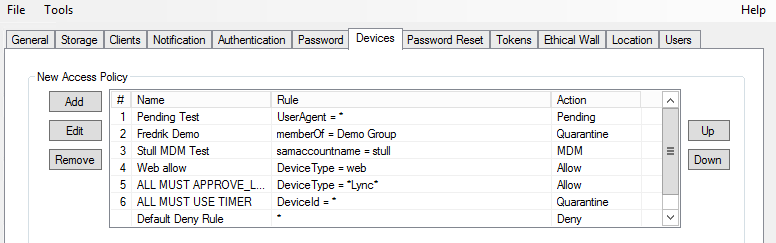
Create the access policies here. Each policy consists of one or more access rules that will apply to all new devices entering the system for the first time. The access policies control how the partnership is established between the device and the user.
-
Start Pointsharp ID Admin GUI as an administrator.
-
Go to the Devices tab.
-
Click Add under the New access policy.
-
Name the access policy.
-
Click Add.
-
Choose Type and configure the policy rule according to needs. Note that several rules can be configured. The access rules are ordered and evaluated from top-to-bottom.
-
Action: When a rule is evaluated to a match, the corresponding action is taken for the device.
| All rules defined in a policy must be true for the policy to take effect. |
Press Add, Edit or Remove to create, update and delete the rules. Use the Move Up and Move Down buttons to reorder the rule list.
Type
- Device Id
-
Device ID is a unique number sent within ActiveSync to identify a specific device. Set Matching Pattern for attribute content match.
- Device Type
-
Sent by the phone to describe the phone type (not sent by all phones). A device type could be: iPhone, Android, iPad, etc. Set Matching Pattern for attribute content match.
- User Agent
-
Identifier of a device, usually the model or version of the Device Type: iPhone 14, Microsoft-Server-ActiveSync/12.0, or other specific data. Set Matching Pattern for attribute content match.
- User Attribute
-
Directory evaluation. Set Matching Pattern for attribute content match.
- User Device Count
-
Number of devices currently registered on a user, with a possibility to limit this. Use >, < and = to build an expression to evaluate for this rule.
- Device Exchange
-
Checks if a device is already present in Exchange. Rule for new devices to match with existing devices in Microsoft Exchange, which are stored as child objects to the user object in the Directory. The incoming Device ID and Device Type will be matched with the attributes
msExchDeviceIDandmsExchDeviceType, on themsExchActiveSyncDeviceobject. - Default Deny Rule
-
The rule Default Deny Rule is a built-in, read-only rule, always last in the rule list. This rule will apply to all devices that are not matching any other rule, and it will deny synchronization (although adding the device to the user but in Disabled state).
Matching pattern
A matching pattern can contain exact match phrase or asterisk * before or after a match phrase.
Use * alone to match any type.
Matching pattern can also include the following variables:
{deviceid}
{devicetype}
{useragent}
The variable will be replaced by the device’s Device Id, Device Type or User Agent.
Action
If all rules in a policy match with a device, the device will follow the action selected here. If no rules above are specified, this action will affect all devices.
| Allow |
Device is accepted, and will be assigned a Content Set. See Device content policy. |
| Deny |
Device is not accepted, and will not be able to sync any content. |
| Pending |
Device is not accepted, and will not be able to sync any content until the administrator approves the device. A mail will be sent to the administrator if the pending notification is configured. |
| Quarantine |
Like Pending, except that the device will be accepted without content. The device will get a "welcome mail" if the quarantine notification is configured. |
Recurring authentication timeout (Hours) and notifications
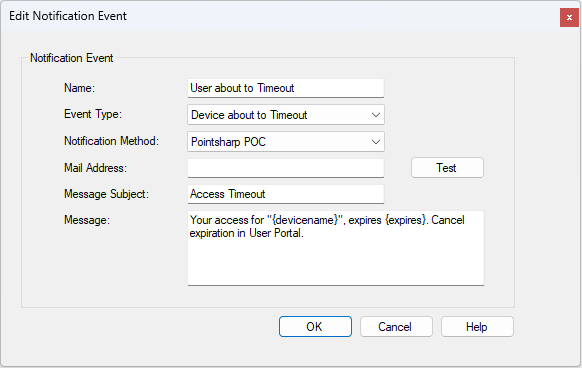
Configure the access to be allowed for a period of time. When access is about to expire, the user is notified. The user can refresh this timer in the User Portal to avoid expiration.
| Timeout |
How long the access is allowed until timeout. Manage Notifications will become active when Timeout is set, to configure the user notification. |
| Notify Ahead |
Warn the user about coming expiration. This value specify the remaining hours before expiration. |
Manage notifications
The notifications for different events can be sent to the owner of the device or to an administrator. The settings here are only related to timeout. For more device related notification options, go to tab Device > General settings.
Access Timeout
The access for one of your devices expires in 48 hours. Visit <URL> to extend your access.
or
Access Timeout
Your access for {devicename}, expires {expires}. Cancel expiration in User Portal.
Access Timeout
Your access for "{devicename}", expired {expires}. Reactivate in User Portal.
| If the same event type is configured globally (in Devices > General Settings), both the global configuration and the Notification Event configured here will be used. |
When access has expired, it acts as disabled. If the access is using Microsoft ActiveSync, the content will also be removed.