
Configure RADIUS client and authentication method
To be able to authenticate against Pointsharp ID using the RADIUS protocol, each client has to be defined in the Pointsharp Admin client as a RADIUS client.
Each RADIUS client is specified by its IP-address and a shared secret, to encrypt data between the client and the server.
| All RADIUS clients must be defined and configured under the Clients tab, in order to use Pointsharp ID as an authentication server. The shared secret must be set on both the client and the server. |
-
Start Pointsharp ID Admin GUI as an administrator.
-
By default the Pointsharp ID Server only accepts and replies to RADIUS Clients listed in the configuration. The first step is to open PSID Admin GUI and go to the tab Clients.
-
Click the Add button.
-
Name: Friendly name of RADIUS client.
-
IP Address: IP address of the RADIUS client as seen by the server.
-
Shared Secret: The shared secret between the RADIUS client and server. Add this Shared Secret to the RADIUS Clients used towards the ID Server as well.
-
Character Encoding: The character encoding between the RADIUS client and server.
-
-
Under User Storages, click the Add button.
-
Select the User Storage in which the RADIUS client should search for users. If there is a specific User Storage to be allowed only for this RADIUS client, add this under User Storages.
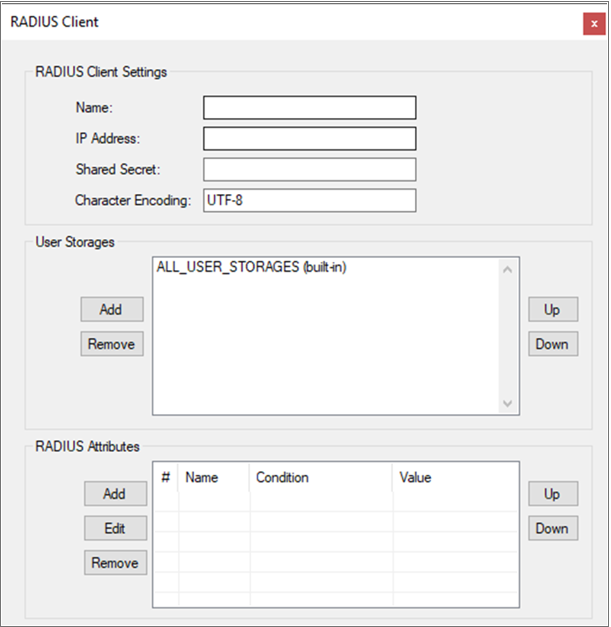
By default, all listed User Storages under the tab Storage will be allowed.
You can use multiple user storages for each RADIUS client. -
If any RADIUS Attributes are needed, add them as well.
-
Click the OK button.
-
Click Restart for the changes to take effect.
A RADIUS client is now configured.
| RADIUS Attributes section is considered advanced configuration. This is described separately in RADIUS attributes under Advanced configuration. |
Shared secret verification
| This value must also be configured on the backend RADIUS server. |
To verify the shared secret setting, we recommend using the NTRadPing tool, which is a de-facto standard application for RADIUS client testing.
In NTRadPing, perform an authentication request towards the backend RADIUS server with NTRadPing running on the Pointsharp ID server. In this way NTRadPing simulates the requests performed by Pointsharp ID towards the backend RADIUS server.
RADIUS client authentication method
Pointsharp ID Admin GUI > Authentication
-
Start Pointsharp ID Admin GUI as an administrator.
-
Click the Authentication tab.
-
Click the Add button and choose Authentication method.
RADIUS is used over UDP and we support PAP and Mschap. The first part describes RADIUS using PAP, see RADIUS (proxy) authentication.
If using Mschap, go to RADIUS Mschap authentication for more information.
RADIUS (proxy) authentication
| All RADIUS clients must be defined and configured under the Clients Tab, in order to use Pointsharp ID as an authentication server. The shared secret must be set on the client as well. |
The RADIUS authentication method offers the possibility to authenticate users with any backend RADIUS server, for example SecurID, i.e. Pointsharp ID acting as a RADIUS proxy server. Pointsharp ID also allows authentication requests for unknown users, and all RADIUS attributes received from the backend RADIUS server are proxied to the RADIUS client connected to Pointsharp ID. The backend RADIUS server must be RADIUS PAP (Password Authentication Protocol) configured, with a shared secret with Pointsharp ID.
If Pointsharp ID is configured to reply with RADIUS attributes, this setting will override in the case of collision (if not a multivalued RADIUS attribute).
| Press the Help button for detailed information on each field and function. |
| Parameter | Description | ||
|---|---|---|---|
RADIUS Servers |
Manage the RADIUS servers to perform authentication of the users in the backend. Press Add, Edit and Remove to manage, and use Move Up and Move Down to re-order the servers.
|
||
Server Settings |
This is the configuration for the backend RADIUS server when adding a new or editing an existing. |
||
Name |
Set a name for this RADIUS server. This name is used in the Pointsharp ID audit log. |
||
IP Address |
Set the IP address for this RADIUS server. |
||
Port |
Set the port for this RADIUS server. Each authentication method in PSID Admin GUI has its own port number. Starting with "18121". You can change the port number to the default "1821" or to whatever you want or need to use.
|
||
Shared Secret |
The Shared Secret is a known secret between the Pointsharp ID (acting as a client) and the backend RADIUS server (acting as a server).
To verify the shared secret setting we recommend using the NTRadPing tool, which is a de-facto standard application for RADIUS client testing. In NTRadPing: Perform an authentication request towards the backend RADIUS server with NTRadPing running on the Pointsharp ID server. In this way NTRadPing simulates the requests performed by Pointsharp ID towards the backend RADIUS server. |
||
Character Encoding |
Set the Character Encoding valid for this RADIUS client. The format of the configured value must follow the character encoding Name value, see the .NET Framework documentation http://msdn.microsoft.com/en-us/library/system.text.encoding.aspx#. Default value is set to UTF-8. |
||
Connection Timeout |
Set the timeout for the connection in seconds. Default timeout is set to 15 seconds. |
||
Session Timeout |
Set the timeout in minutes for the sessions created when the RADIUS server is challenging the user for more input, such as an OTP. Default timeout is set to 5 minutes. |
RADIUS Mschap authentication
Use the specific Radius Mschap method if Mschap is a requirement.
This method offers the ability to add two-factor authentication in addition to the RADIUS MS-CHAPv2 authentication which is performed with a compliant RADIUS server.
The main difference between PAP (Password Authentication Protocol) and Mschap configuration in the ID Server, is that the RADIUS client settings are needed in the authentication method itself.
Set the RADIUS Server IP, RADIUS Server port, and RADIUS Shared Secret. The port is for this specific method on the ID Server. Select the Authentication method that the ID Server will use for the Mschap.
| Parameter | Description |
|---|---|
Authentication Method |
Select the authentication method to use in addition to the RADIUS MS-CHAPv2 authentication. Since the password — or the first step — is validated in the RADIUS MS-CHAPv2 protocol, it is recommended to configure this Pointsharp ID Server authentication method with skip password validation enabled. |
RADIUS Server IP Address |
Set the IP address to the RADIUS MSCHAPv2 server. |
RADIUS Server Port |
Set the port to the RADIUS MSCHAPv2 server, typically this is 1812. |
RADIUS Server Shared Secret |
Set the shared secret that Pointsharp ID Server and the RADIUS MSCHAPv2 server is using. This needs to be configured in the backend RADIUS server. |
RADIUS Character Encoding |
Set the character encoding for the RADIUS MSCHAPv2 server. |
RADIUS Server Connection Timeout |
Set the connection timeout in seconds, i.e. how long Pointsharp ID Server should wait for a response. |
RADIUS Server State Timeout |
Set the state timeout for this authentication method in minutes. |
User Domain Removal |
Enable this functionality if Pointsharp ID should remove any UPN suffix or DOMAIN\ prefixes in the incoming username. |
Advanced Options |
More options to change default behavior of this authentication method. |
RADIUS Testing Tool
| The tool does not support testing Mschap authentication method. Use if for RADIUS setups using PAP. |
If using the RADIUS Testing Tool available under "Downloads" - please take note that the server/client you are running the tool from must be added as a "Client" in the PSID Admin GUI like described above. If running the tool locally on the ID server itself - then add a "127.0.0.1" client with a Shared Secret.
You can use this tool locally on the ID to verify that the authentication and RADIUS works fine locally. Then you can run the tool from the same network segment that the RADIUS Clients operates on to verify that RADIUS is functioning from that network segment as well.