
Add Pointsharp SSO Identity provider
-
Access Gateway Admin GUI: Set up an IdP authentication with the right set of rules connected to a listener.
-
Go to the IdP Admin GUI to add SSO as a login method for the user.
Set up an IdP SSO authentication with the right set of rules connected to a listener
-
Run the Listener configuration wizard > Identity provider:
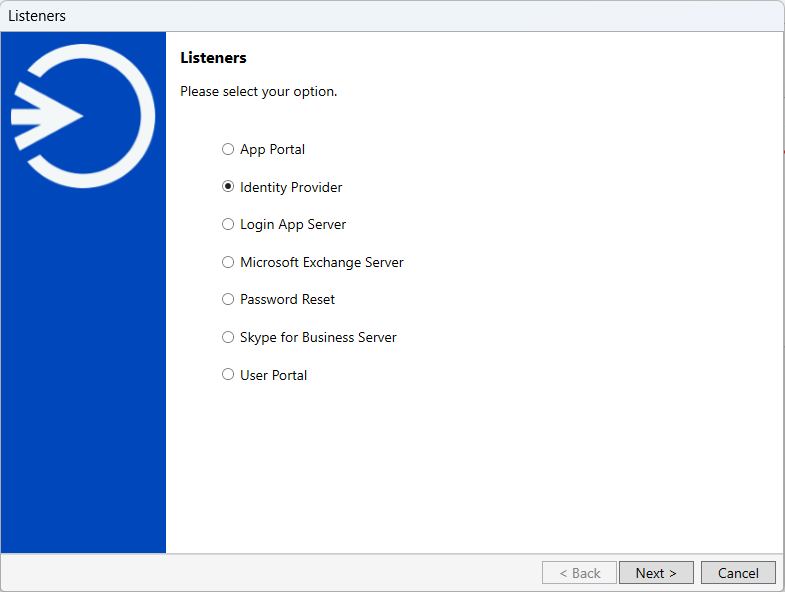
.
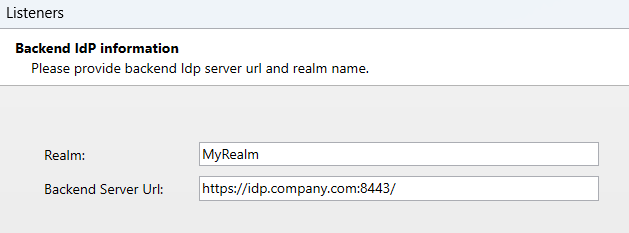
The backend server Url is the same as the Identity Provider server. Click Next.
Authentication method
The authentication method is used by the Access Gateway when authenticating with the Pointsharp ID.
| FIDO is used here as an example only to illustrate the process. |
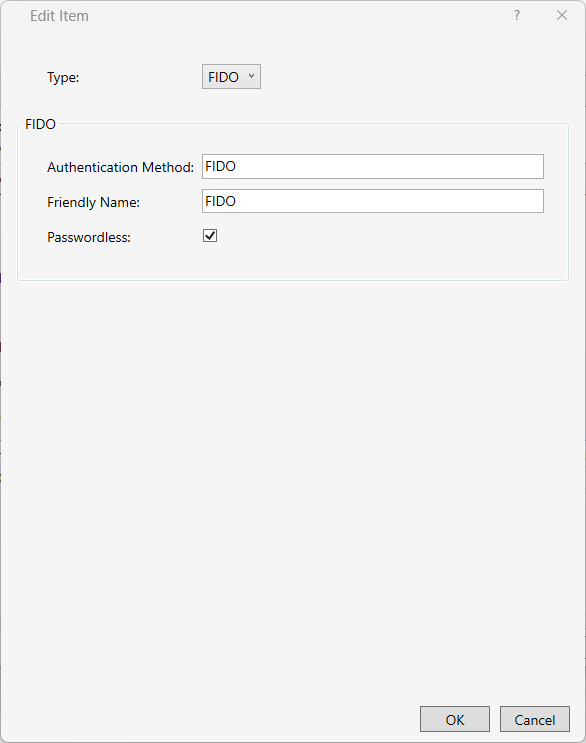
| Property | Description |
|---|---|
Type |
Type of authentication method. |
Authentication Method |
The name of the authentication method to call on the Pointsharp ID.
|
User validation / Require User Identity |
Require to send user identity. |
Friendly Name |
A user-friendly name to be displayed when authenticating. |
Api Url |
|
Client Certificate |
|
Show QR |
|
App Link Policy |
Policy list of creating specific app links redirect value (computer/mobile) based on header value. Default: null |
Passwordless |
Defines if this method is passwordless or not. |
Click Next and continue with entering a Shared secret. This Shared secret is used in the IdP configuration.
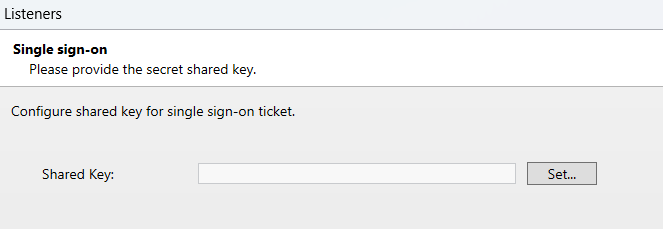
The following data will be applied to your configuration
-
Identity Provider Listener | listener.companyname.se:443
-
Rule | /js/
-
Rule | /realms/MyRealm/.well-known/openid-configuration"
-
Rule | /realms/MyRealm/protocol/saml/descriptor
-
Rule | /realms/MyRealm/protocol/openid-connect/token
-
Rule | /realms/MyRealm/protocol/openid-connect/certs
-
Rule | /realms/
-
Rule | /resources/
-
Rule | /robots.txt
-
Rule | /admin/
-
Forms Module | Authentication for IdP
-
Authentication Delegation (SSO) | SSO for IdP
Add the SSO provider to the IdP Admin GUI
-
Open the Pointsharp IdP Admin GUI.
-
Select the realm you want to configure.
-
Go to Identity Providers (in the menu).
-
Click Add provider.
-
Select the Pointsharp SSO provider.
When you configure an identity provider, the identity provider appears on the login page as an option. You can place custom icons on the login screen for each identity provider. See custom icons for more information.
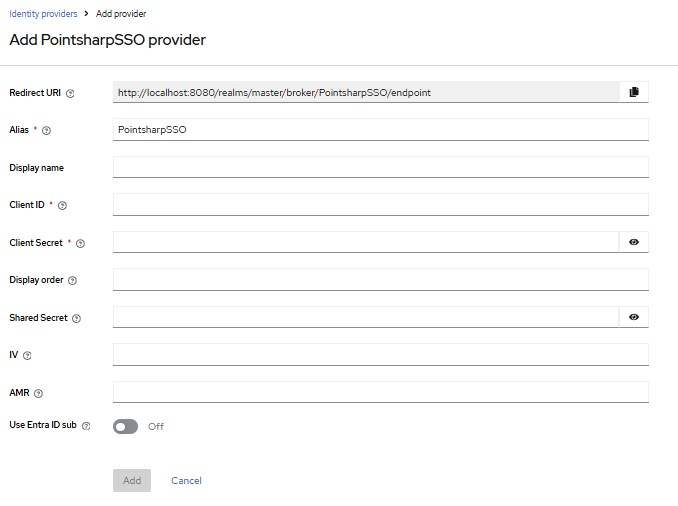
| Property | Description |
|---|---|
Alias |
The alias is a unique identifier for an identity provider and references an internal identity provider. Keycloak uses the alias to build redirect URIs for OpenID Connect protocols that require a redirect URI or callback URL to communicate with an identity provider. All identity providers must have an alias. Alias examples include PointsharpSSO, BankID, and PointsharpNetiDAccess. |
Display name |
Enter the display name for the client. The name is shown to users in the User Interface. |
Client ID |
Use same Client ID as the one you set in the Alias field. |
Client secret |
The client secret registered with the identity provider. This field is able to obtain its value from vault, use ${vault.ID} format. |
Display order |
Number defining the order of the providers in GUI (for example, on the Login page). The lowest number will be applied first. |
Shared secret |
SSO ticket shared secret. |
IV |
Initialization vector, default is used if left empty. |
AMR |
Authentication Method Reference. |
User Entra ID sub |
Use subclaim from Entra ID token. |
Advanced settings
Once the identity provider has been added successfully, the Advanced settings become visible and available for editing.
| Property | Description |
|---|---|
Scopes |
The scopes to be sent when asking for authorization. It can be a space-separated list of scopes. Default 'openid'. |
Store tokens |
Enable/disable if tokens must be stored after authenticating users. |
Accepts prompt=none forward from client |
This is just used together with Identity Provider Authenticator or when kc_idp_hint points to this identity provider. In case that client sends a request with prompt=none and user is not yet authenticated, the error will not be directly returned to client, but the request with prompt=none will be forwarded to this identity provider. |
Disable user info |
Disable usage of User Info service to obtain additional user information. Default is to use this OIDC service. |
Trust email |
If enabled, email provided by this provider is not verified even if verification is enabled for the realm. |
Account linking only |
If true, users cannot log in through this provider. They can only link to this provider. This is useful if you don’t want to allow login from the provider, but want to integrate with a provider. |
Hide on login page |
If hidden, login with this provider is possible only if requested explicitly, for example using the 'kc_idp_hint' parameter. |
Verify essential claim |
If true, ID tokens issued by the identity provider must have a specific claim. Otherwise, the user can not authenticate through this broker. |
First login flow override |
Alias of authentication flow, which is triggered after first login with this identity provider. Term 'First Login' means that no Pointsharp IdP account is currently linked to the authenticated identity provider account. |
Post login flow |
Alias of authentication flow, which is triggered after each login with this identity provider. Useful if you want additional verification of each user authenticated with this identity provider (for example OTP). Leave this to "None" if you need no any additional authenticators to be triggered after login with this identity provider. Also note that authenticator implementations must assume that user is already set in ClientSession as identity provider already set it. |
Sync mode |
Default sync mode for all mappers. The sync mode determines when user data will be synced using the mappers. Possible values are: 'legacy' to keep the behaviour before this option was introduced, 'import' to only import the user once during first login of the user with this identity provider, 'force' to always update the user during every login with this identity provider. |
Case-sensitive username |
If enabled, the original username from the identity provider is kept as is when federating users. Otherwise, the username from the identity provider is lower-cased and might not match the original value if it is case-sensitive. This setting only affects the username associated with the federated identity as usernames in the server are always in lower-case. |
Click Save to update the provider with the settings.
| Please note that there is a complete and well-written user guide describing how to configure and use the Admin GUI. In the examples we show, only selected parts are included. For the complete guide, see: https://www.keycloak.org/docs/latest/server_admin/ |
Click the question mark icon associated with each field to display contextual help.

|