
Certificate enrollment procedures
These procedures describe certificate enrollment of a YubiKey without any extra input criteria, for example, no signature or identification. Net iD Portal supports different ways to configure an enrollment flow to suit your organization.
Enroll primary YubiKey
-
Insert the YubiKey in the USB port. Under Check token, the YubiKey information is automatically shown.
-
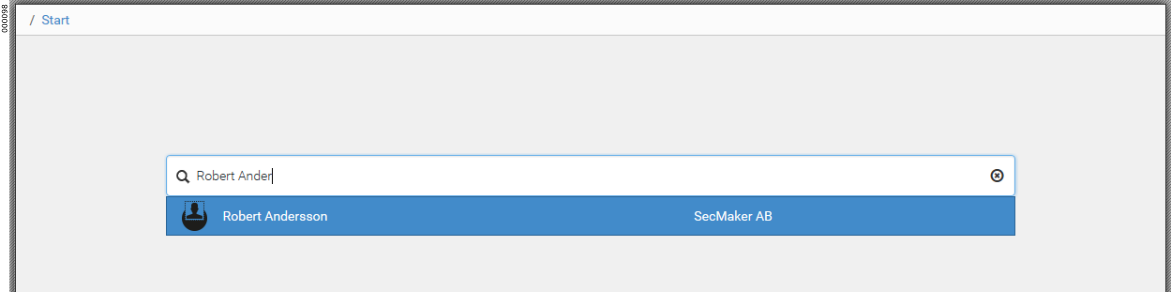
On the Users tab, search for the user you want to enroll a certificate to and go to the user’s profile.
-
Click .
-
In the Token template list, click the token template to be used for the enrollment, and then click Execute.
-
In the New password (PIN1) box, type a new PIN for the authentication and signature certificates.
-
The officer signs the enrollment.
-
The certificates are created and written to the YubiKey.
-
Under Active tokens, on the user profile, the YubiKey is now listed.
-
Click on the YubiKey row to see the certificates on the YubiKey.
-
Click Show on the YubiKey to see information about the certificates.