KCD towards multiple Exchange Servers using load balancer
It is recommended to begin to setup delegation towards a single Exchange to simplify testing and troubleshooting, before deploying ASA Account and Load Balancers. See KCD towards single Exchange Server.
This guide assumes that above has been completed and will explain the differences and what to change to configure it for delegation with KCD for multiple Exchange Servers.
| KCD |
Kerberos Constrained Delegation |
| ASA Account |
Alternate Service Account |
| SPN |
Service Principal Name |
Alternate Service Account (ASA Account)
This account needs to be deployed on all Exchange Servers used in a load balancing scenario. For more detailed information and how to create and deploy this account, please see this information from Microsoft:
This allows the Service Account used in the Access Gateway Server to delegate towards the ASA account, and all Exchange Servers will be able to manage the delegation part even through load balanced traffic.
Service Principal Name (SPN)
The ASA Account needs to have its own Service Principal Name (SPN). This name will also be set as the backend Server URL in the Access Gateway configuration. Set this SPN using the command setspn. Multiple SPN might be needed, for example one for Autodiscover, one for Outlook, etc.
In this example we will set a SPN named nlb.pointsharp.net and this is the name that will point towards the Load Balancers. This name will also be set as the backend Server URL in the Access Gateway configuration.
Check SPN name
Check that this name is not already taken. Enter this command:
$ setspn -F -Q <SPN>
setspn -F -Q http/nlb.pointsharp.net
If the command returns "no value", then it is not used.
Delegating Service Account used by Access Gateway Server towards the ASA Account
-
Open the Directory Users & Computers.
-
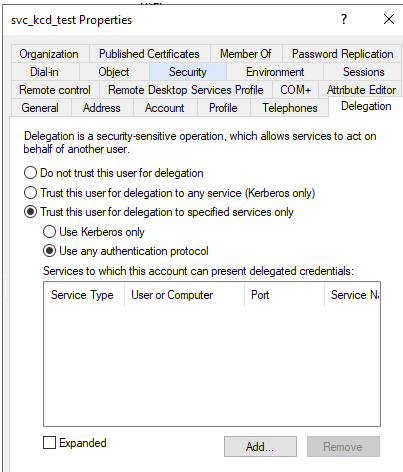
Go to the Service Account used for the Access Gateway Server KCD Settings. In this example it is named svc_kcd_test.
-
Under the Properties settings, open the tab Delegation.
-
Set these settings:
-
Click Add and choose the ASA Account.
-
Add the SPN created for the ASA Account (instead of a single Exchange Computer Account/SPN as you do for single Exchange deployment).
-
The Service Type needs to be HTTP (this also includes HTTPS). For example the http/nlb.pointsharp.net SPN.
Do not forget to add any other SPN added, such as http/autodicover.pointsharp.com that also might need delegation. Delegation towards what, depends on what is published in the Access Gateway as Listeners.
Access Gateway configuration
The Service Account configuration in the modAuthenticationDelegation module in the Access Gateway Server, is the same as in the guide regarding Single Exchange Server, with the difference being what the accounts delegate to, as seen in the section above.
Backend server URL and DNS, or local host
The backend Server URL need to be the same as the SPN used for the Service Account. See example screenshot below. The name exch03.ps.net in the example screenshot below now needs to be replaced with SPN to be used for the ASA Account.
For example nlb.pointsharp.net.
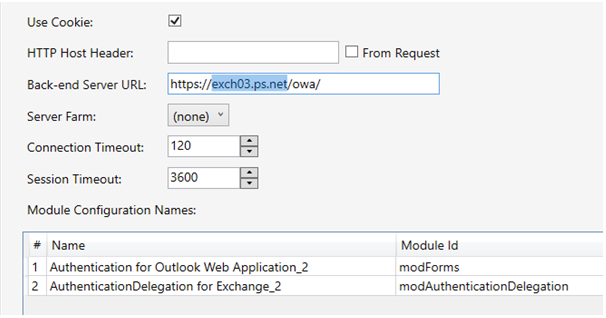
The backend Server URL must be reachable from the Access Gateway server, either by DNS, or add this as an entry in the Local Host file on the Access Gateway Server.