
Membership Updates Board
Membership Updates Board is used to get an overview of the status of all memberships in membership-driven connectors; for example, ADDS groups, Entra ID groups, SharePoint memberships, Office 365 groups and others. There are also six shortcut fields for selected persons and accesses.
The following information is displayed:
-
Membership Updates shows all memberships that have been changed (by default in the last quarter - this can be adjusted in the top right corner).
-
The Provisioning Status graph indicates whether the membership is fully synchronized against the external system.
-
The Assignment Type graph indicates the type of membership, e.g. Group, Office 365 Group, SharePoint, etc.
-
The other three graphs further filter the view of memberships: By Person Type, By Company and By Department.
Master data card
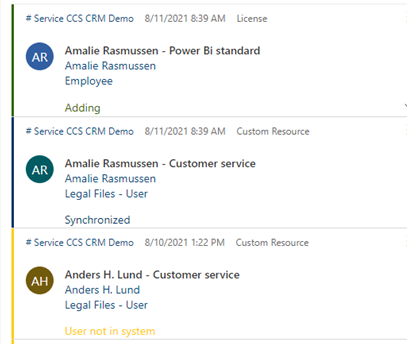
Each membership is displayed with an expandable master data card showing Provisioning Status, Owner, Modified On, Assignment Type, Name, Person, Role, User Group (for groups), Licence Assignment (for licences), Office 365 Group (for Office 365 groups), SharePoint Site (for SharePoint) and Shared Mailbox (for shared mailbox).
The color on the left side of the master data card reflects the Provisioning Status.
Shortcut fields
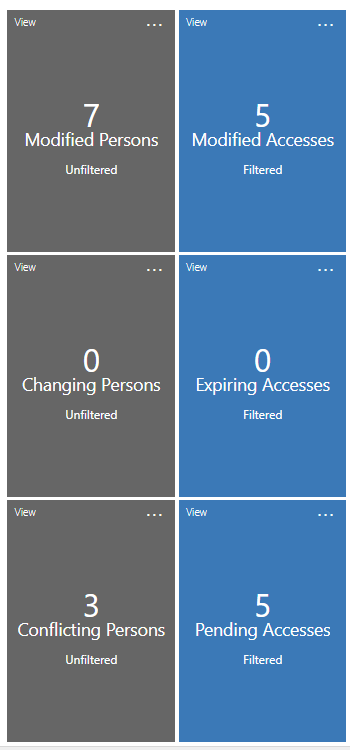
There are six shortcut fields. Click on the box to see a pop-up list of people. The three person shortcut fields are filtered together with the rest of the board. The six fields show the following:
-
Modified Persons (modified in the last 7 days)
-
Changing Persons (planned change of person status in the next 93 days)
-
Conflicting Persons (marked with import conflict)
-
Modified Accesses (accesses modified in the last 7 days)
-
Expiring Accesses (accesses that expire in the next 33 days)
-
Pending Accesses (accesses in Approve, Implement or Remove)
Functionality of the Membership Updates Board
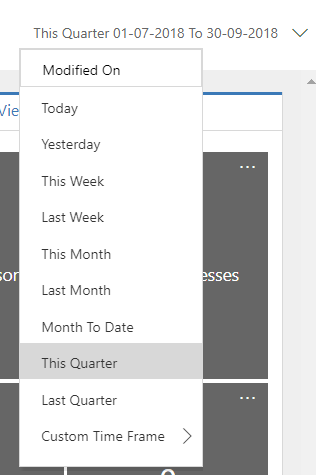
Filtering by date: You can filter by date in the right corner of the board.
Filtering via Global Filter: You can filter from other fields via Global Filter. Press "Show Global Filter" in the menu bar.
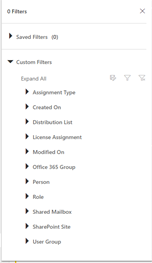
Use Saved Filters above. You can save frequently used filters and find them again under "Saved Filters".