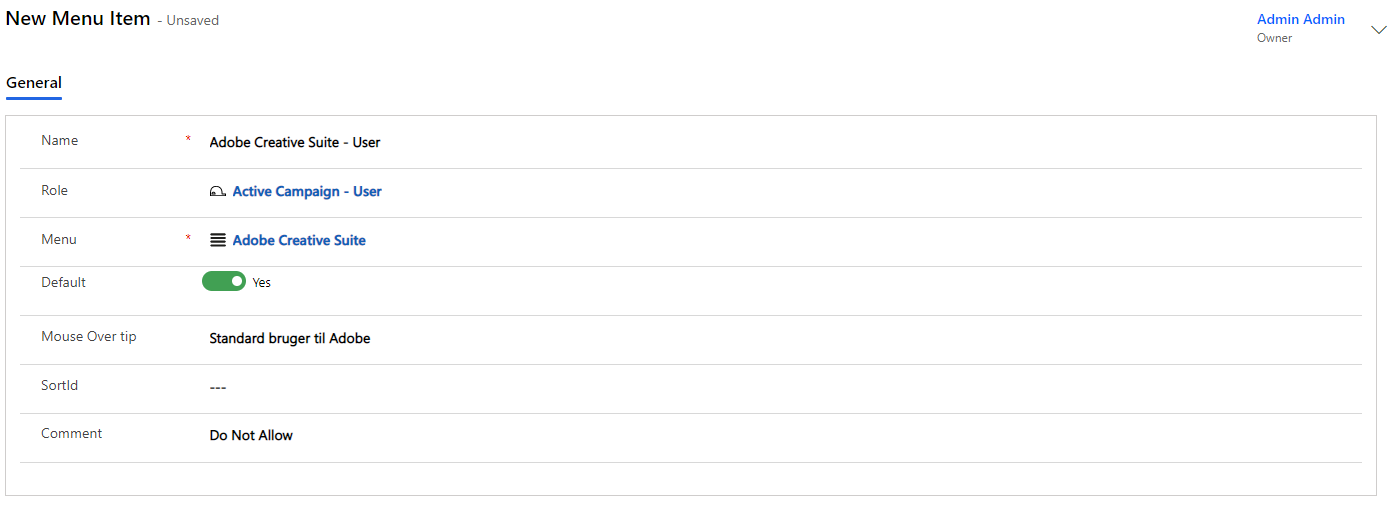
Menu Items
A Menu Item is an access or assignment that is linked to a parent Menu.
"Menu Items" are created either from the menu to which they are to be linked or directly under "Menu Items" in Compliance Suite.
Menu items may have a role linked to them. The role ensures that a person is given the correct access.
Create Menu Item from current menu
Open the menu from "Menu | Menus" where you want to add a menu item (e.g. Navision):
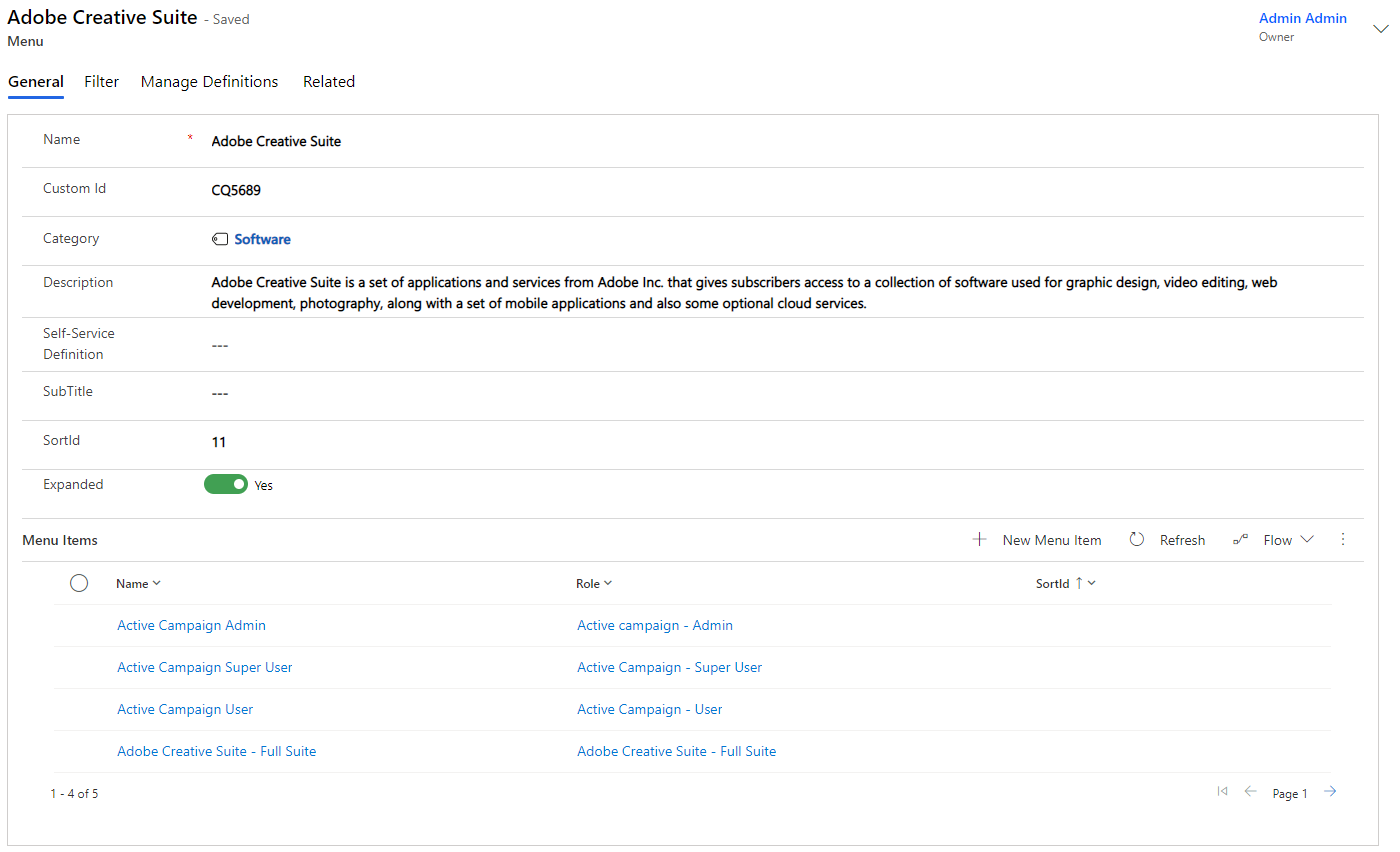
Click on "+ Add New Menu Item" in the menu. The screen below will then appear:
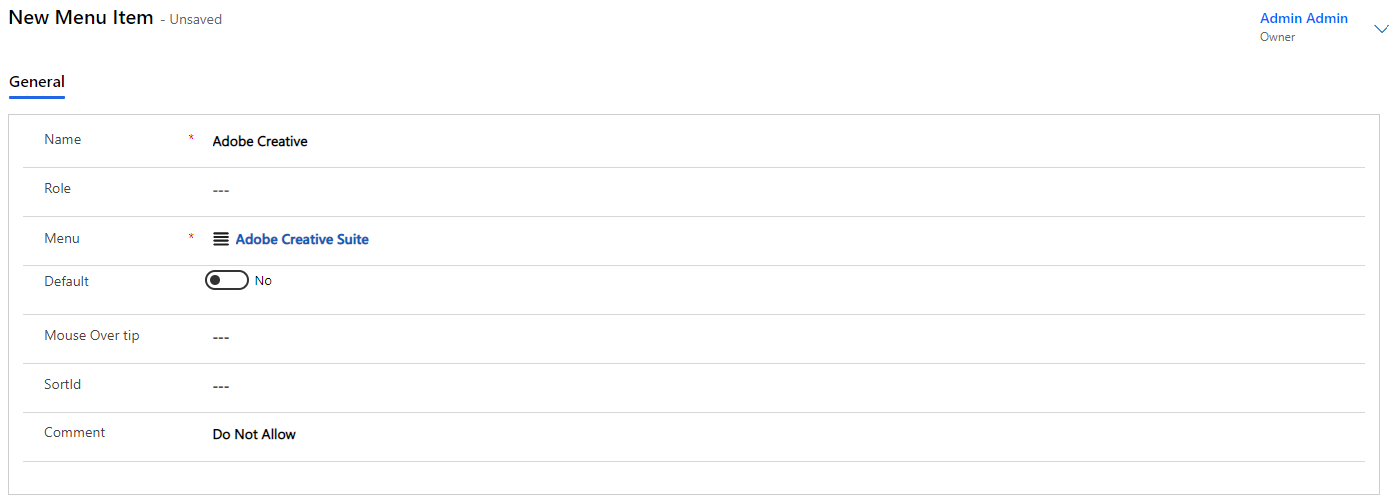
| Name | Type | Description |
|---|---|---|
Name |
Text |
Enter the name of the new menu item. |
Role |
Look Up |
Here you choose what role the person who gets the menu item associated should have. |
Menu |
Look Up |
Here, the menu to which the new menu item is to be attached is selected. |
Mouse Over tip |
Text |
Here you specify a possible help text for the menu item. |
SortId |
Numbers |
Indicate if necessary SortId for the menu item. |
Comment |
Text |
Choose here whether you can add comments to the accesses/menu item. |
Fill in the fields and click "Save" to save the new menu item. When you now return to the Adobe menu, your new menu item will also appear on the list.
Create menu items from Menu Items
Click on "Menu | Menu Items". Here is an overview of the menu items created in Compliance Suite:
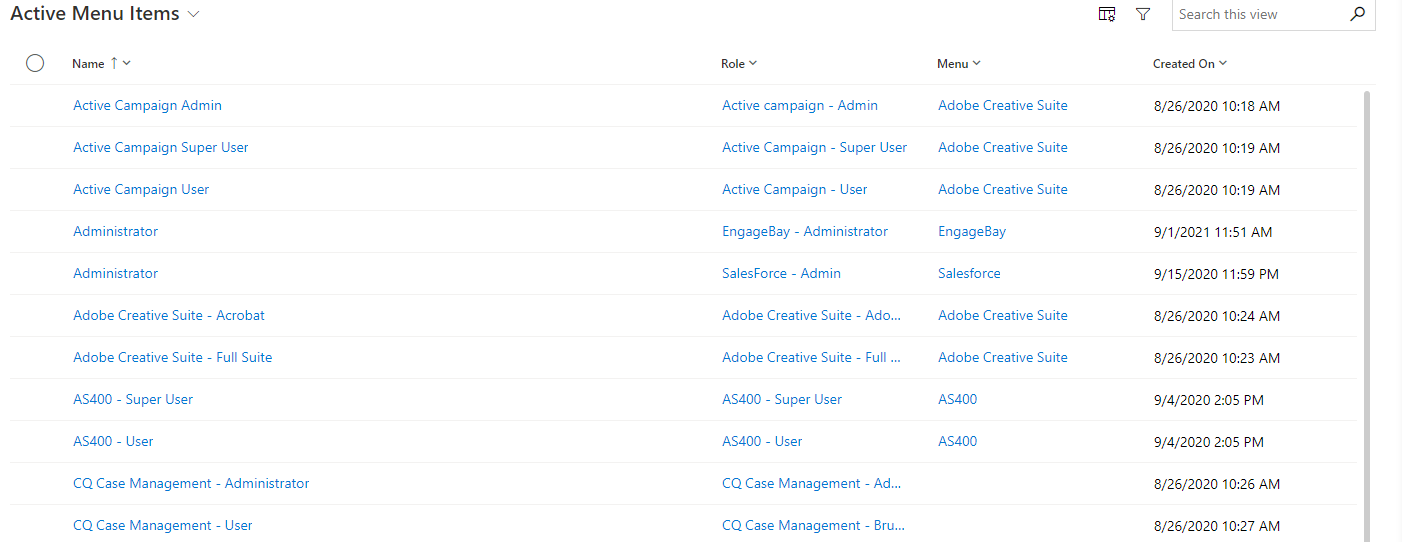
Click on "+New" in the top menu to create a new menu item. Next, the same screen appears as if you click on "+Add New Menu Item" from the menu. Fill in the metadata about the menu item and click "Save" to add it to the Adobe menu: