
Menus
Menus can be used to present an administrator with a choice of accesses that are not type-dependent.
Generally, a person’s access upon creation will be tied to rules and person characteristics.
Menus present a selection of additional accesses for the user.
This may include ordering IT equipment (PC, mouse, keyboard, monitor) or ordering access to systems, e.g. Navision (Navision User, Navision Resource etc.)
The menus can then be linked to person types, departments,companies etc.
Menus are located under the "Menu" menu:
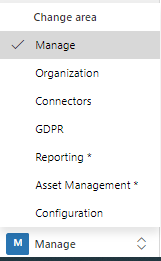
Under Menu & Manage, you can find the following submenu items for Menu:
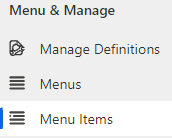
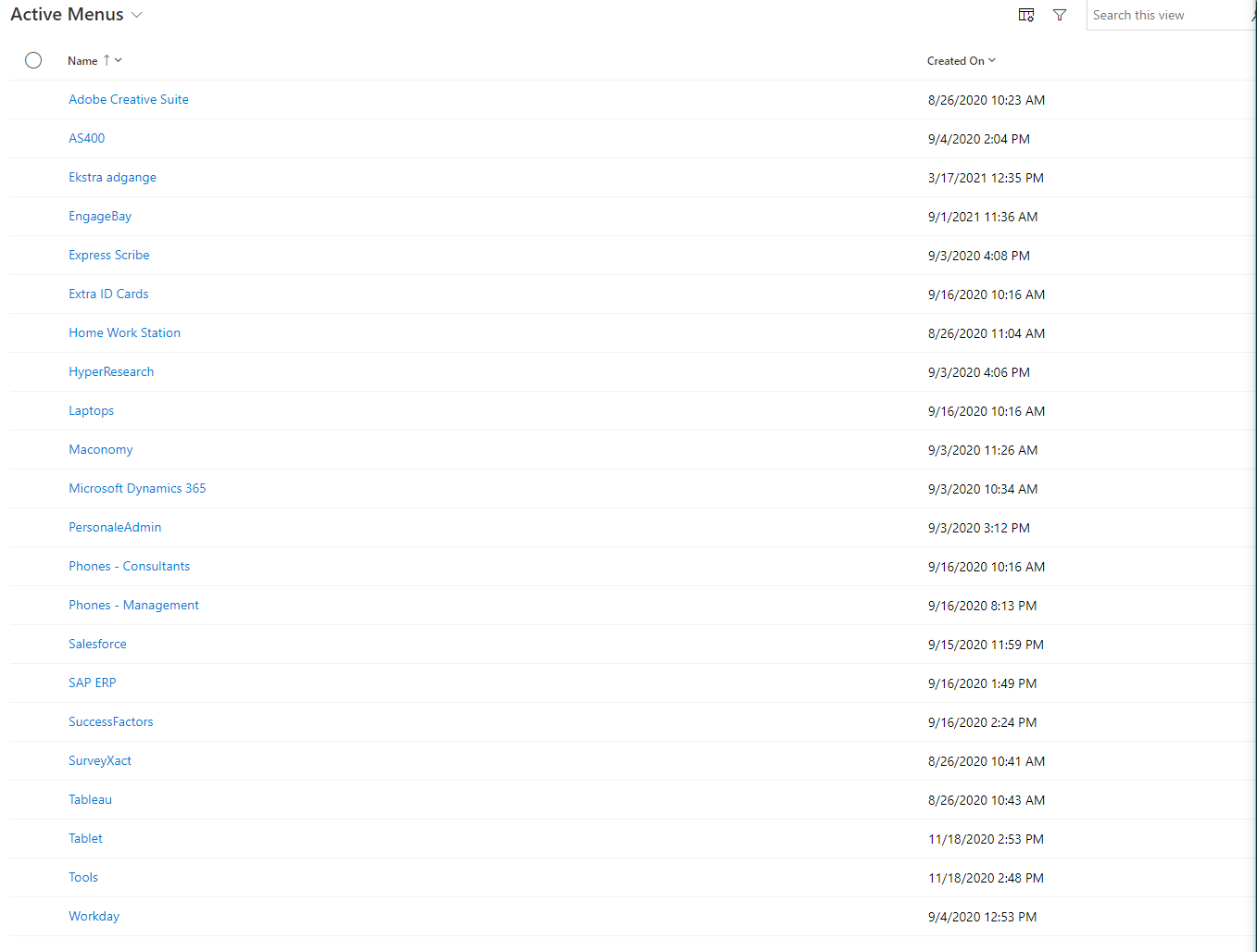
Active Menus
After you have clicked on "Menus", a list of menus created in Compliance Suite will be displayed:
Create new menu
To create a new menu, click on "+New" in the top menu. Next, a screen will appear where you can set the properties of the new menu:
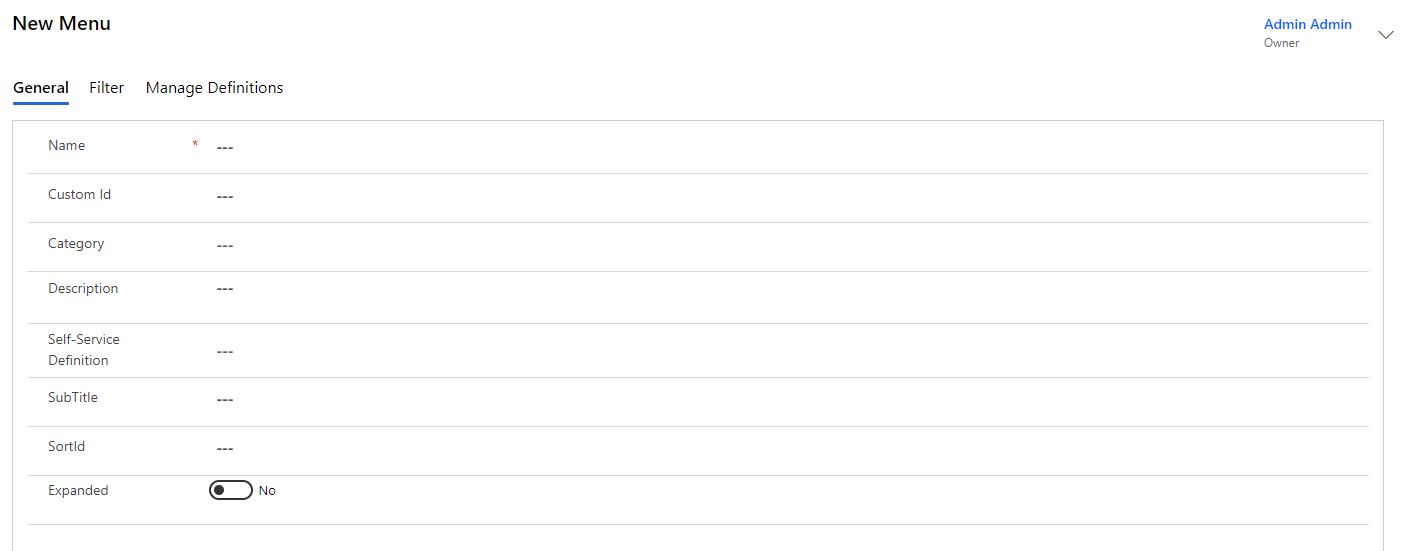
| Name | Type | Description |
|---|---|---|
Name |
Text |
Name of Menu. |
Custom ID |
Numbers |
Possibility to enter a Custom ID. |
Category |
Look Up |
Possibility to specify a category. |
Description |
Text |
Explanation of Menu. |
Self-Service Definition |
Look Up |
Assigning menu to Self-Service. |
Subtitle |
Text |
Subtitle for Menu that will appear under the name. |
SortId |
Numbers |
Sorting ID. |
Expanded |
Yes/No |
Specifies whether the menu should be displayed folded in or unfolded by default. |
When you have filled in all the relevant metadata about the menu, click "Save".
Next, a new box will appear under metadata, where you can specify the submenu items to be included in this menu.
For example:
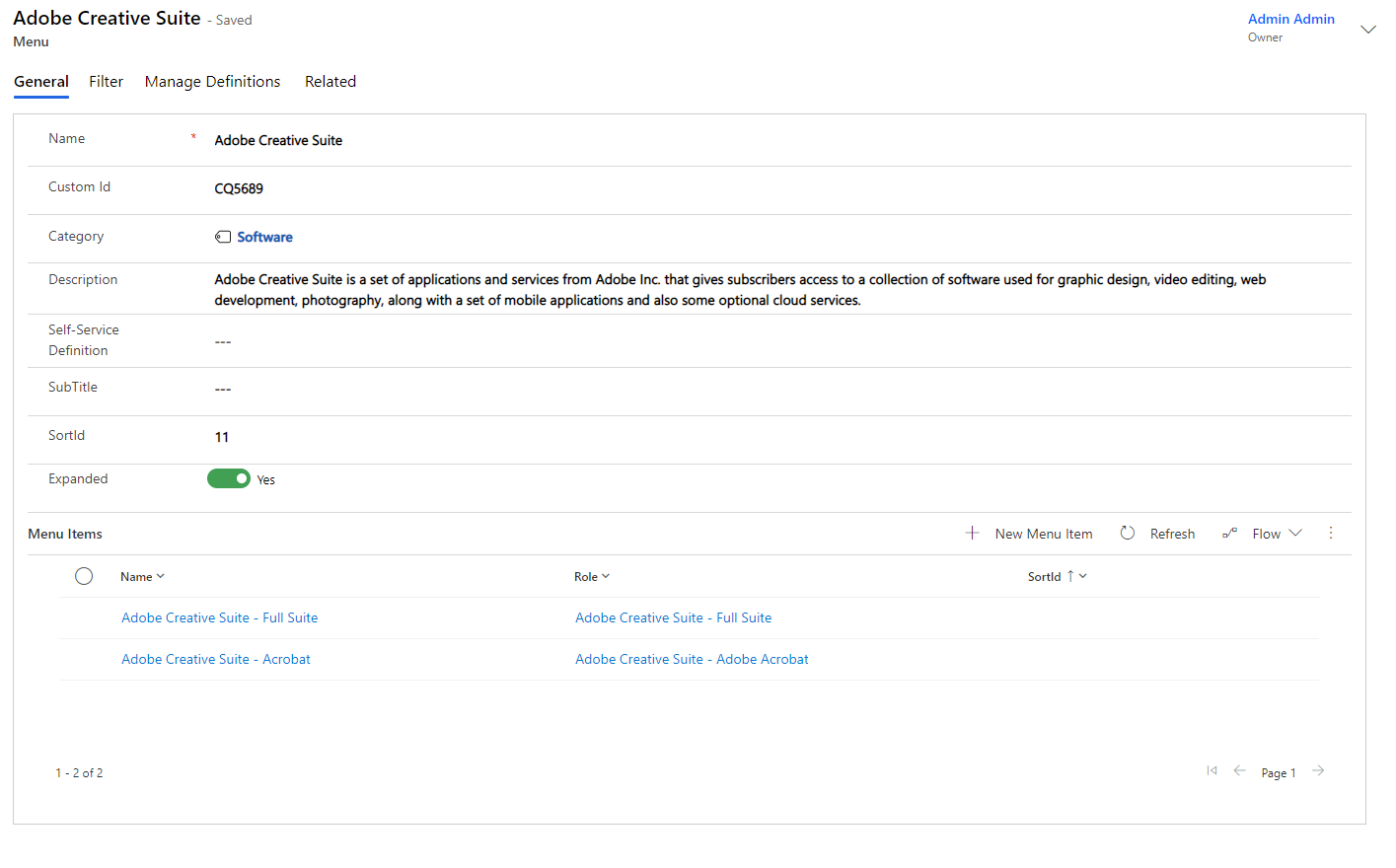
Link the menu to person type, etc.
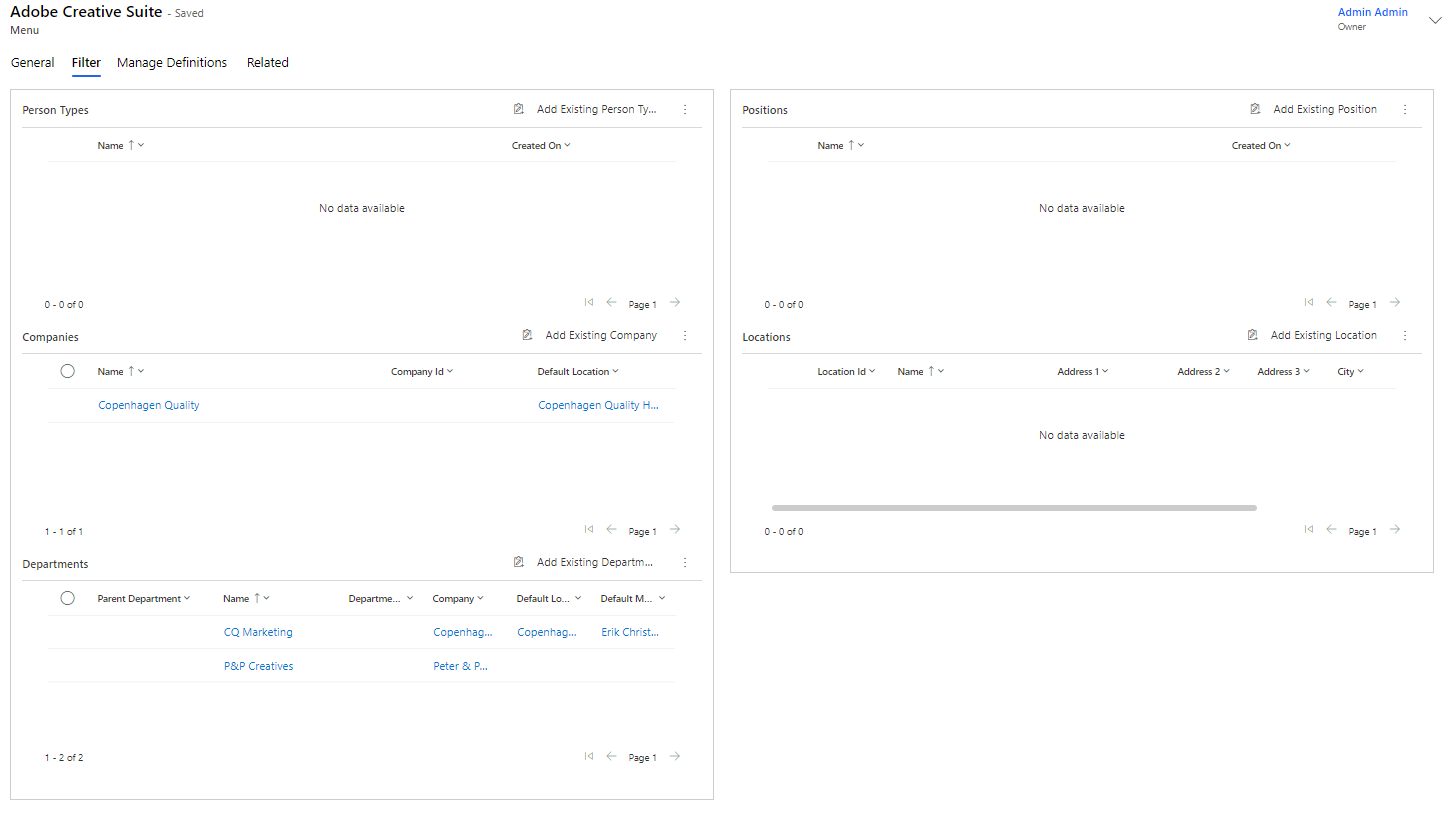
After saving the metadata about the menu, a new tab "Filter" appears. Under "Filter", you decide where the menu should be displayed.
In this case, it appears on the "Employee" person type. Filters can also be set on "Positions", "Companies", "Locations" and "Departments":
Example of menu display under person type
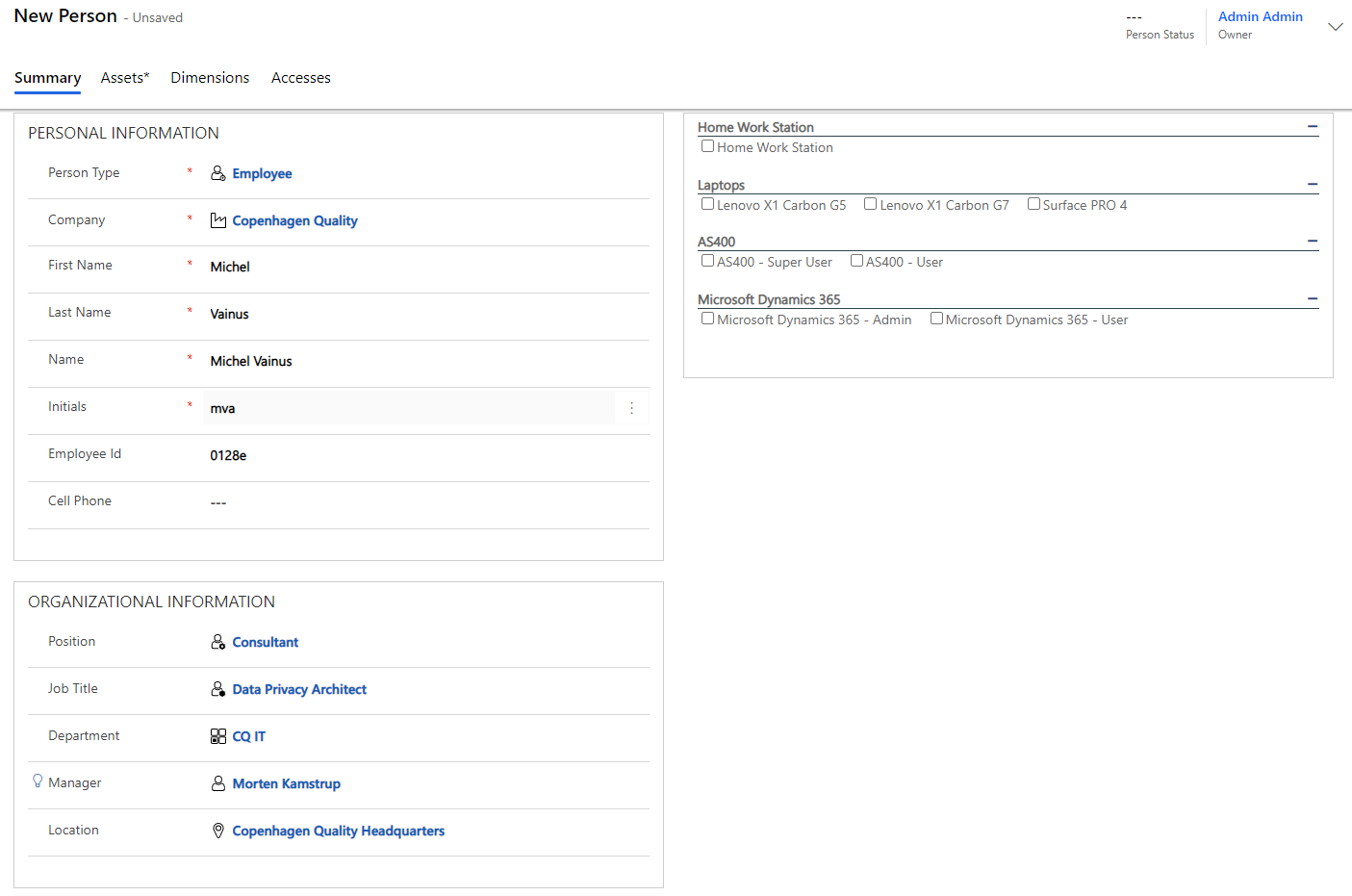
On the right side of the above screen, the menus set up for the "Employee" type of person are displayed. You can click + /- to expand and collapse the menu, respectively. If you check off any of the menu items, Compliance Suite will add any roles/accesses to the person now being created.
If you have chosen to allow comments, a comment box will appear after you have checked off a menu item:
