Segregation of Duties (SoD) |
In Compliance Suite you can now define which memberships of a user group
will cause a segregation of duty (SoD) conflict. For this, you can
create SoD definitions with a set of resources that cannot be assigned
to a user simultaneously via a role. From the overview of SoD conflicts,
you also get the option to regulate the allowance of a conflict.
The following changes have been made in Compliance Suite to create,
modify and list SoD conflicts:
-
New option - SoD Definitions in component Configuration
To define which resources, when assigned simultaneously to a user via
a role, will lead to an SoD conflict, the option SoD Definitions is
now available to you.
-
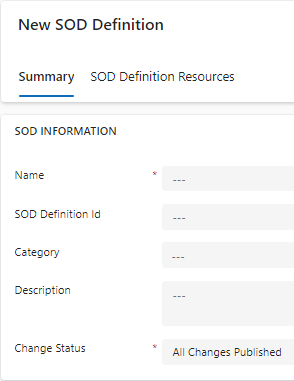
Tab Summary
Here, you enter the following general information about the SoD
definition:
| Field |
Description |
Name |
Here, you enter a name for the SoD conflict. |
SoD Definition Id |
Here, you can assign an Id to the conflict. |
Category |
Here, you can assign this conflict to a predefined category
or create a new category for it. |
Description |
Here, you can enter a description of the conflict. |
Change Status |
|
-
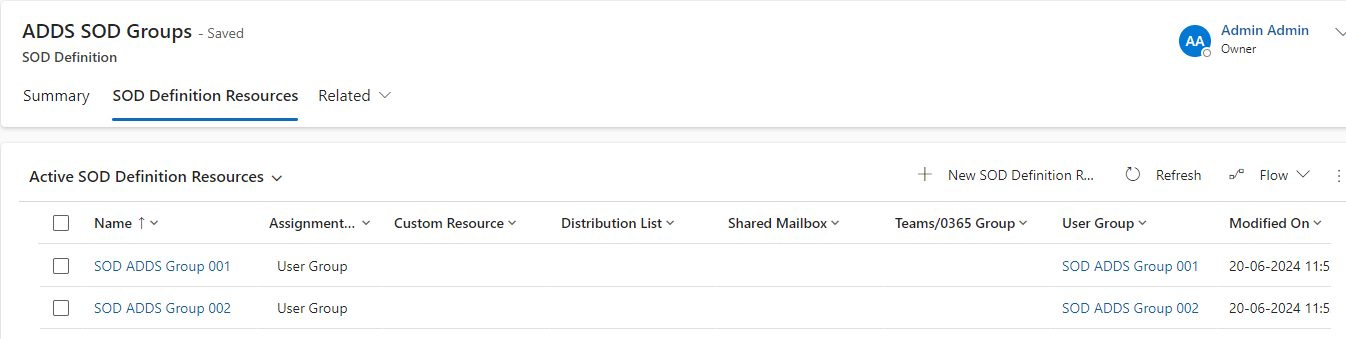
Tab SoD Definition Resources
Each SoD definition has a list of SoD definition resources which
cannot be assigned simultaneously. On this tab you define those
resources.
|
|
If more than two SoD definition resources are defined for an SoD
definition, a conflict is created for a person, if at least two of the
resources are assigned.
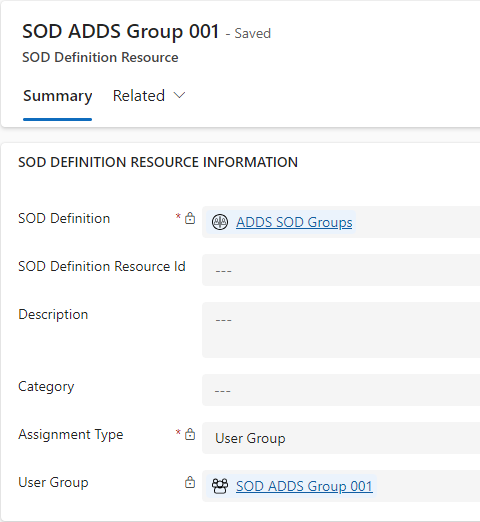
When creating a new SoD definition resource or when clicking on the name
of an existing one, you open the view SoD Definition Resource:
|
Here, you define the resource in detail. You can provide the following
information:
| Field |
Description |
SoD Definition |
Shows the name of the SoD definition, for which you are
about to define the resources. |
SoD Definition Resource Id |
Here, you can assign an Id to the resource. |
Description |
Here, you can enter a description of the resource. |
Category |
Here, you can assign this resource to a predefined category
or create a new category for it. |
Assignment Type |
|
User Group (example) |
Depending on the chosen assignment type, the
respective field is added here. In this field, you define the details
for the chosen assignment type. For example, for which user group when
assigned simultaneously with another here defined user group, a conflict
will be created. |
|
|
Creating, deleting, activating or deactivating a resource is
changing the status of field Change Status of an SoD definition to
Changes ready to publish.
|
-
The information on the view Person has been extended to show SoD
conflicts information.
-
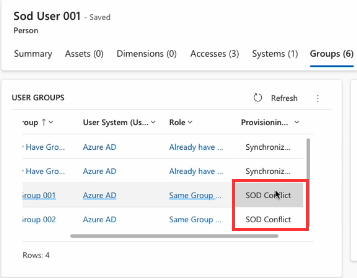
New provisioning status - SoD Conflict - on the tab Groups for a
person
If the person receives a role that causes an SoD conflict, it is
communicated on tab Groups > table User Groups > in column
Provisioning Status. For this, the status SoD Conflict has been
added.
|
|
If a membership to a resource is given directly in the external
system while the Provisioning Status of this membership is SOD
Conflict, CCS removes that membership to the resource. Thus, the
provisioning status is set to Synchronized. Under SOD Investigation,
then to Removing and finally to SOD Conflict.
|
-
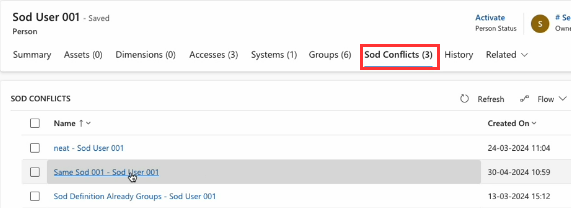
New tab SoD Conflicts
As soon as an SoD conflict is created for a person, the tab SoD
Conflicts is added, showing the amount of conflicts that are created.
Clicking on the name of the SoD conflict here, opens the details of this
SoD conflict.
-
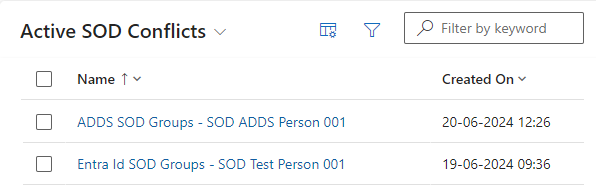
New option - SoD Conflicts in component Manage
Here, you can find a list of all created conflicts with the
information of their timestamp.
-
New view SoD Conflict
In the list of active SoD conflicts, when clicking on the name of a
conflict, you open the following view:
-
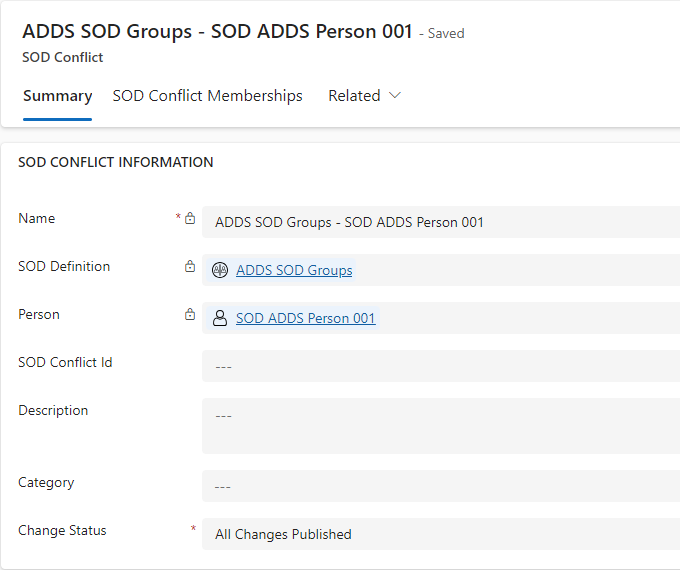
Tab Summary
Here, you can find the following information:
| Field |
Description |
Name |
Shows the name of the SoD conflict. |
SoD Definition |
Shows the name of the SoD definition whose resources
are the reason for the conflict. |
Person |
Shows the name of the person whose role assignments caused the
conflict. |
SoD Conflict Id |
Here, you can assign an Id to the conflict. |
Description |
Shows the description of the conflict. |
Category |
Shows the category of the conflict. |
Change Status |
|
-
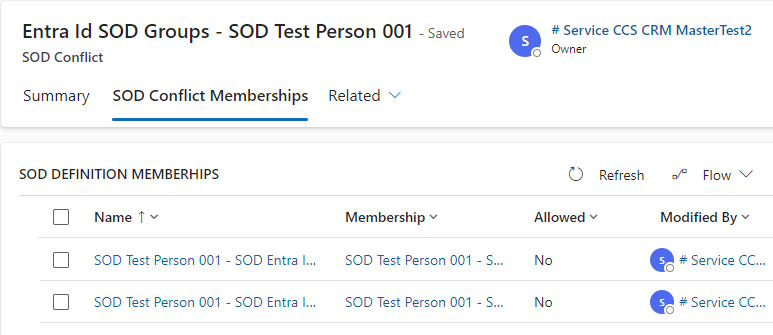
Tab SoD Conflict Memberships
Every membership for which a conflict exists for the person is listed
here.
-
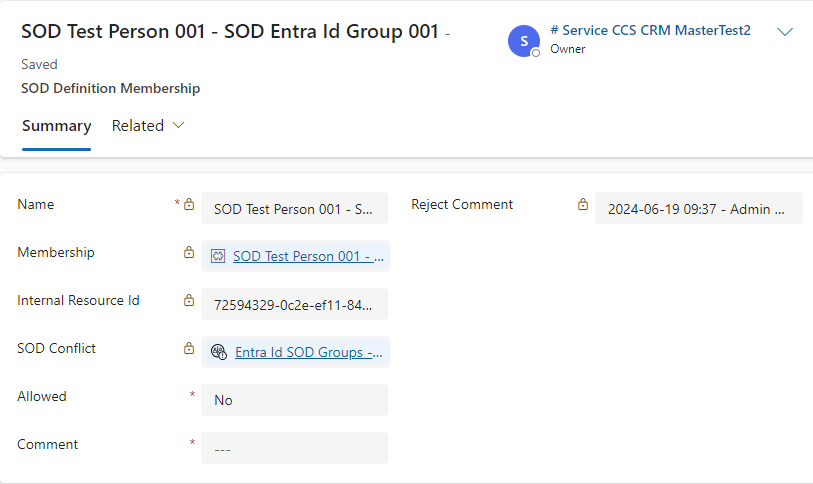
New view SoD Definition Membership
In the list of SoD conflict memberships, when clicking on the name of a
definition membership, you open the following view:
Here, you can find the following information:
| Field |
Description |
Name |
Name of the SoD definition membership. |
Membership |
Name of the membership for which a conflict exists for the
person. |
Internal Resource Id |
Automatically filled. |
SoD Conflict |
Name of the SoD conflict. |
Allowed |
|
Comment |
Here, you enter your justification for the chosen allowance
status. |
Reject / Allow Comment |
Depending on the chosen allowance status, the
content of field Comment is then copied into field Reject Comment or
Allow Comment. |
|
|
When the field Change Status is changed from status Changes
ready to publish to All changes published, recalculations are
performed:
|
-
For SoD Definitions
The recalculation is performed for all persons who have an SoD conflict
due to the respective SoD definition.
-
For SoD Conflicts
The recalculation is only performed for the respective person.
The new SoD conflict calculation can handle the following use cases:
-
Assign resources via roles
-
Change the allowance for a membership
-
Membership to the resource is assigned directly in the external system
while the membership in CCS is in provisioning status SoD Conflict
-
A resource is assigned to a person in an external system first, but
the resource is included in an SoD definition
-
A person is deactivated
|
FrontDesk - set default values for fields |
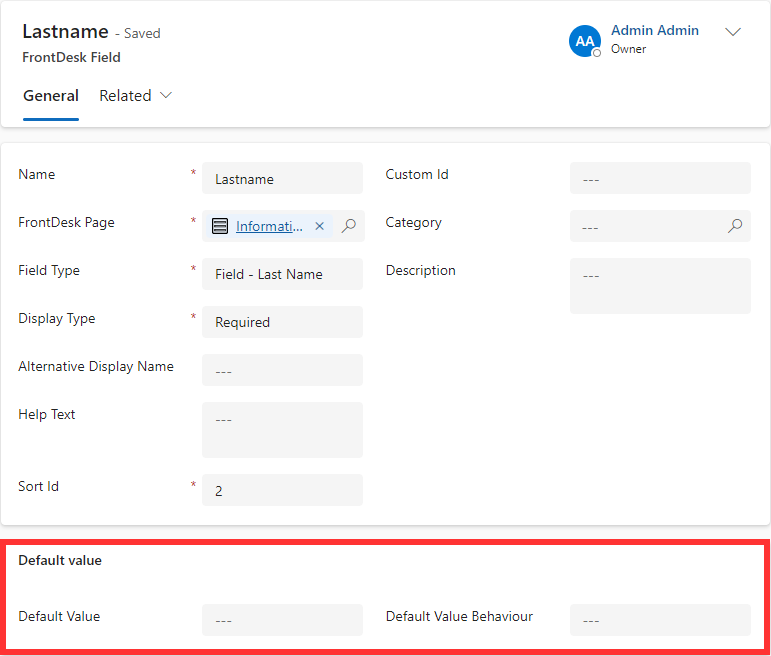
When defining the FrontDesk fields, you can now set a default value for
all available fields. For this, the section Default value has been
added to the page FrontDesk Field with the fields:
-
Default Value
Here, you can set the value for the respective field. This value is then
automatically added to this field in FrontDesk.
-
Default Value Behavior
Here, you can define for which action the default value should be added.
|
|
You need to define a default value behavior, otherwise the
default value is not used.
|
|