Custom Connector - Inbound Change Limit
Inbound Change Limit ensures that an accidental mass update from an Inbound Custom Connector system is not imported until an administrator has validated the changes/mass update.
Scenario:
-
The Inbound system imports company information on all people in the organization.
-
Someone accidentally deletes the company in the system that is Inbound.
-
Assuming this is company information on 1000 people, it will result in 1000 inbound changes in Compliance Suite and subsequently corresponding changes in the Outbound Systems.
Setting an Inbound Change Limit to 900, for example, will prevent this scenario and make it easier to re-establish the correct data.
Setup
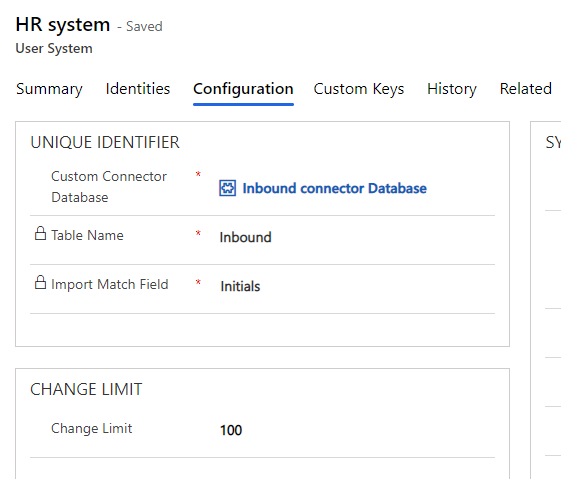
Navigate to the Inbound Custom Connector system where you want to set a Change Limit.
Set the value to an integer in the "Change Limit" field under the "Configuration" tab.
If the value set in "Change Limit" is a positive integer, the processing of changes in the inbound connector will be blocked if the number of rows in the Inbound person table being changed is =1 greater than the value set in Change Limit.
If the set value is 0 or a negative integer, the Change Limit will not be enabled.
Investigation of a blocked connector
If a Change Limit is activated on an inbound connector and a block is initiated, this will block all changes from this system.
When this happens it will cause the creation of the event "Custom Connector Blocked", which will be associated with the current system. The "Custom Connector Blocked" entity stores information about how many "records" were changed and which system it affected.
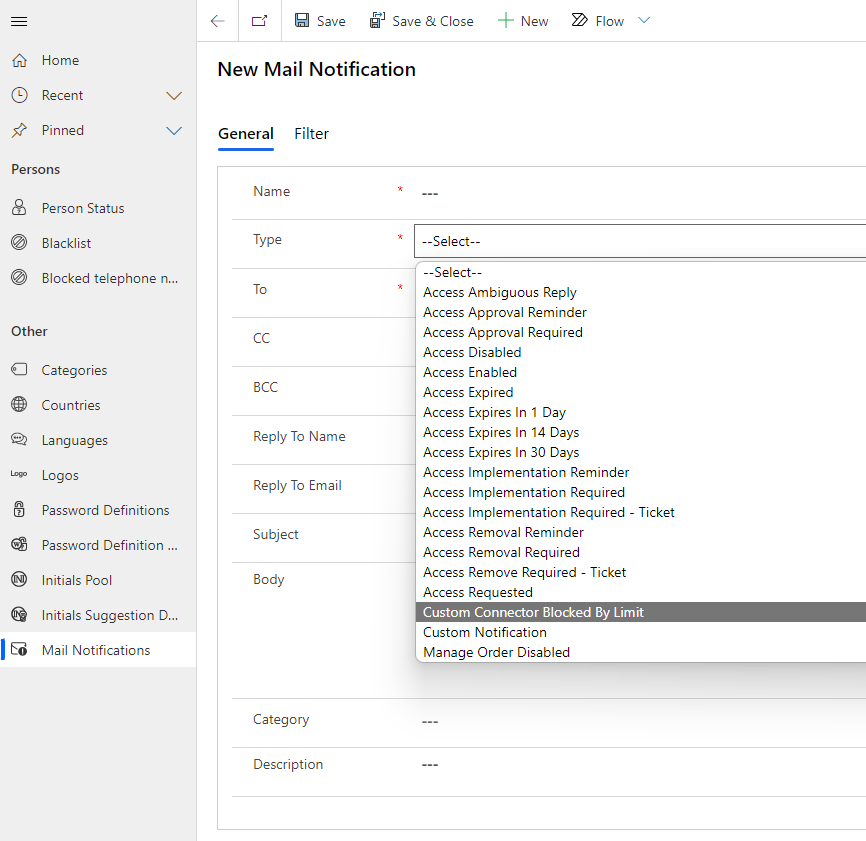
It is possible to configure a mail notification of the type "Custom Connector Blocked by Limit".
When a "Custom Connector Blocked" event is initiated, it will trigger this mail notification, which will alert the organization that this system requires assistance.
To resolve the blocking, you should review all rows in the Inbound Custom Connector table and validate if the changes are correct. If the change in the row is correct, the "handled flag" should be set to 7 (by the user). This indicates to Compliance Suite that a person has actively validated the change and this change should be processed regardless of the system being blocked.
When there are no more rows with "handled flag", you should delete the "Custom Connector Blocked" entity to get the system back to normal processing.
The "Custom Connector Blocked" entity can be seen on the list under the Configuration tab of the applicable Inbound User System:
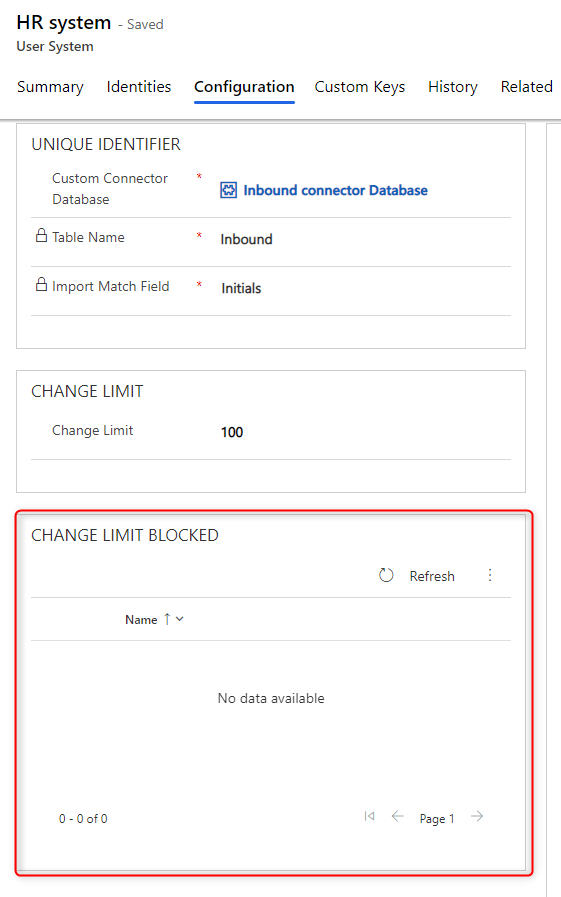
The available details on a "Custom Connector Blocked" entity.
Mail notification - Custom Connector Blocked by Limit:
Custom Connector Block By Limit is a new mail notification type.
Please note that even if the Filter tab is displayed, this notification type will ignore the filters.
Mail Template Objects for this Mail Notification right here: connectorblocked