On-Offboarding - Offboarding Processes
Processes for offboarding are a process of optional steps. Offboarding processes are performed after a person’s deactivation date. In the process, it is possible to define steps that are automatically performed as part of the offboarding at specific days and times.
The offboarding process can perform timed steps that must occur after a person’s deactivation date - for example, closing an account, removing licenses, etc. The process can also perform steps to be completed before a person’s deactivation date. For example, it could be sending out an email notification a week before the person’s user account is deactivated.
It is important to note that changes can be made in active offboarding processes and that individuals will remain in an ongoing offboarding process even if they lose the role that provides access to it. If the person - as a consequence of an offboarding step that is before the deactivation date - loses the role associated with the offboarding process, the person will not be removed from the process.
Here, you can find offboarding processes in the Compliance Suite
You will find and create offboarding processes in the Compliance Suite under the area Connectors > On-Offboarding.
Offboarding processes consist of steps that must be performed when a person stops in the company. There can be different offboarding processes depending on whether it is an internal or external employee.
Active offboarding processes
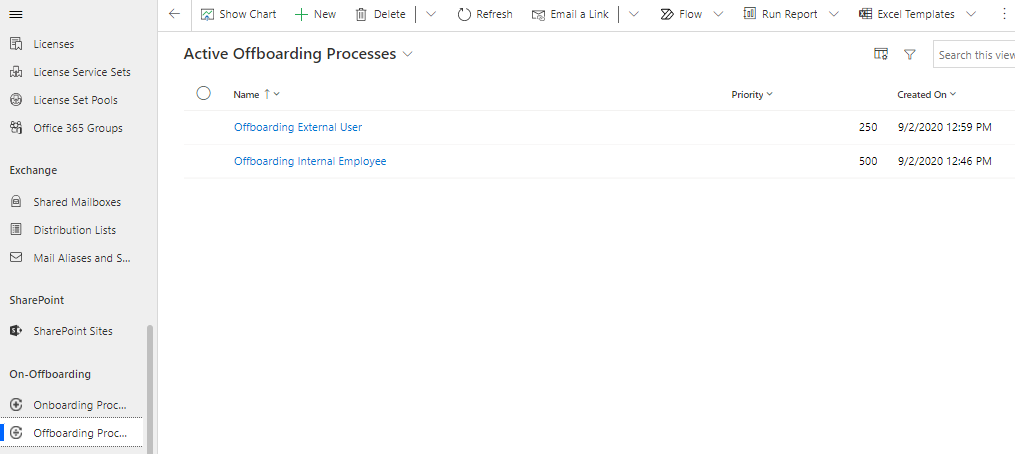
Under the menu item "Offboarding Processes" you get an overview of all active offboarding processes defined in the Compliance Suite at present:
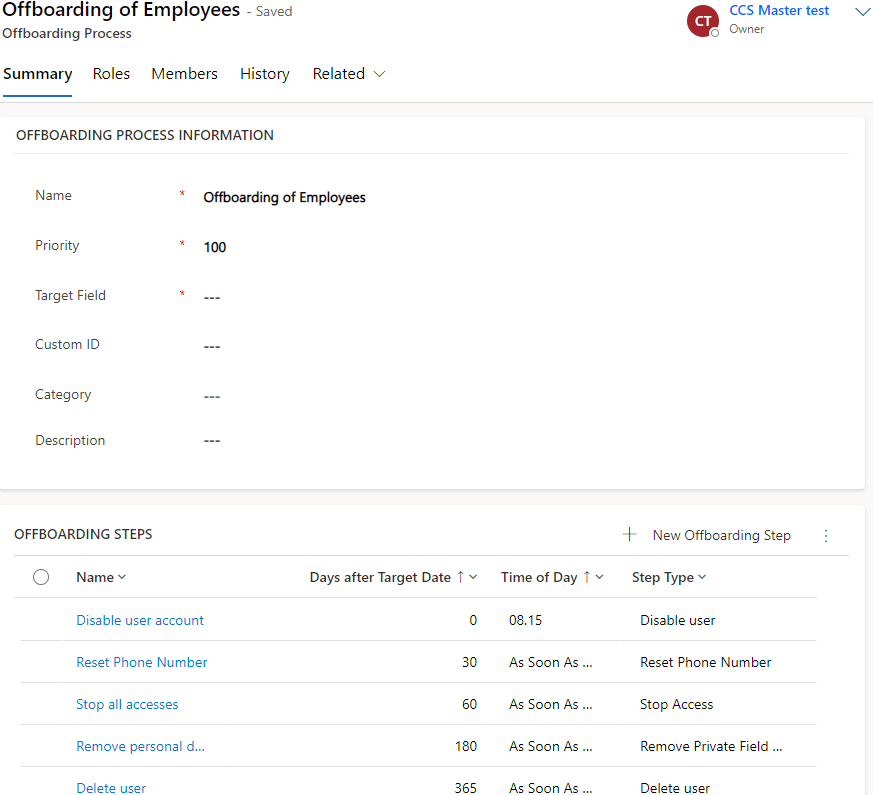
An offboarding process can look like this:
How to create a new offboarding process:
-
To create a new offboarding process, click on +New in the menu bar.
-
Name, Priority and Target Field are mandatory fields. You have to fill them in.
Target Field can have the following values:-
Deactivate On
-
Employment End
-
-
Click Save to create your process.
Afterwards you have the possible to define the process steps for the current offboarding process.
How to create an offboarding step:
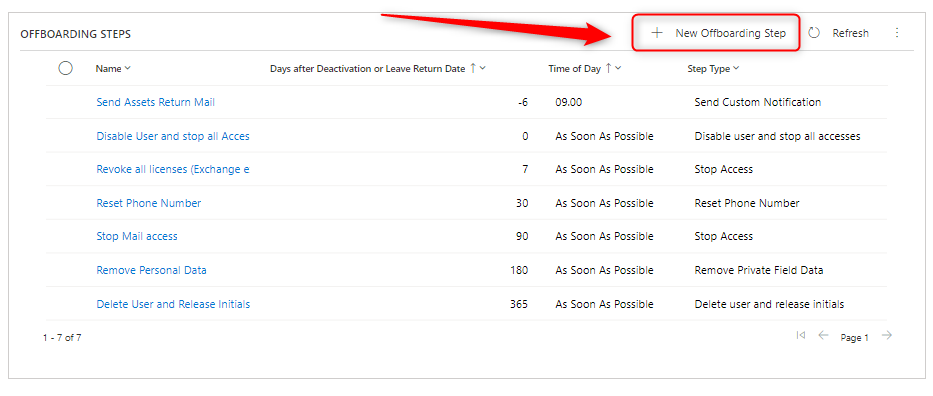
To create a step, click on + New Offboarding Step.
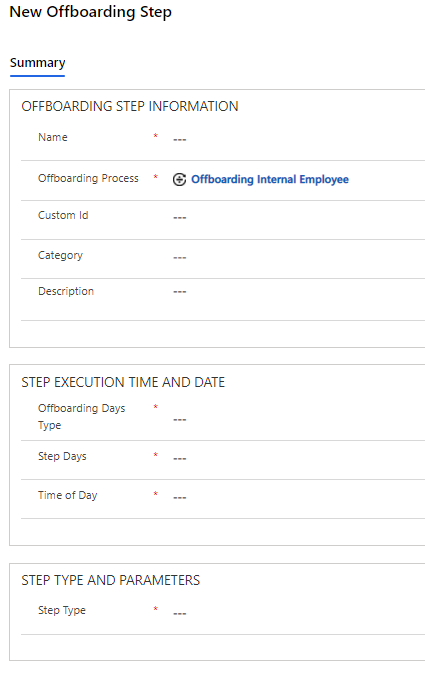
You fill in the fields as follows:
| Field Name | Type | Description |
|---|---|---|
Name |
Text field |
The name of the offboarding step. |
Offboarding Process |
Lookup Field |
Indicates which offboarding process the step is associated with. A step can only be associated with one process. |
Custom ID |
Numeric Field |
Step ID (used for sorting). |
Category |
Lookup Field |
Step category. |
Description |
Multi-line Text Field |
Description of what the step is about. |
Days after deactivation or leave return date |
Numeric Field |
Number of days after “Deactivation” or “Leave Return Date” that the step is to be performed. |
Time of Day |
Lookup Field |
Time of execution. |
Step Type |
Lookup Field |
Indicates the type of step in question. |
The different step types:
| Step type | Description | ||
|---|---|---|---|
Clear activate date |
Removes the "Activate On" date from person. |
||
Clear deactivate date |
Removes the "Deactivate On" date from person. |
||
Clear leave return date |
Removes the "Leave Return Date" date from person. |
||
Delete user |
Deletes the user. |
||
Delete user and release initials |
Deletes the user and releases the initials. |
||
Delete person and delete history |
Deletes the respective person and the corresponding history. |
||
Disable user |
Disables the user. |
||
Disable user and stop all accesses |
Disables the user and stops all user accesses. |
||
Enable user |
Enables the user. |
||
Litigation Hold |
Sets the user’s mailbox on Litigation Hold. |
||
Remove Private Field Data |
Removes the user’s personal information. |
||
Request Access |
Requests access to an application. |
||
Reset Phone Number |
Resets the user’s telephone number. |
||
Restart offboarded-stopped accesses dynamic |
Reactivates all accesses that have the stopping reason Stopped by offboarding when reboarding an inactive person.
|
||
Send Custom Notification |
Sends and email with to the defined persons with the defined notification. |
||
Set Person Status |
Selects the person status of the user. |
||
Stop Access |
Stops an access. |
You can add as many steps to the off boarding process as you want.
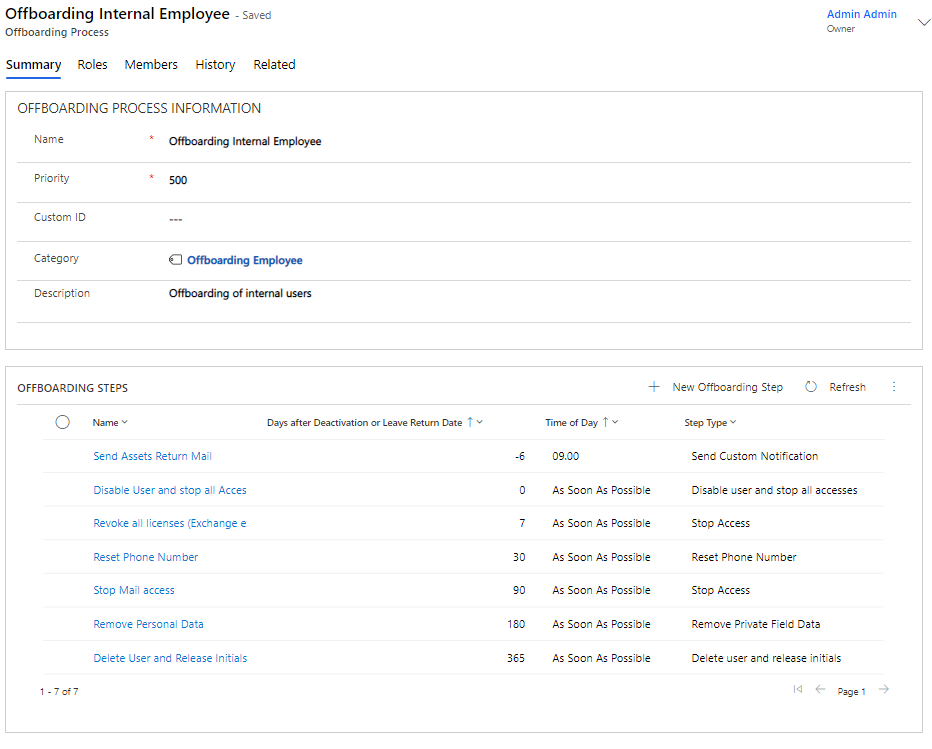
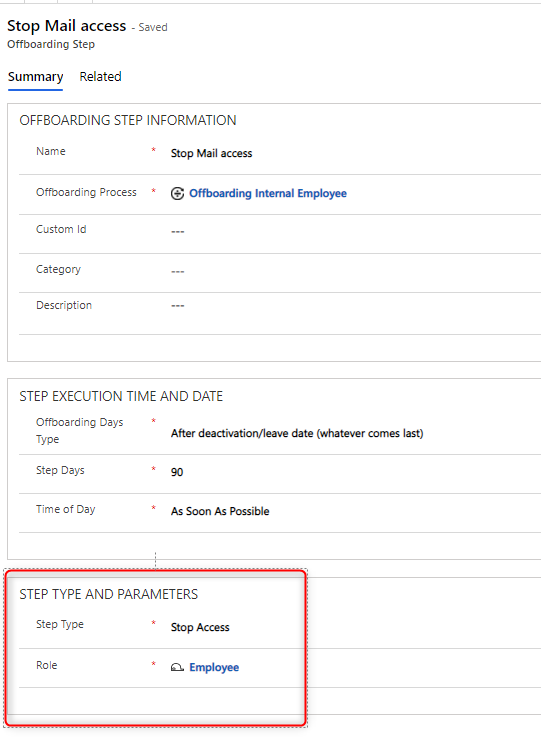
Some offboarding steps need to be linked to roles in order to work. This applies, for example, to a step type such as "Stop Access". The step type "Send Custom Notification", on the other hand, must be linked to an email notification to work.
You do this directly on the offboarding step in the section "Step Type and Parameters":
How to link the offboarding process to a role:
In order for people in your organization to be incorporated into the offboarding process, the process must be linked to a role that people who need to be offboarded must be assigned.
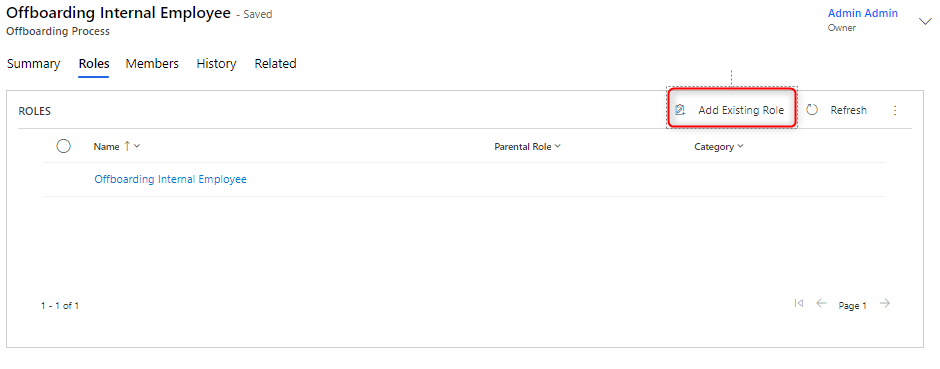
You do this by adding the role under the "Roles" tab.