Process Activities (GDPR)
Process Activities in Compliance Suite are the individual activities (or steps) that make up a Business Process. For example, in a Business Process entitled "Onboarding of new employees", process activities could be, "Create the new employee in the HR system", "Create the new employee in the payroll system", "Call the employee for an introductory interview with HR" and so on.
Process Activities are the individual activities in an organizational process (Business Process), all of which process personal data. A process can have one or more Process Activities associated with it. Thus, it is a method to register and document how the organization processes and stores personal data.
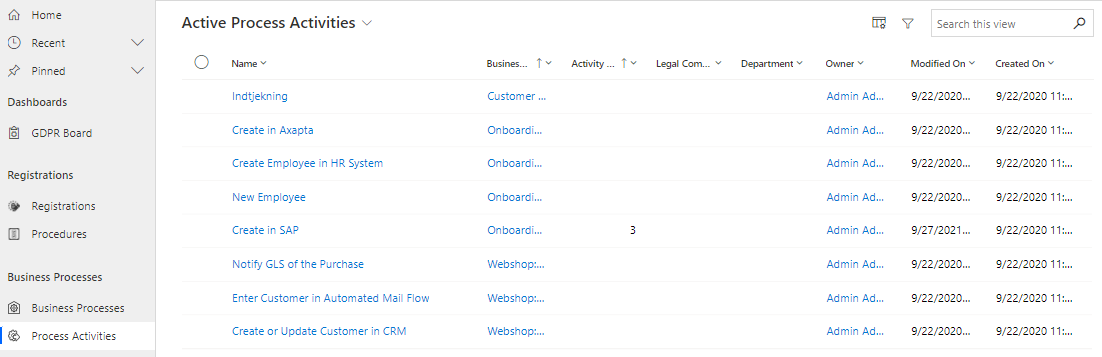
You will find Process Activities in Compliance Suite under the heading "Business Processes" in the sub-area "GDPR". Here you get an overview of the active Process Activities registered in your system:
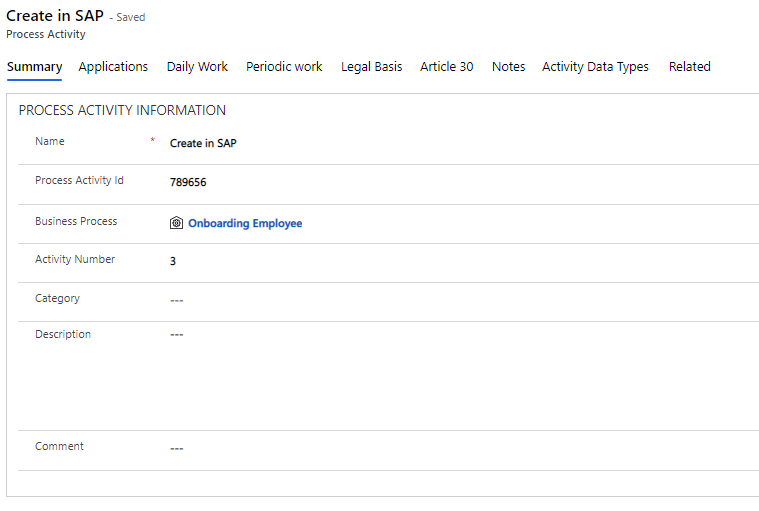
The individual Process Activity looks like this:
How to use the tabs for a Process Activity
Applications tab
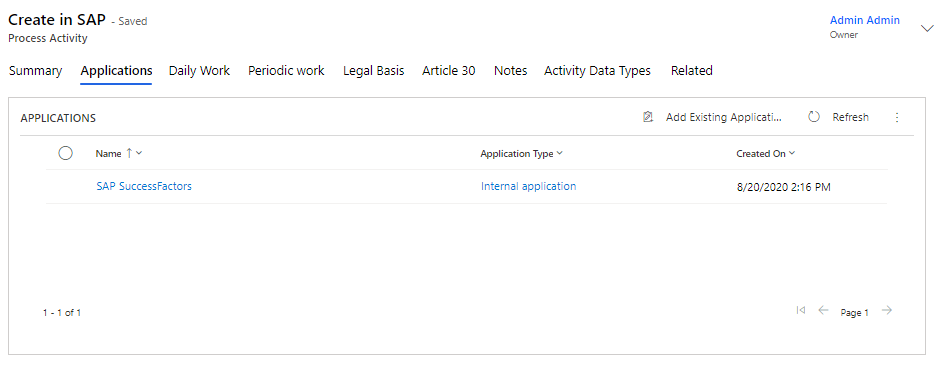
In the "Applications" tab, you can view and add the applications specific to the activity. In this example, part of the onboarding process entails creation of new employees in the "SAP SuccessFactors" application. For this reason, the application is registered here:
Daily Work tab
Use the "Daily Work" tab to register the daily workflows relevant to GDPR that the specific process activity involves.
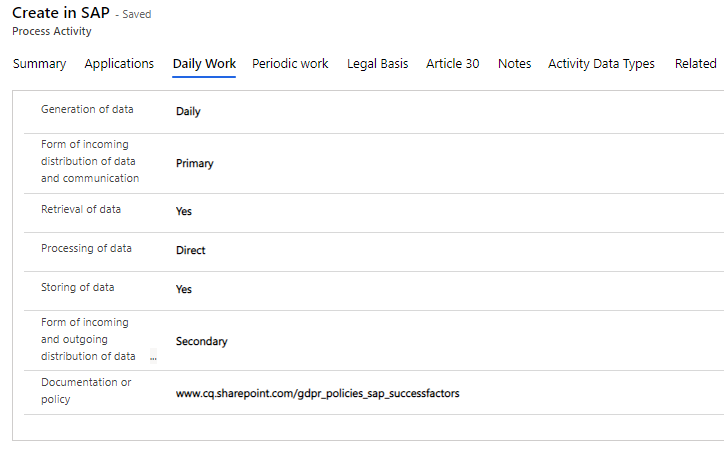
All fields in the tab are free text fields and you decide the format and length of your registrations. Naturally, this depends on the organization’s guidelines and policies.
Periodic Work tab
In the "Periodic Work" tab, log the periodic workflows relevant to GDPR that the specific process activity involves. In other words, these are the workflows that take place at fixed or regular time intervals and that are not carried out on a daily basis.
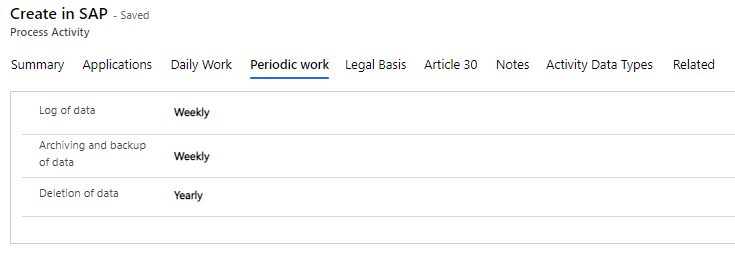
All fields in the tab are free text fields and you decide the format and length of your registrations. Naturally, this depends on the organization’s guidelines and policies.
Legal Basis tab
Under GDPR legislation, all organizations are required to ensure that the processing and storage of personal data is carried out in accordance with the law.
In the "Legal Basis" tab, you can document the basis for your organization to do just that when it comes to the processing of personal data that occurs in the specific process activity.
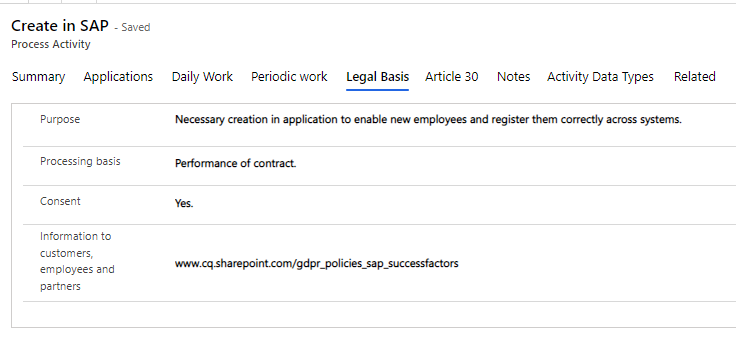
All fields in the tab are free text fields and you decide the format and length of your registrations. Naturally, this depends on the organization’s guidelines and policies.
Article 30 tab
In this tab, you register information relevant to Article 30 of the GDPR. Article 30 covers processing activities relating to personal data.
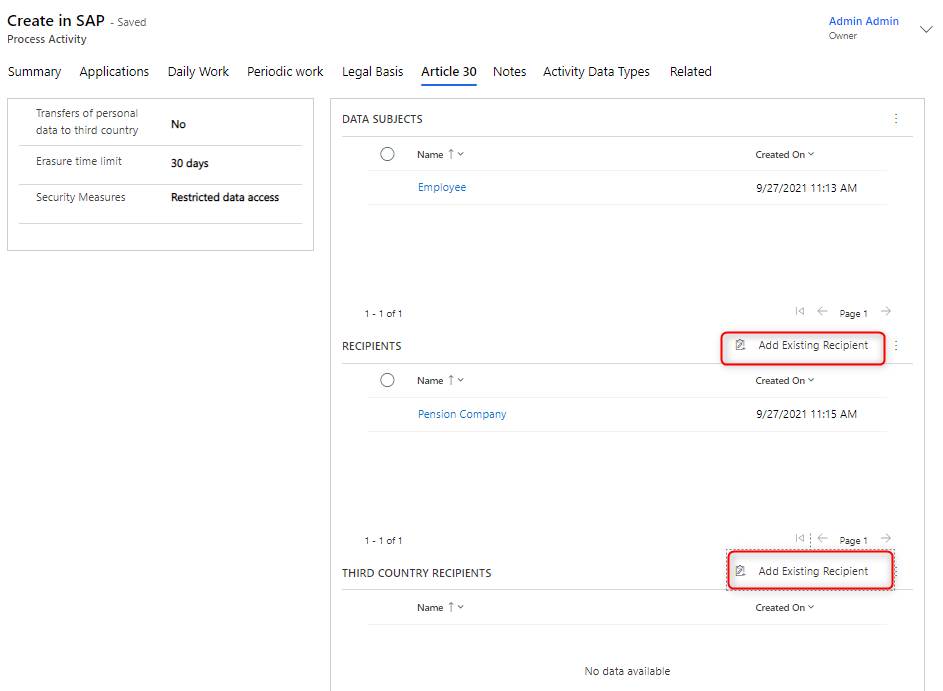
For example, you can specify here whether the specific process activity transfers data to third-party countries and what safeguards are built into it to protect personal data.
On the right, you can specify the data subjects in question. In other words, which subjects' personal data are processed in the specific process activity.
To add new data subjects, click the "Add Existing Data Subjects" button.
In addition, you can specify "Recipients". Here you need to add the possible recipients of the personal data processed in the process activity.
Finally, you can specify whether data processed in this activity is transferred to third-party countries.
Notes tab
In the "Notes" tab, you can register notes on the process activity. Notes may include comments or the status of progress in the specific activity.
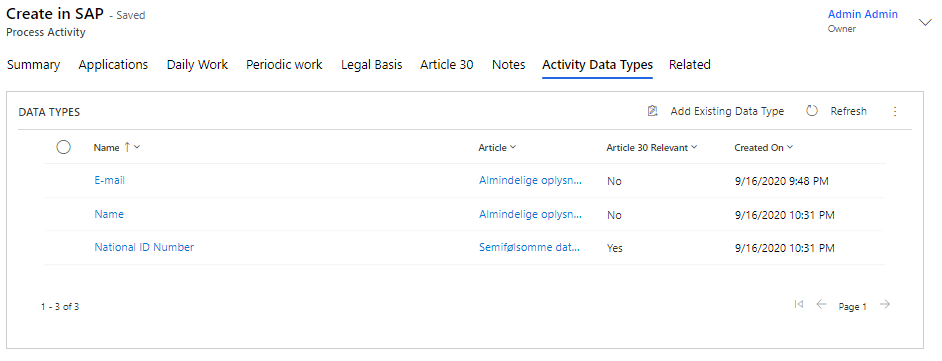
How to create a new Process Activity
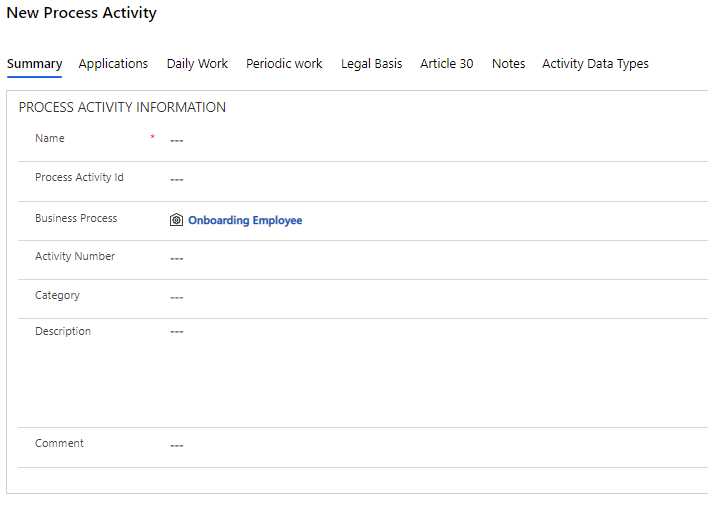
You can create a new Process Activity by clicking on the "+New" button in the menu bar from the "Process Activities" menu item. Here, you have the option to link the activity to an existing Business Process.
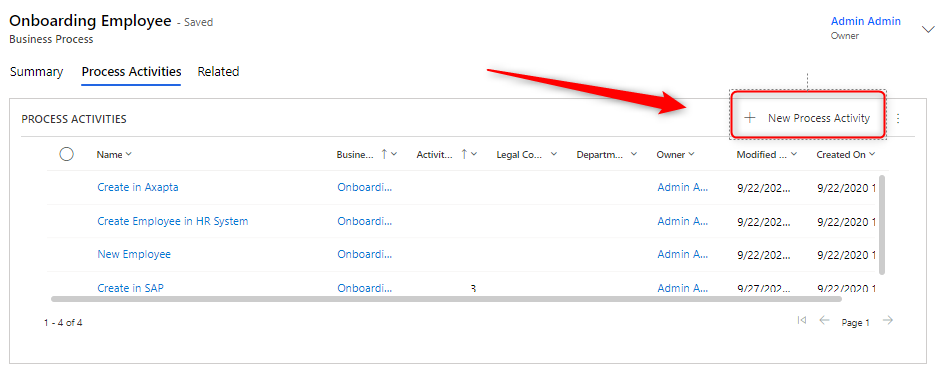
You can also create a new activity directly from a Business Process by clicking on the "New Process Activity" button. Here, you can also add existing activities to the specific Business Process: