
Email form
Messages can be created and sent via Cryptshare using the Cryptshare email form. You can open the form in different ways. Either by using the Cryptshare for Notes SmartIcon, a bookmark or a tile pointing to Cryptshare.nsf or via a link.
If standard users open Cryptshare.nsf using a bookmark or a tile, the application immediately shows the email form. Only administrators can see the navigator described in chapter CS4N User Interface Main View. They can also get to the form by clicking the "New email" button in the navigation.
If you use the SmartIcon, you always get the email form directly.
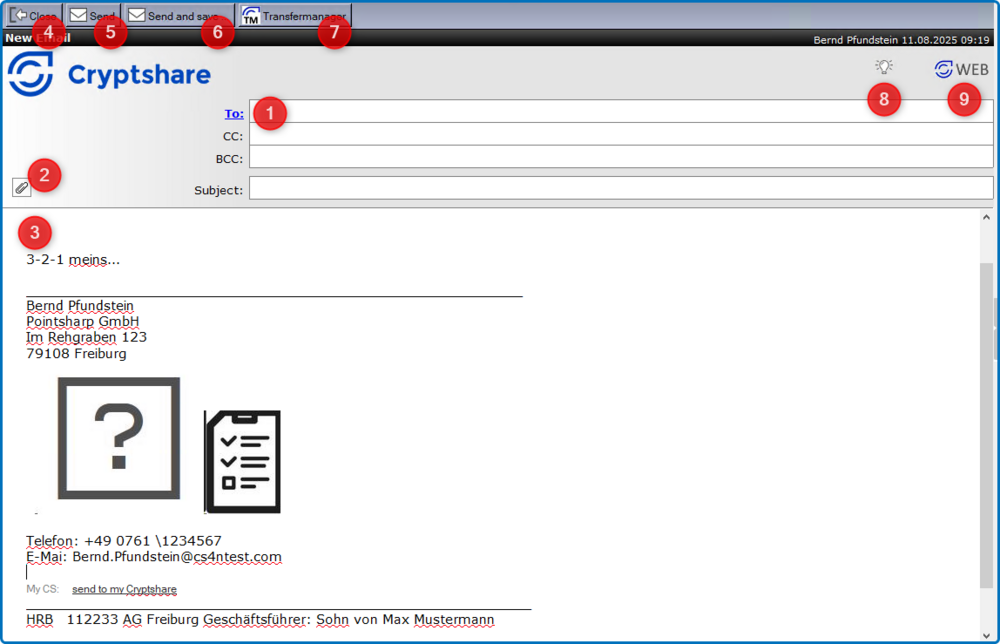
| Nr | Function | Comment |
|---|---|---|
1 |
To: |
Shows the standard Notes address selection screen. |
2 |
Attach files |
Selection dialogue for attaching files |
3 |
Signature |
The email signature from the user’s personal mail file is incorporated into the body field. |
4 |
Button: Close |
Closes the current message. |
5 |
Button: Send |
Sends the message. Depending on the size of the message and the start-up interval of the transfer agent this may take several minutes. |
6 |
Button: Send and save… |
Sends the message and saves it in the sender’s personal mail file with or without the attachments (depending on size and configuration). |
7 |
Transfermanager |
The Transfer Manager dialogue box is opened with all current and old transfers for the current user. |
8 |
Report requests |
Suggestions for improvement/comments can be sent to Pointsharp GmbH. |
9 |
WEB |
Link to the Cryptshare WEB front end (depends on configuration). |